Overview
You can migrate your Windows players running the 32-bit version of Scala Player software to the newer 64-bit Scala Player software remotely, through a migration maintenance job that is set up in Content Manager. The 64-bit version of Scala Player allows you to take advantage of more processing power to better support high definition content across multiple screens, improved performance for HTML playback, and it is Scala's latest product that provides the newest features. Going forward, all new features will apply only to 64-bit players, so by migrating your players you will be ready to get all future enhancements.
The migration process was designed to be easy and convenient. When you set up a migration maintenance job, it can include multiple players and you can choose to have the migration initiate immediately or schedule it to occur on a date and time within the next two days. When migration is complete:
the player's profile in Content Manager remains the same
the player remains paired with Content Manager
the player's configuration settings are retained, with some possible variations due to differences between 32-bit and 64-bit Scala player software
the existing playback plan remains intact
the player automatically resumes playback as scheduled
As your Scala environment may be highly customized, migrating your 32-bit players to 64-bit can introduce some complexities that require careful planning and preparation. It is advised that you carefully review the information on this page and coordinate with the relevant stakeholders in your organization to plan your migration. If you have a large or complex installation of Scala players, it is expected that you will require a planning period along with ample testing before attempting to migrate your entire inventory of players that are in live production.
64-Bit Migrations Without Using Migration Maintenance Jobs
You can ignore this section if you plan on using migration maintenance jobs to perform your player migrations.
This section provides information on using alternative methods for migrating your Windows players running 32-bit Player software to 64-bit Player software. In these scenarios, Content Manager has a feature that helps you complete the migration, which is explained in this section below.
In addition to remotely migrating a 32-bit player through a migration maintenance job, you may also:
physically replace a 32-bit Windows player with a new Windows player that has 64-bit Player software pre-installed.
-OR-
manually update a player's software to the 64-bit version.
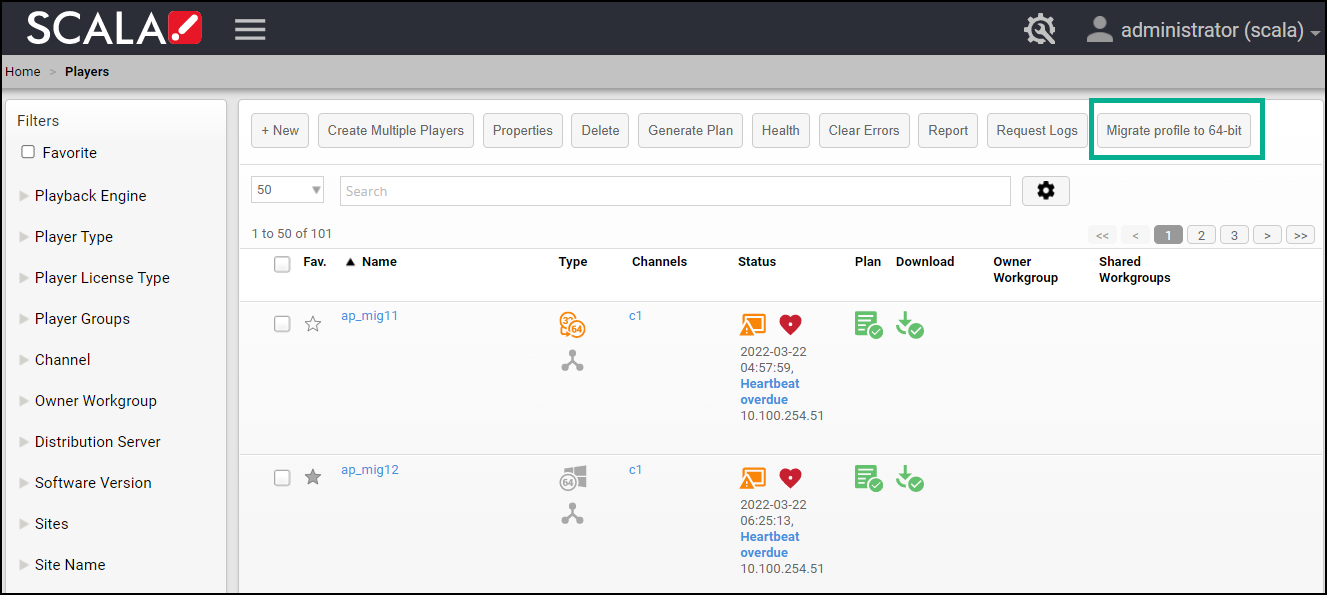
If you use one of the two methods above, a Migrate profile to 64-bit button is available in the Player list to help make the process faster and easier. When you use this button, Content Manager updates the player's profile to 64-bit, eliminating the need for you to delete the existing 32-bit player profile and then add a new 64-bit player profile. Therefore, you can keep the existing player profile and keep the player's existing playback plan intact.
When migrating players in this manner, the main steps are:
Migrate your player(s) using one of the two methods above.
Migrate each player's profile by doing the following:
a. In Content Manager, select the main menu  , then Players to open the Players list.
b. Select the player(s) that you migrated to 64-bit.
c. Click the Migrate profile to 64-bit button.
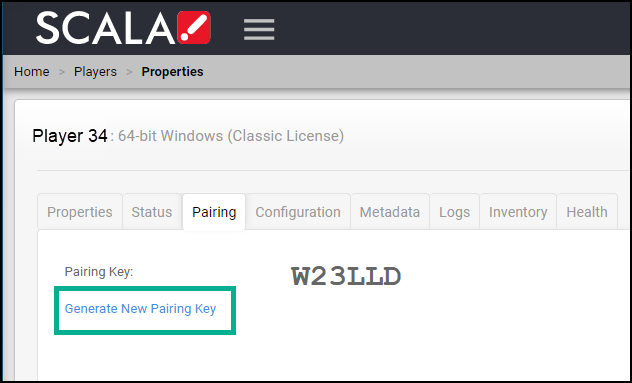
Pair the player(s) to Content Manager by generating a new pairing key on the player profile in Content Manager, then enter it on the player using the Main page of the Player Configuration tool.
32-Bit vs. 64-Bit Features
At the time that 64-bit migration was made available to Scala users (with the version 13.00 release), the primary features that you gain by migrating are the ability to integrate WAMP into your Scala environment and Player Snapshot. If you perform the migration with a future release (after 13.00), there may be additional features that you gain by migrating your players. You can review release notes for more information about each version's new features.
There are some 32-bit features that do not carry over to 64-bit. The Windows 32-Bit vs. 64-Bit Feature Matrix provides a detailed comparison of 32-bit vs. 64-bit features. If you are dependent on any 32-bit features that are not offered with 64-bit, you may be able find ways to work around those limitations or you can contact Scala support for assistance.
Prerequisites
A player must meet the following requirements to be eligible to migrate to 64-bit through a migration maintenance job:
The player must be on Scala Player version 12.50 or higher. Additionally, you must upgrade Content Manager to 13.00 or higher before initiating the migration maintenance job (the ability to initiate a migration maintenance job does not exist in older versions of Content Manager).
The player must use Windows 10.
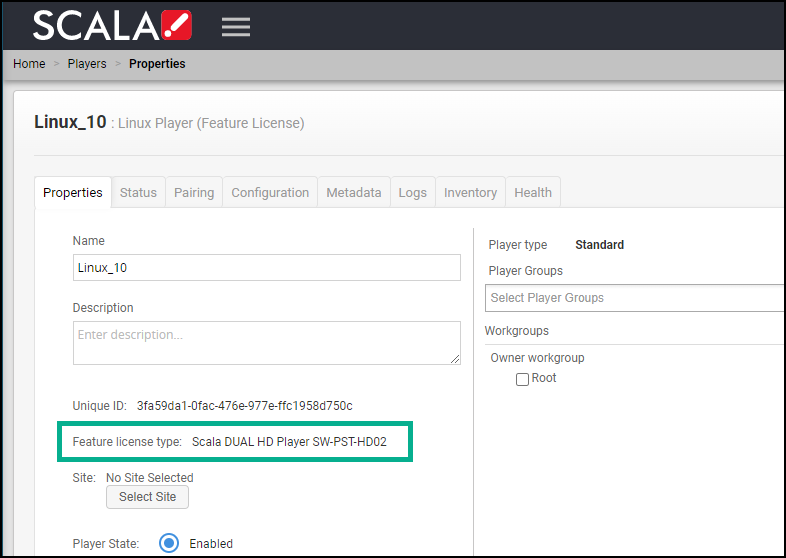
The player must have a valid PLT, PST, PAV or PLAD license assigned it. Other licenses are not eligible for migration. If a player is not eligible for migration, it will not appear in the list of players to choose from when adding a migration maintenance job.
You can verify a player's license type by selecting the player in the Players list, then view the Properties page.
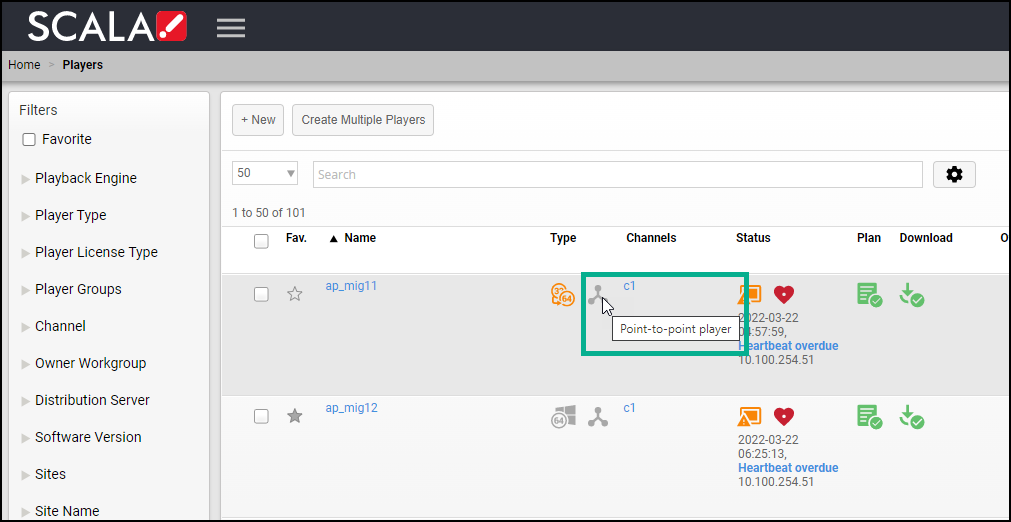
The player must use a point-to-point distribution server.
You can verify a player's distribution server type by checking the Type column in the Player list.
The player must have sufficient available disk space to support the migration. If the player does not have enough disk space, the migration will fail and the reason for failure will be provided by Content Manager. To minimize the possibility of this occurring, the migration process will delete playback content from the player if that space is needed for the migration. Those files will be re-downloaded after migration is completed.
The player cannot use a USB hardware dongle for its Scala license.
The player must have Python installed. Python is installed on players by default. Python will not exist on a player only if you changed the default settings during installation so that it is not installed or if you uninstalled it.
Important Considerations
When planning a player migration, please review and consider the following:
Once a migration maintenance job is entered for a player, that player goes into a locked, migration-pending state. In this state, the player will play any content that was already scheduled (up until migration begins), but it will not allow any changes, such as changes to its playback content or maintenance jobs. A player enters the locked, migration-pending state the moment that its migration maintenance job is saved, even if the migration is scheduled to occur in the future.
A player's existing scheduled maintenance jobs are deleted upon migration. If you need to retain any scheduled maintenance jobs, they need to be manually re-entered after migration is complete.
A player's mmos.ini file is retained during the migration process.
It is advised that a member of your IT organization is on standby to verify the success of the migration. You can schedule a migration to occur only within the next two days, to help ensure that the process is appropriately monitored and it is not forgotten.
The duration of time for migration to complete and for a migrated player to resume playback was typically between 15 and 30 minutes in Scala's internal testing. The actual duration that you experience will vary depending on your network bandwidth and the amount of playback content that may need to be re-downloaded by the player. If a player does not have a minimum of 5gb of free disk space, it deletes its content files prior to migration and then re-downloads those files after migration is complete, which contributes to the time before the player resumes playback.
If you have playback set up to play in a window that does not cover the entire display screen, by default playback will change to cover the full screen after migration. To revert back to non-fullscreen mode after migration, you must set the Fullscreen flag to false in the player's mmos.ini file and Fit Window to Desktop must be turned off in the player configuration tool.
The player's configuration tool (ConfigIC) has a different appearance and some different settings after the player migrates to 64-bit. The configuration settings that the player had prior to migration are retained as closely as possible, with some exceptions due to the differences in available settings. You may need to review and adjust some configuration settings after migration.
The option to set up an audio-only channel is no longer available on 64-bit players.
If your playback content is dependent on templates created in Designer, those templates may need significant adjustments to appear properly on a 64-bit player.
64-bit Windows players have Python 3.8 embedded in the Scala player software, so that any Python scripts that you want to use to affect playback must be written in Python 3; scripts written in Python 2 are not compatible. Additionally, Scala Python modules (i.e., Scalalib, Scalatools, and Scalalink) that were available on 32-bit players are discontinued and do not exist on 64-bit Windows players. Any scripts that use Scala Python modules must be rewritten. Read more about Python considerations here.
While Python 2.7 will remain on a player after migration, the 64-bit Scala Player software cannot utilize it. Therefore, after migration, while you cannot use Python 2 scripts for anything that affects playback, you may use Python 2 scripts for general IT tasks that do not affect playback (where the scripts do not interact with the Scala Player software).
64-bit Windows players do not support JScript or VBScript.
Scala tested and supports migration only for Scala-branded players. If you are using non-Scala branded 32-bit Windows players, in many cases the migration process will work, although there are numerous variables that could potentially result in migration failure. When using non-Scala branded players, you must perform your own testing to check if your players are compatible with this process.
If you have a SaaS implementation where your instance of Content Manager is hosted by Scala, you cannot perform migration maintenance jobs yourself and need to contact Scala Support if you are interested in migrating Windows players to 64-bit Player software.
Creating a Migration Maintenance Job
It is strongly advised that you perform test migrations in a lab environment or on non-essential players before attempting to migrate any business-critical players in your live, production environment.
Once a migration maintenance job is entered and saved, it cannot be deleted or rescheduled.
Once a player has a migration maintenance job scheduled, it enters a locked, migration-pending state. In this state, the player will play any content that was already scheduled (up until migration begins), but it will not allow any changes, such as changes to its playback content or maintenance jobs.
Before you can initiate a migration maintenance job, you need to:
Make sure Content Manager is on version 13.00 or higher.
Download the remote 32 to 64 migration package zip folder from the Scala Download Center. You will need to upload that zip folder as explained in the steps below.
Log in to Content Manager as a user that is assigned a user role that has Super Administrator access.
You can initiate a migration maintenance job from the Maintenance Job page in Content Manager. A single migration maintenance job can include multiple players, and you can schedule the date and time that the migration will occur up to two days in the future. Unlike other maintenance jobs, a migration maintenance job cannot be re-used or duplicated; each migration maintenance job must be created as a new job.
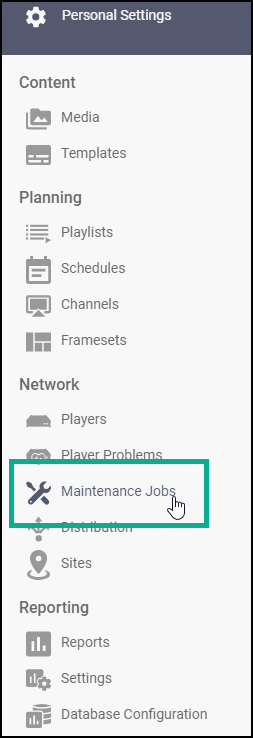
In Content Manager, select the main menu
, then Maintenance Jobs.
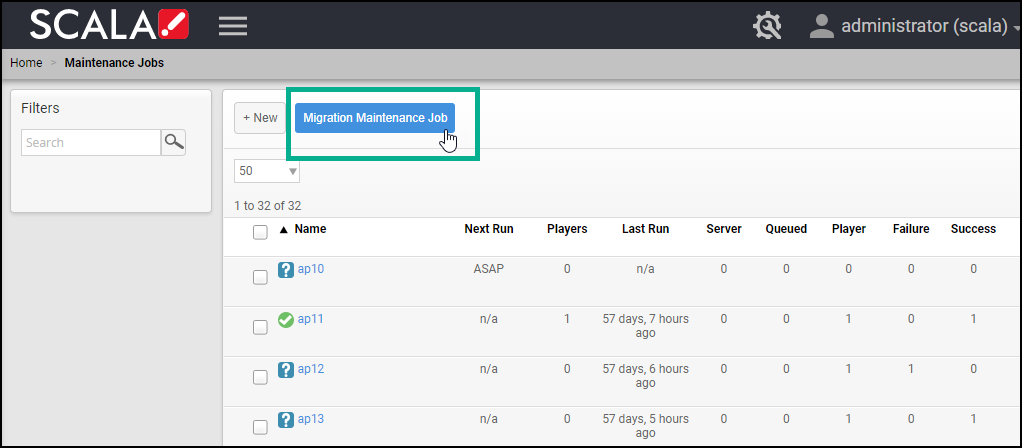
Click the Migration Maintenance Job button.
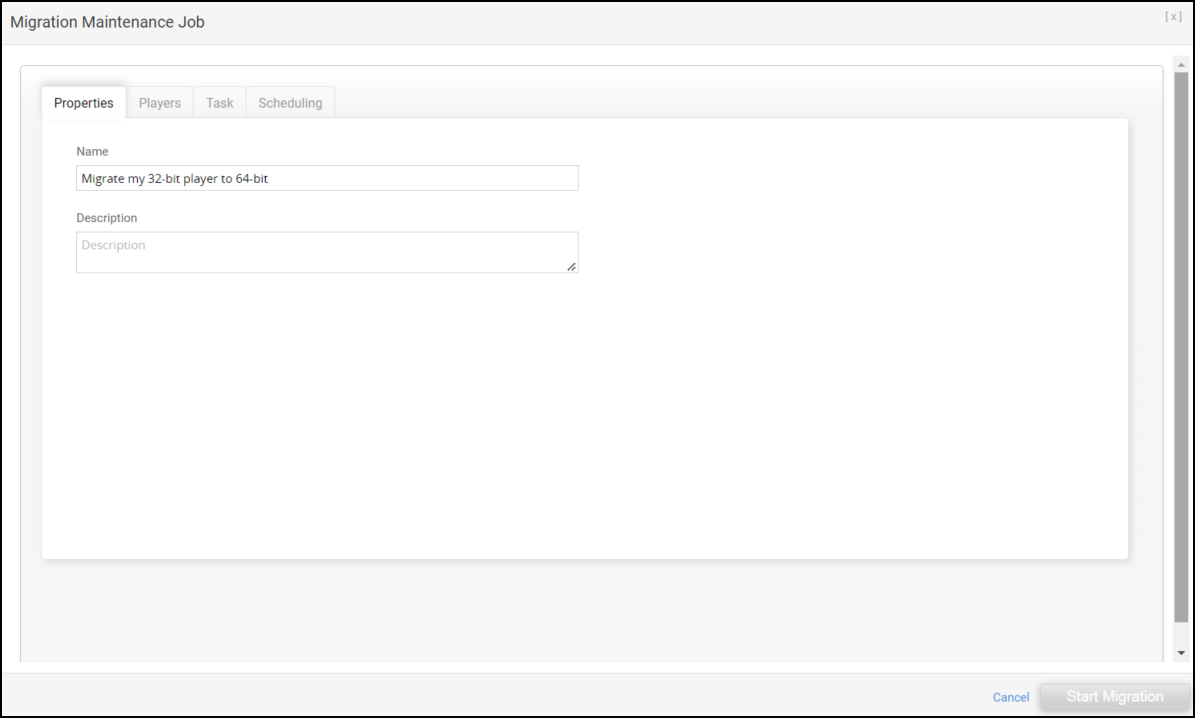
A Migration Maintenance Job window opens.
On the Properties page, enter a Name for the migration maintenance job. You can optionally enter a Description. The name and description can help you identify the migration job, for example you can use them to indicate when the job will occur or which players are included.
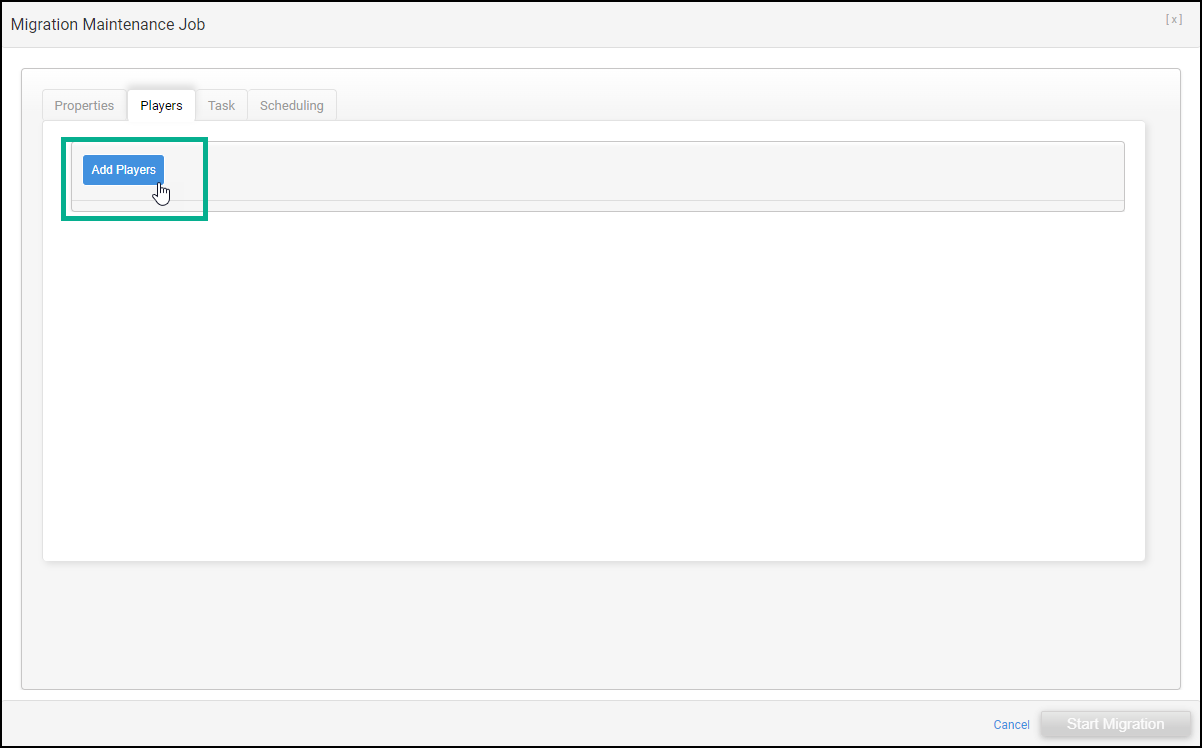
Select the Players tab, then click the Add Players button.
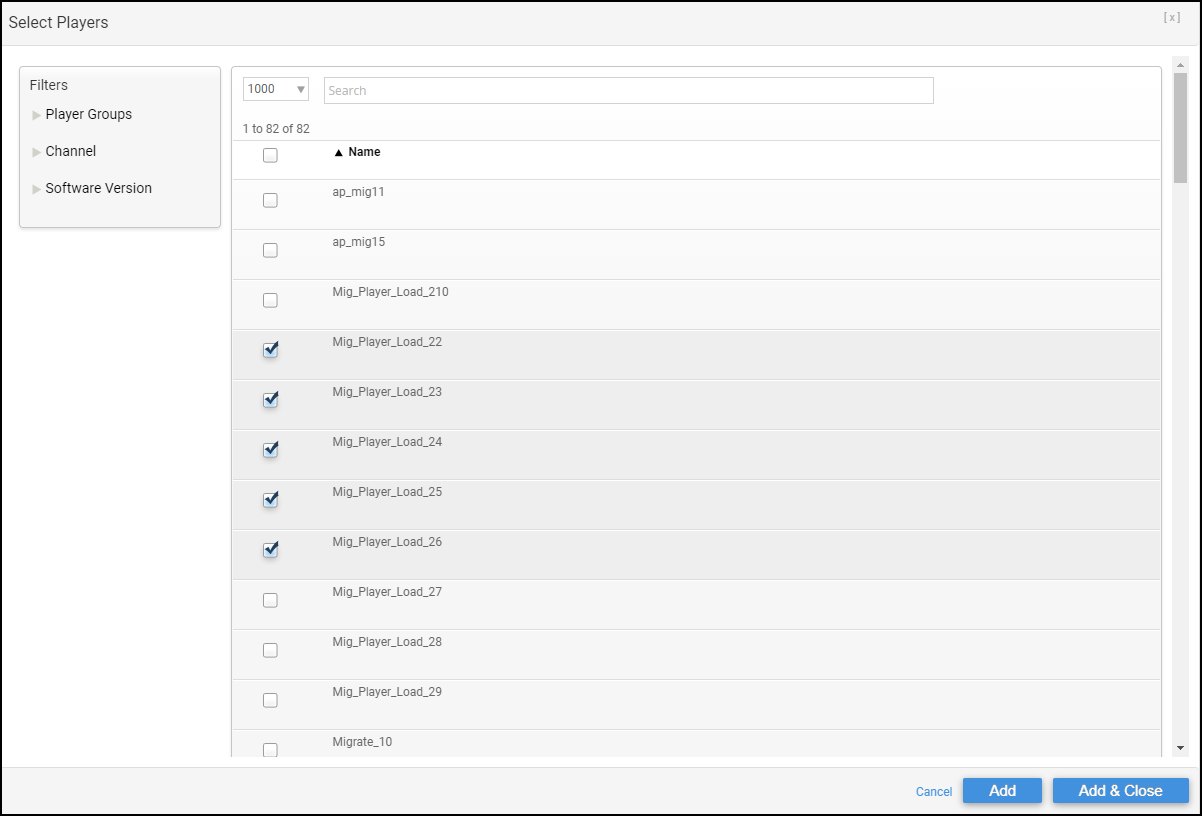
Select the players that you want to migrate with this maintenance job, then click the Add & Close button. Only players that are eligible to migrate to 64-bit appear in the list.
Select the Task tab. Click the Add button.
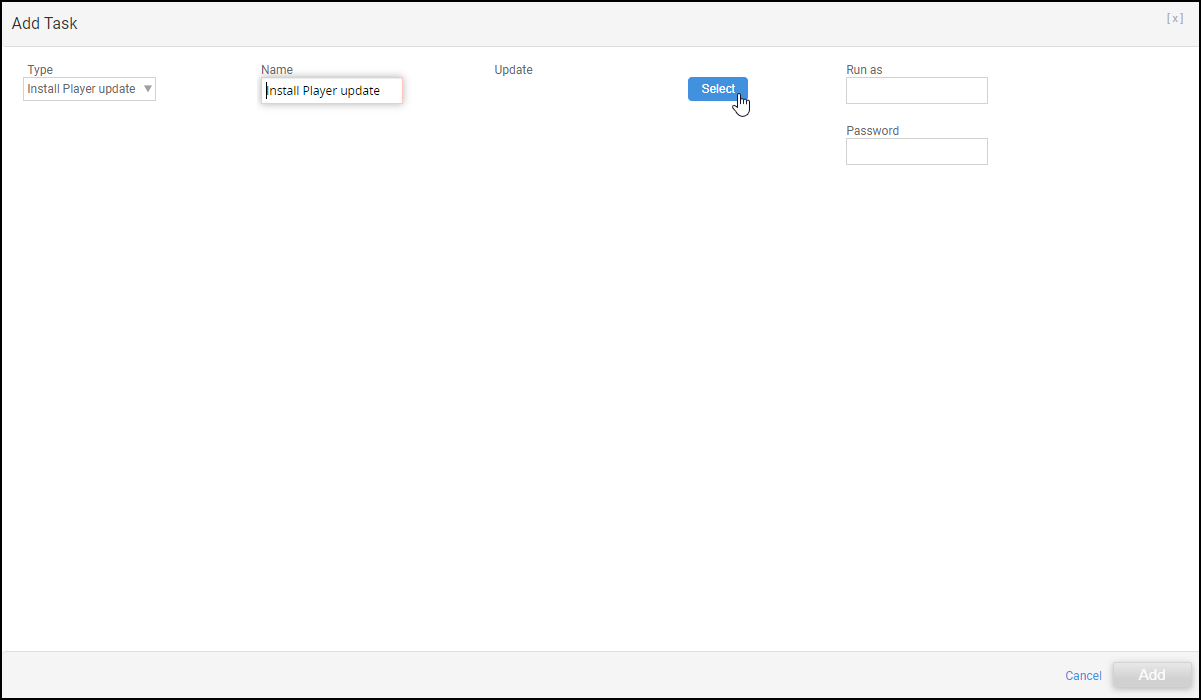
In the Add Task window, click the Select button.
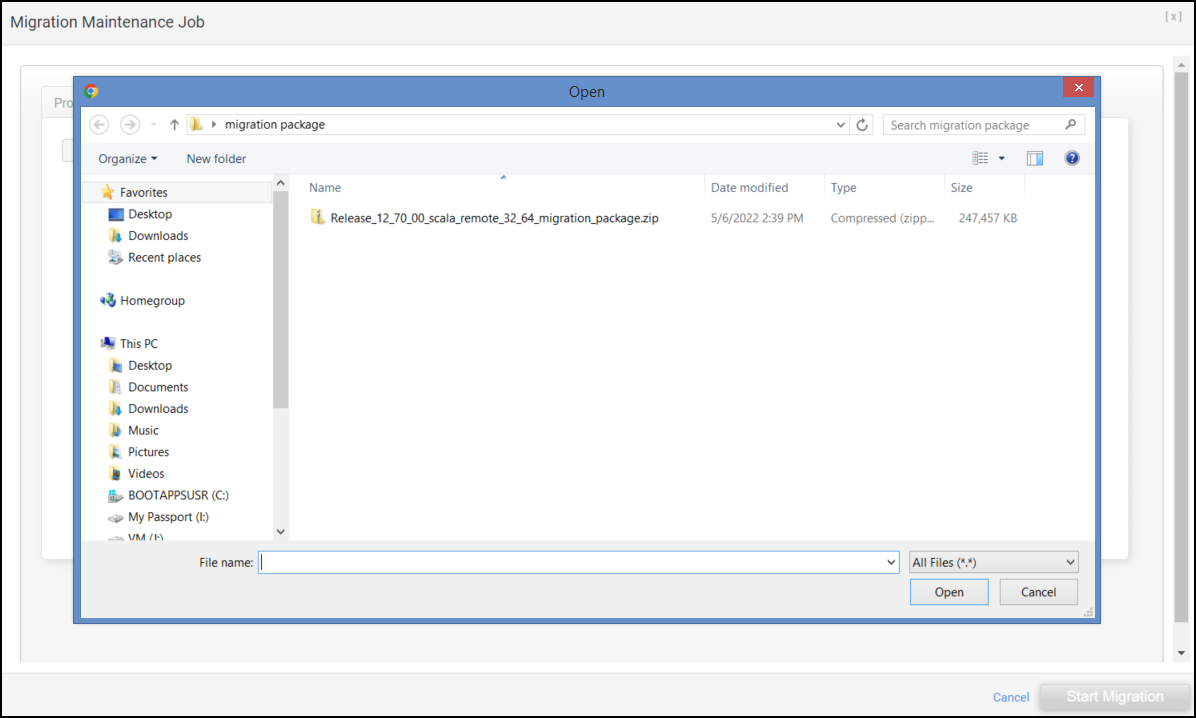
Follow the prompts to upload the zip folder for the remote 32 to 64 migration package that you downloaded from the Scala Download Center. Make sure to simply select the zip folder; do not extract and upload the individual contents of the zip folder.
If you already set up a migration maintenance job in the past, you are able to select the migration package from a list, instead of uploading it again.
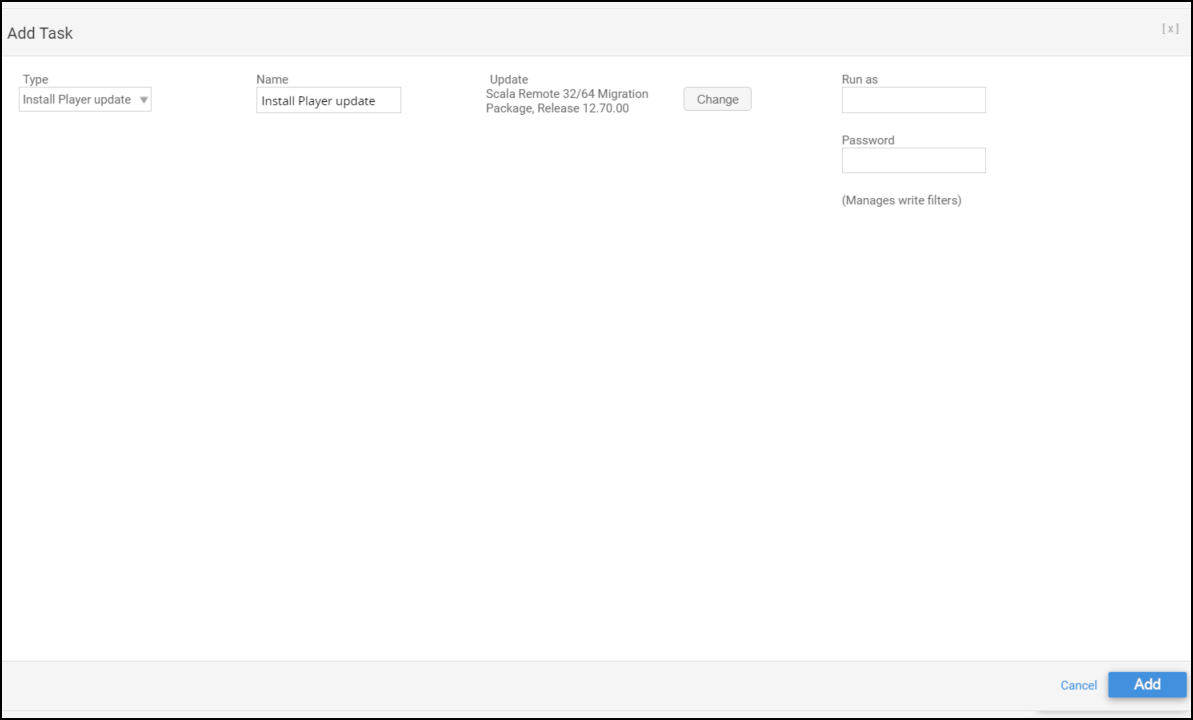
In the Add Task window, enter the credentials of a user account that is setup as an administrator on the player. In the Run as field enter the username, then enter the Password.
If you are using a Scala-branded player, use the Configure Player user account credentials. The username is config and the password is whatever you set it to, unless you did not change the password from the default, scala123#.
When finished, click the Add button.
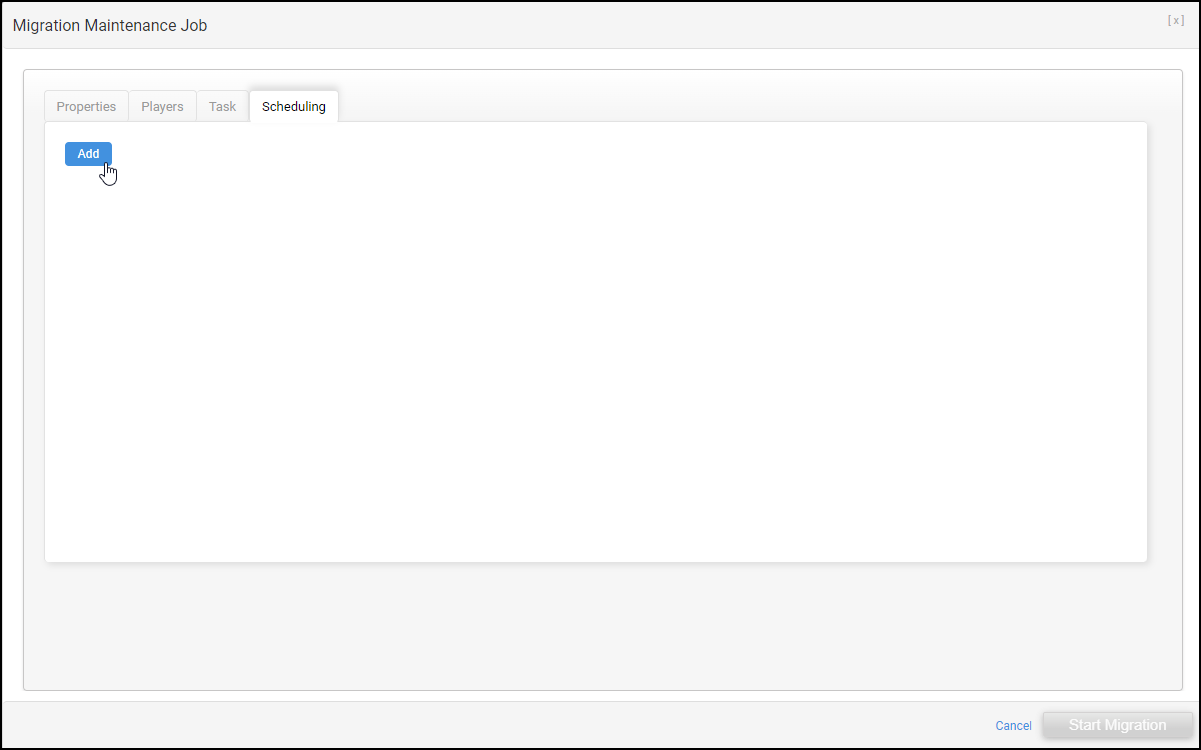
Select the Scheduling tab, then click the Add button.
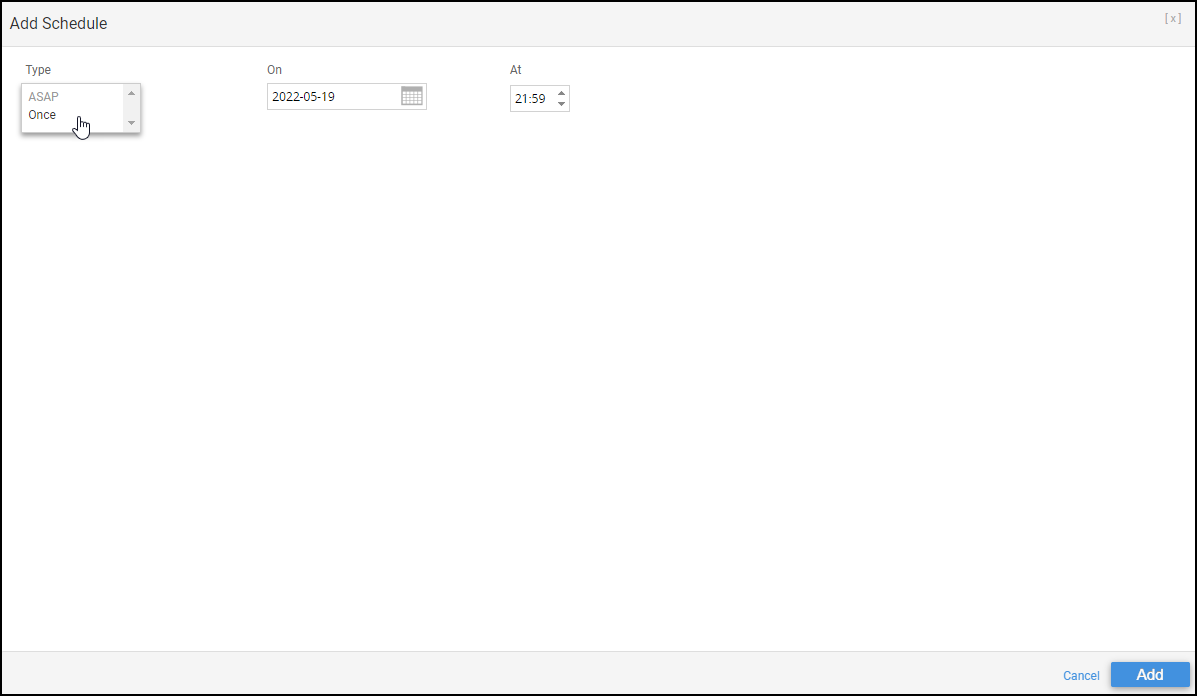
In the Add Schedule window, select whether you want the migration to occur ASAP or Once on a date and time that you specify.
You can schedule the migration to occur only within the next two days, to help ensure that the process is appropriately monitored and it is not forgotten. It is advised that a member of your IT organization is on standby to verify the success of the migration.
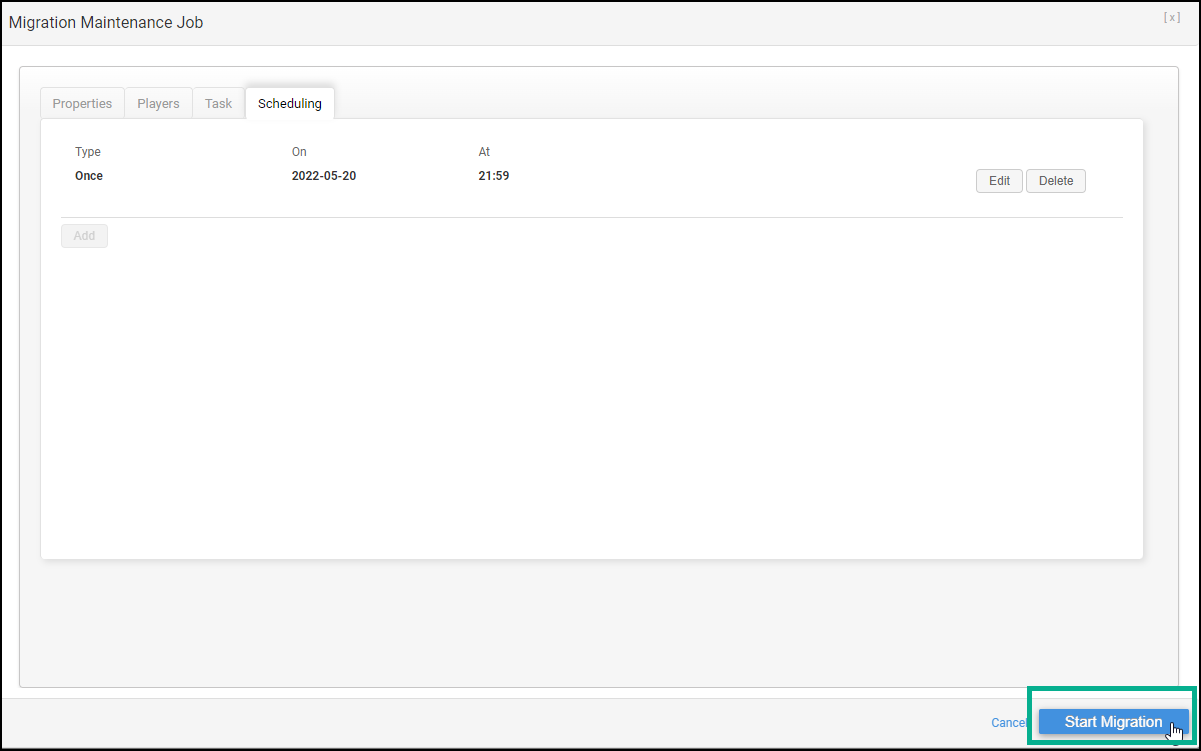
Click the Start Migration button.
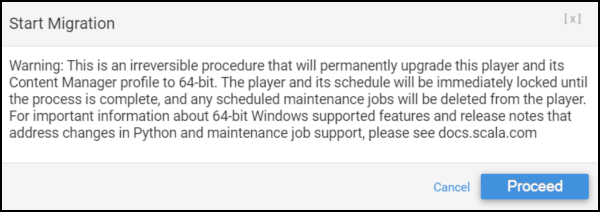
A warning appears to remind you of some important information about the migration process. Click the Proceed button to save the migration maintenance job and proceed with migration as scheduled. Once you click Proceed, the migration maintenance job cannot be canceled or rescheduled.
Checking Players' Migration Statuses
As outlined below, you can check the status of a migration maintenance job by referring to either the Players page or the Maintenance Jobs page.
Checking Migration Statuses on the Players Page
In Content Manager, you can quickly check if a player's migration was successful by reviewing the Type column on the Players page (accessed via Main Menu > Players). A player that successfully migrated will appear with a Windows 64 icon. Refer to the table below for the meaning of all of the possible icons that can appear in the Type column.
Also keep in mind that you can filter based on Playback Engine, so for example if want to see a list of your 32-bit players that still need to migrate, you can use the filter to display only those players.
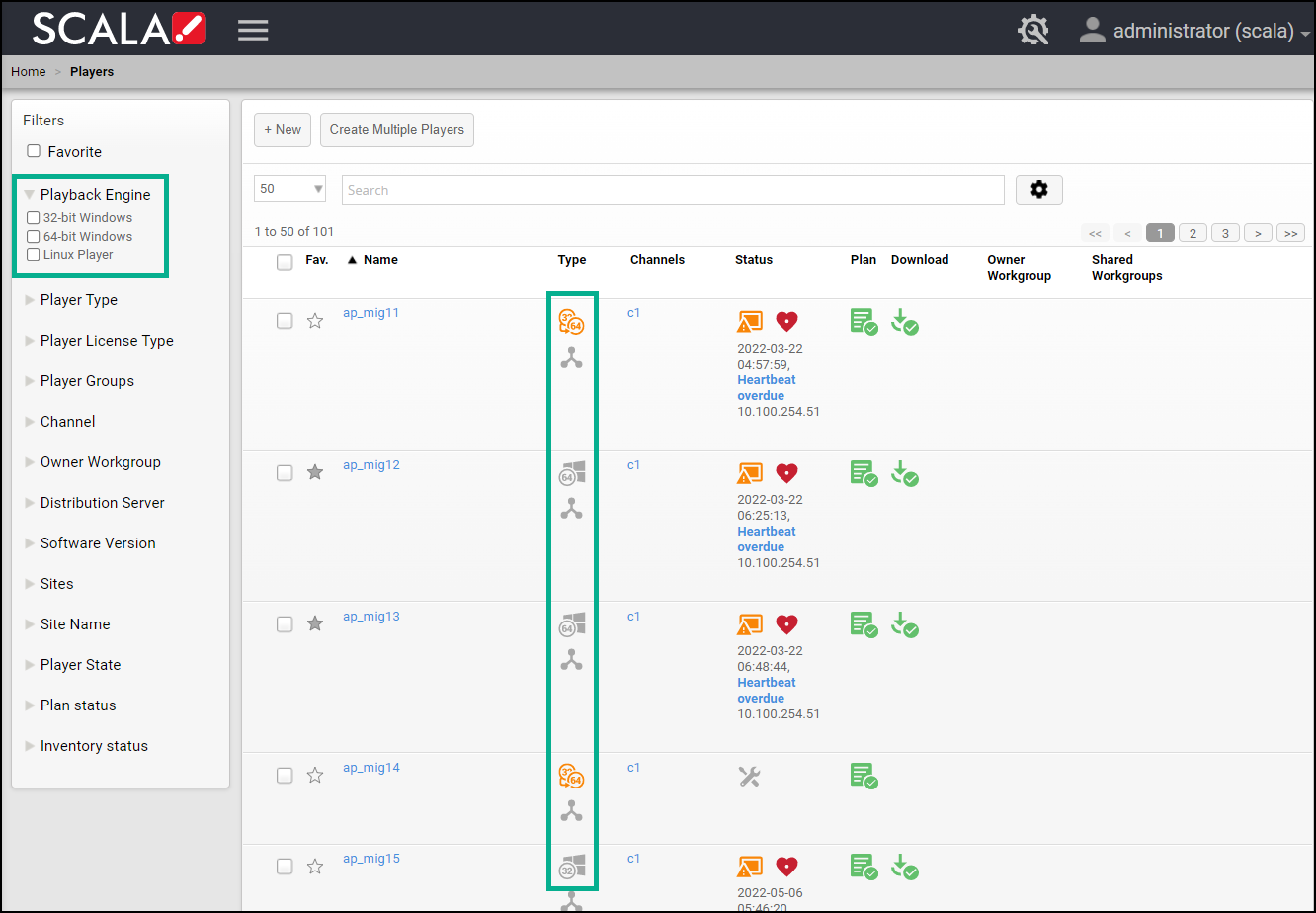
Type Column Icon | Meaning |
|---|---|
| The player has a 32-bit Windows operating system. The player does not have a migration maintenance job scheduled, nor did the player undergo a failed migration maintenance job. |
| The player currently has a 32-bit Windows operating system, however a migration maintenance job exists for the player. When this icon appears, the player's migration job may be scheduled for the future or the migration may already be in-progress. The player currently has a 32-bit Windows operating system, however a migration maintenance job exists for the player. When this icon appears, the player's migration job may be scheduled for the future or the migration may already be in-progress. |
| The player is currently 32-bit Windows. A migration was previously attempted but failed, so the player reverted back to 32-bit Windows. |
| The player has a 64-bit Windows operating system.
|
| The player has a linux operating system. |




Checking Migration Statuses on the Maintenance Jobs Page
The Maintenance Jobs page (accessed via Main Menu > Maintenance Jobs) provides a status icon for each of your maintenance jobs. The information provided for migration maintenance jobs is not as precise as that provided for other types of maintenance jobs. No status information is provided for successful migrations because once a player's migration successfully completes, the player is removed from the migration maintenance job. However, migration failures are reflected on the Maintenance Jobs page. More information about the meaning of each status icon is provided below.
Icon | Description |
|---|---|
| This icon does not appear for migration maintenance jobs. If all players included in a migration maintenance job successfully migrated, the blue question mark icon appears. If any of the players failed to migrate, the red x appears. |
| At least one of the players in the migration maintenance job failed to migrate. Refer to the Failurecolumn to check the number of players that failed. You can open the migration maintenance job details and select the Players tab to check which specific players failed to migrate. If there were players in the maintenance job that successfully migrated, they are removed from the maintenance job and no longer appear with the maintenance job. |
| This icon appears if either:
—OR—
|


Addressing Failed Migrations
If a migration fails, Content Manager provides an error message that may help you address the issue.
Additionally, after a player fails migration, it will resume playing content as a 32-bit player but it will remain in a locked state so that you cannot make any changes to it, such as changes to its playback content or maintenance jobs. To reset the player so it is unlocked, refer to the instructions in this section below.
Reviewing Error Messages After Migration Failure
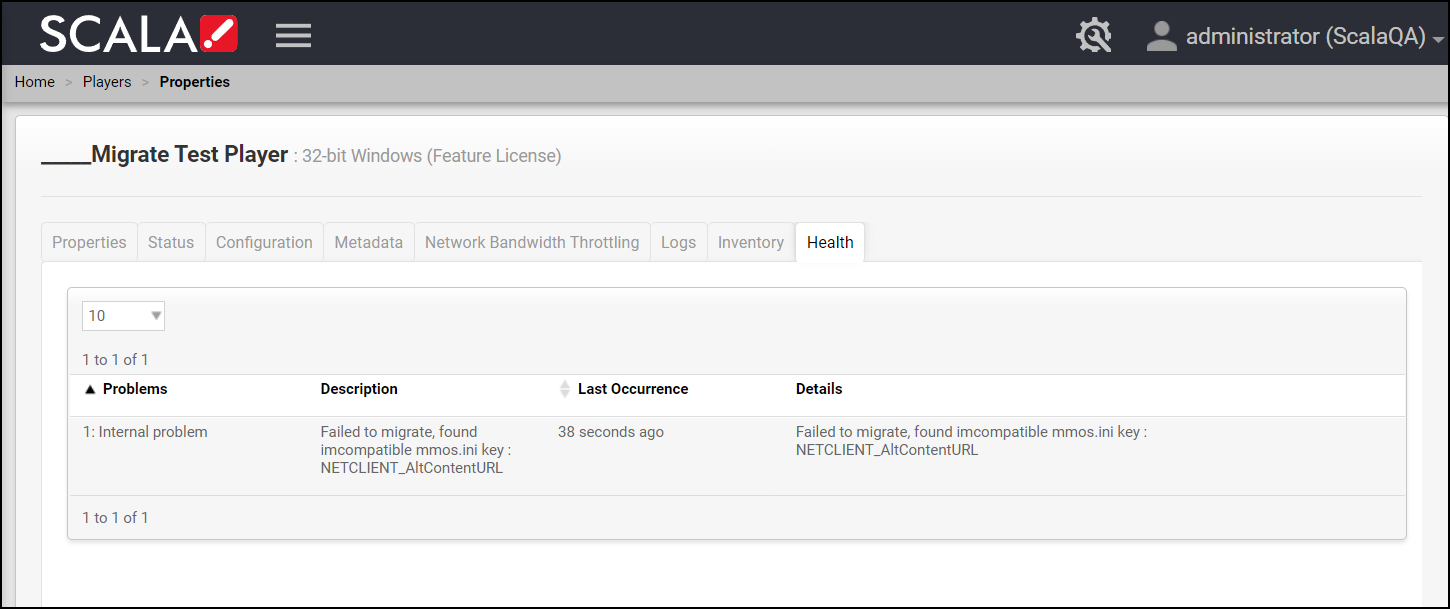
You can get more information about any migration failures by viewing the player's Health page. You may be able to address the reason for failure and try to migrate the player again.
In Content Manager, select the main menu
, then Players.Select the player you want to view information for.
Select the Health tab and review the list of problems.
Resetting (Unlocking) a Player After Migration Failure
After a player fails migration, it will be in a locked state so that you cannot make any changes such as changes to its playback content or maintenance jobs. Follow the steps below to reset the player so that it is unlocked.
In Content Manager, select the main menu
, then Players.Select the player that you want to reset/unlock.
On the Properties page, select the Reset player's migration state checkbox.
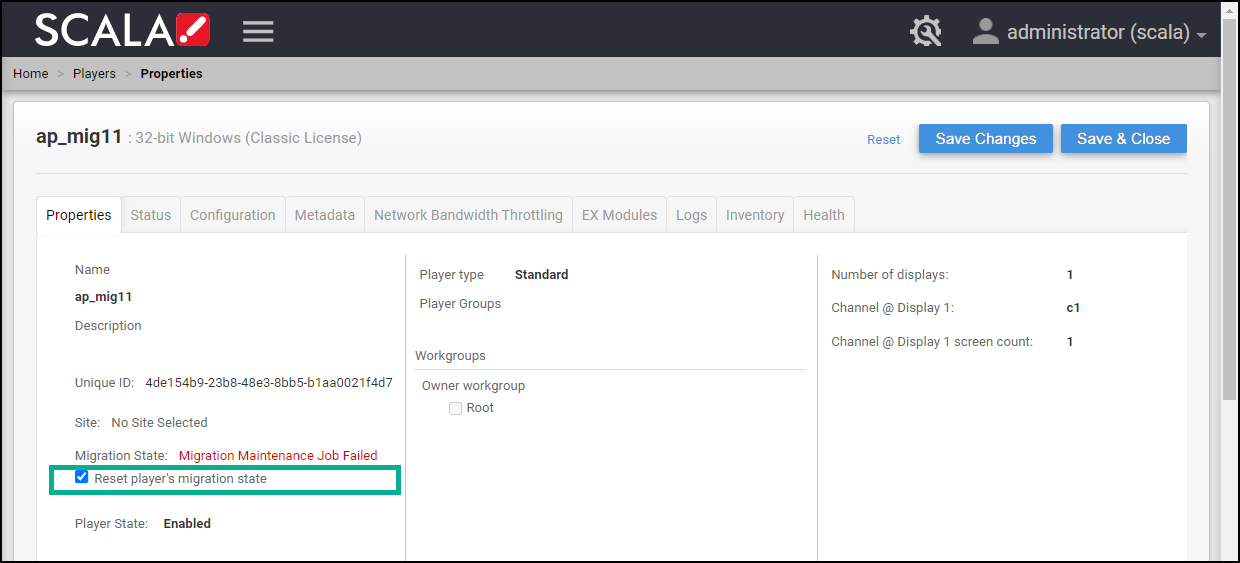
Click the Save & Close button.