Overview
This feature is designed for more advanced users who are familiar with creating and running scripts in order to automate tasks on a network of players.
This feature is available only for players running 64-bit Windows or Linux Player software; it is not available for players running 32-bit Windows Player software.
DPC command maintenance jobs provide a way for you to create custom direct player control (DPC) commands, which are added to the library of system-provided DPC commands that you can run on your players. Custom DPC commands can make it easier to maintain your network of players, as they allow you to remotely run custom scripts on your players to complete various tasks.
As custom DPC commands execute scripts that you create yourself, there are numerous ways that you can use this feature to perform tasks on your players that can not be performed with normal maintenance jobs or system-provided DPC commands. For example, you could set up a custom DPC command to gather and retrieve log files from players, to perform various updates on players, or to execute custom commands on a player's attached hardware such as on display screens and sensors.
When you create a custom DPC command, your custom script file and any other supporting files are saved in Content Manager as well as on the targeted players. You can easily re-run custom DPC commands at any time, which can be convenient if you have scripts that you need to repeatedly run on a regular basis. Additionally, after you execute a command, Content Manager provides status information such as if the script was received by the player(s), if it was successfully executed, or if there was an error during execution.
Keep in mind that all DPC commands can only be executed immediately; they cannot be scheduled to execute in the future.
Requirements for Creating Scripts
When creating a script for a custom DPC command, the following script formats are accepted:
For Windows Players | For Linux Players |
|---|---|
.py .cmd .bat .ps1 | .py .sh |
For each custom DPC command, you to need to provide a single .zip file that contains a script file as an entry point. The script must be named "main.py," "main.sh, "main.bat," "main.cmd," or "main.ps1" depending of the type of script used. Your .zip file can contain other files and scripts that are used by the main script.
When writing scripts for custom DPC command, be aware that the user accounts on your players that are used to run the script must have the necessary permissions to perform the commands in the script. Generally, Windows players are more restrictive than Linux players. More details are provided below.
Windows Players - When you execute a custom DPC command, the script runs under the console user that is currently logged in at the time that the script starts. For a player with a typical configuration, this means that the script runs under the Scala Player user account. That account has some restrictions and it is typically less privileged than, for example, the Windows LocalSystem account.
Linux Players - When you execute a custom DPC command, the script runs as a child process of Scala's Network client. It runs with root privileges, so it has considerable administrative capabilities and very few restrictions.
Creating DPC Command Maintenance Jobs
You need to create a DPC command maintenance job if you want to add a custom DPC command to the library of DPC commands that you can run on players. When creating a DPC command maintenance job, you upload the script file and any supporting files that are used by the custom DPC command.
While creating a DPC command maintenance job allows you to add a custom DPC command, additional steps are required to execute the DPC command in order to run the script on players.
Open Content Manager.
Click the main menu
 .
Select Maintenance Jobs.
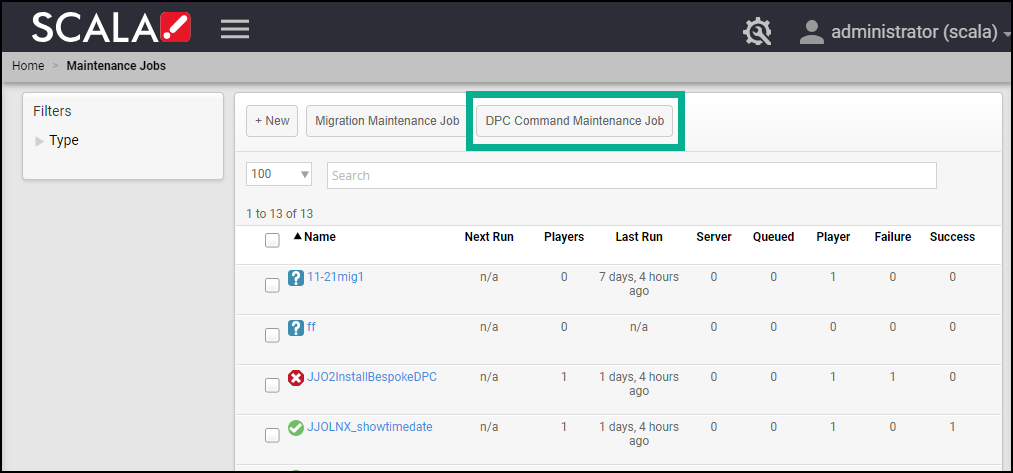
On the Maintenance Jobs page, click the DPC Command Maintenance Job button.
The DPC Command Maintenance Job window opens. Complete the fields on the Properties page; each field is described below.
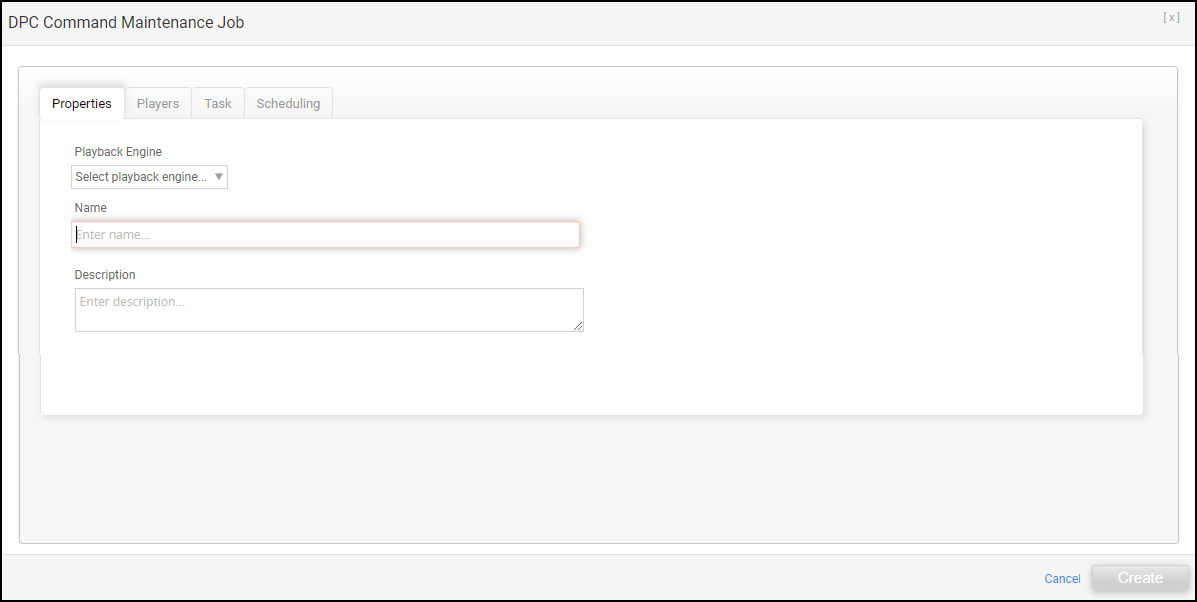
Playback Engine - The type of Player software that is installed on the players that the DPC command will be sent to. The options are 64-Bit Windows and Linux. (Players running 32-bit Windows Player software are not compatible with DPC command maintenance jobs.)
Name - The name that identifies the maintenance job.
Description - A description of the maintenance job. For example, you might want to add some details about what the DPC command does on your players when it is executed.
Select the Players tab, then click the Add Players button.
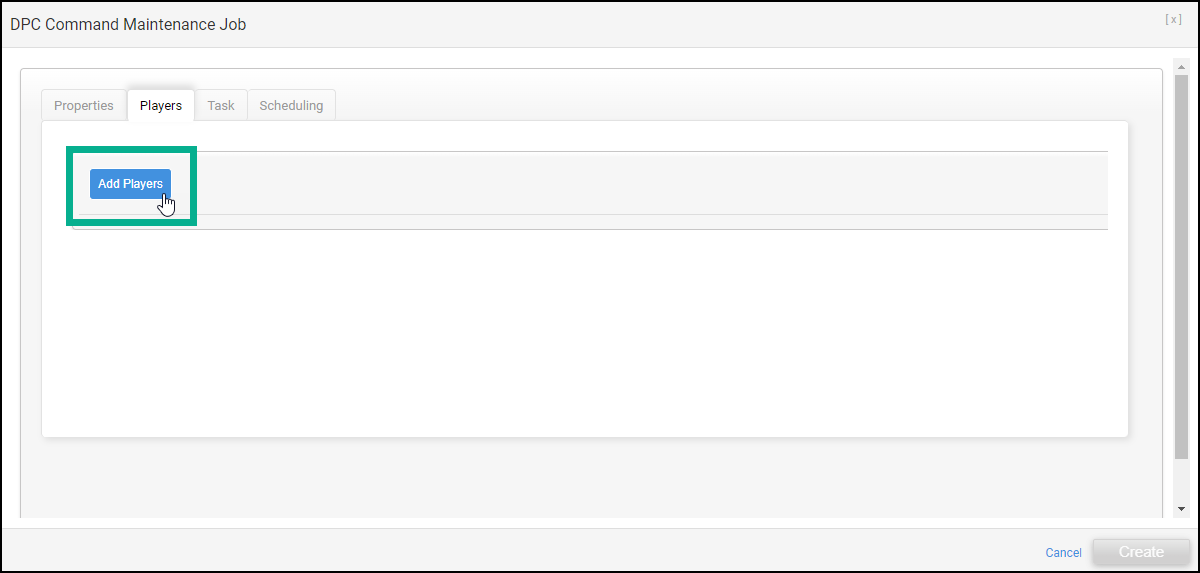
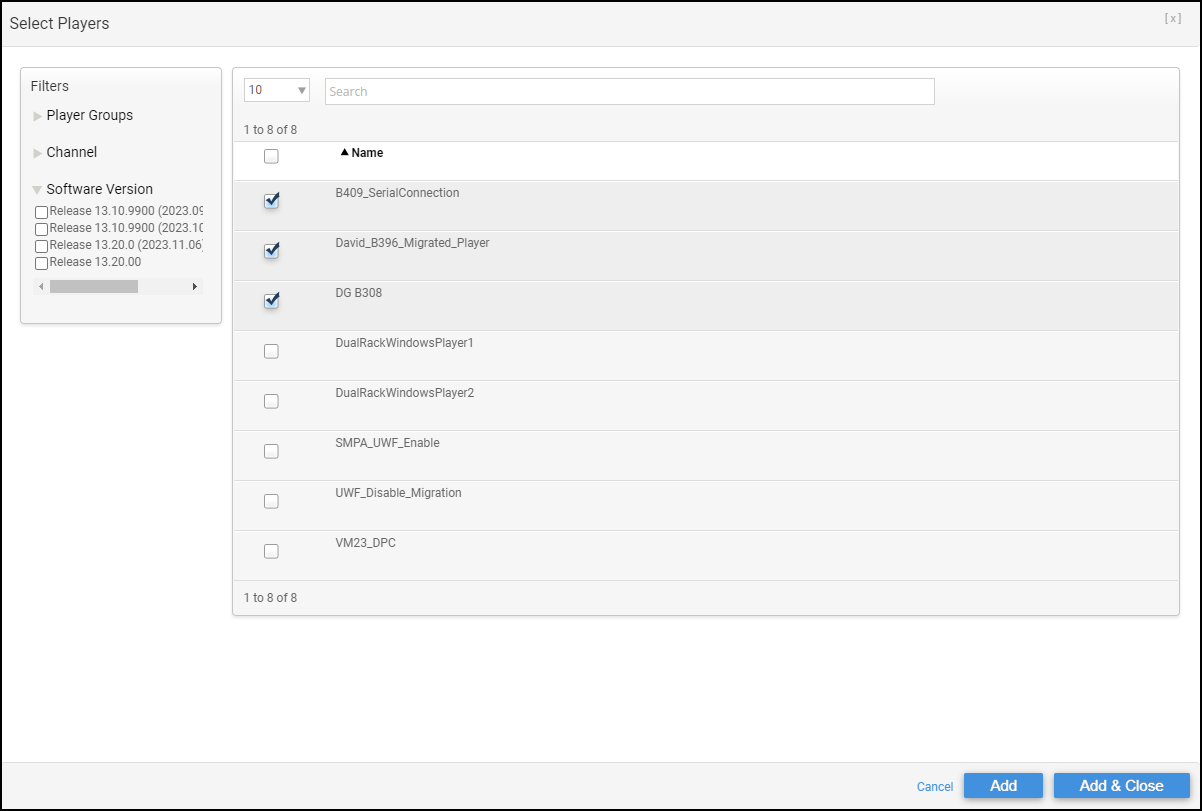
The Select Players window opens. Choose the players that you want the DPC command to be available for. The DPC command will not be available for any players that are not selected. Click the Add & Close button when you are finished choosing players.
For a player to appear in the Select Players window, it must be paired with Content Manager, it must have Player software version 13.20 or newer, and Content Manager needs to have received a recent heartbeat from the player. Additionally, only players with the Player Engine type that you selected on the Properties page appear.
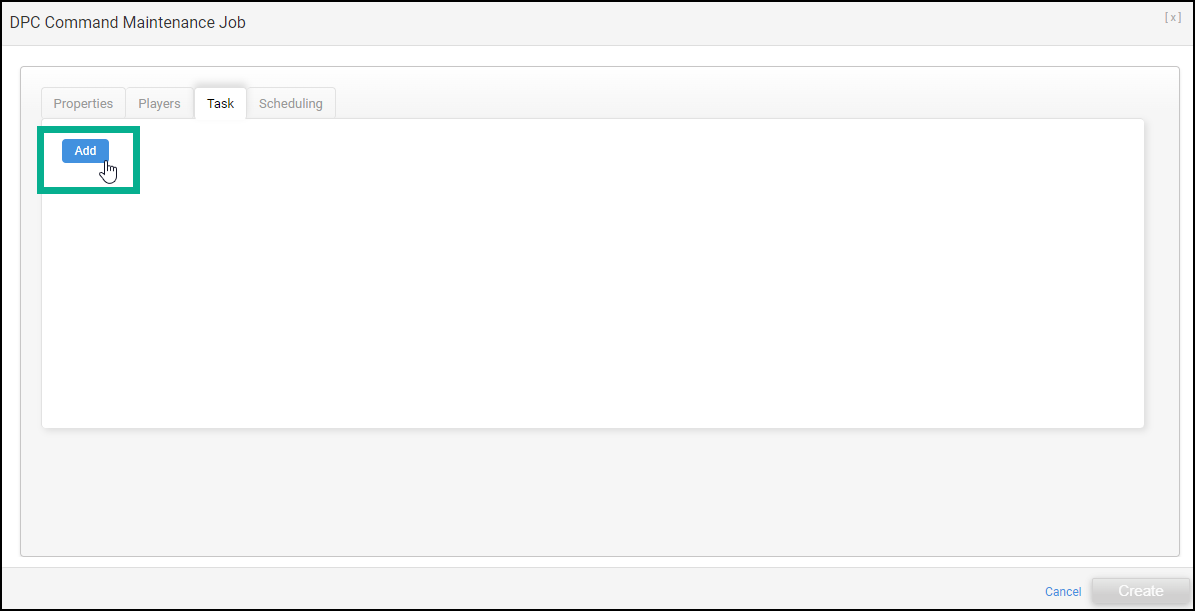
Select the Task tab. The Task page opens where you attach your custom script file and any other supporting files that are needed for the script to execute. To begin, click the Add button.
The Add Task window opens. In the Type field, select Install DPC Script.
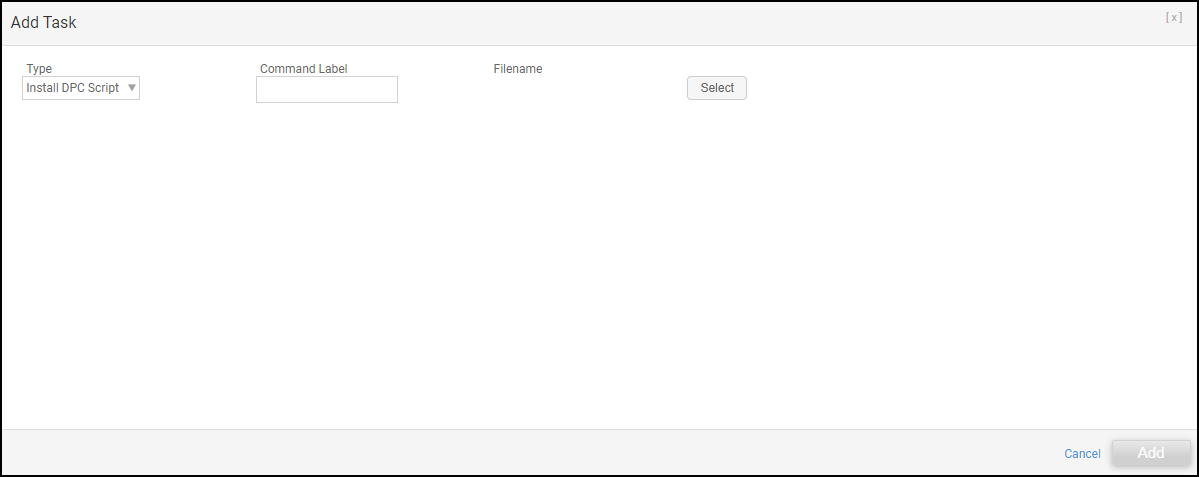
In the Command Label field, enter a name to identify the DPC command. The name that you enter appears in the list of commands that you can choose from when you are executing a DPC command.
It is recommended that you always use a unique Command Label to simplify the management of your DPC commands. If you enter a Command Label that is the same as an existing DPC command, the script file for the existing DPC command is overwritten.
Click the Select button to choose the script file that you want to be run by this DPC command.
To upload a new script (along with any supporting files), click the Upload button, then Add. Select the desired .zip file that contains the script file and any other supporting files. All files must be saved in a single .zip file and meet other requirements.
To reuse a script file that was previously uploaded, select the desired .zip file from the list of used files.
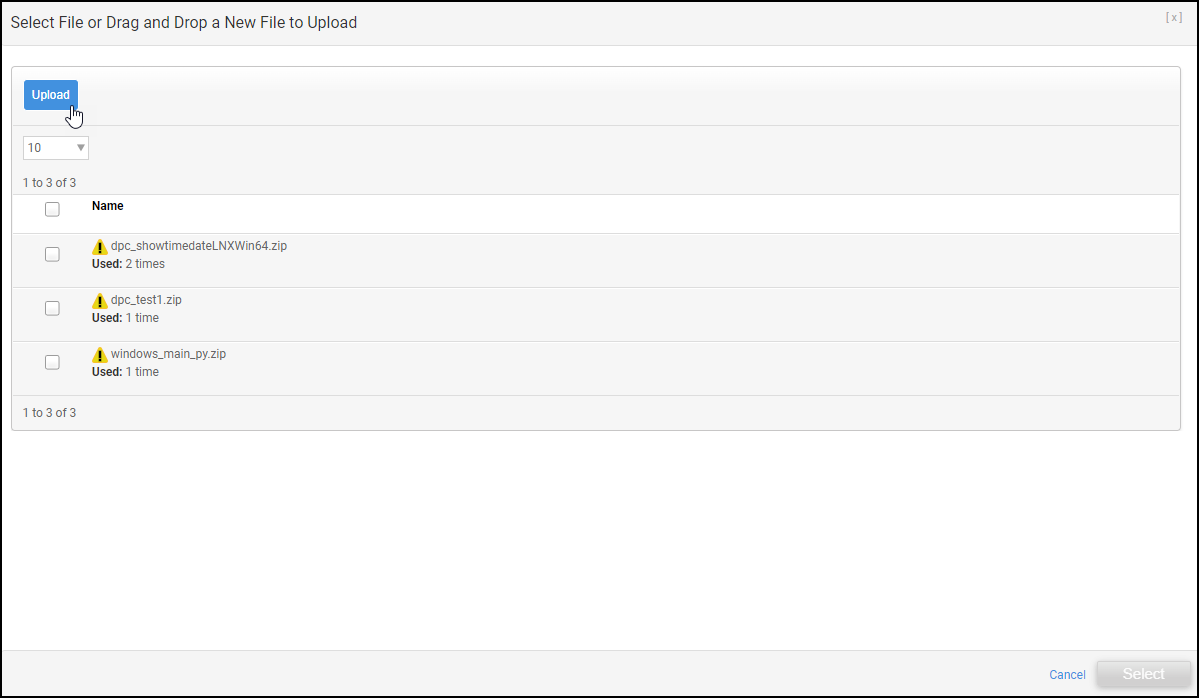
Click Select.
The Add Task window appears again. Select Add.
Select the Scheduling tab. There are no options to change on this page, as all DPC commands run immediately (ASAP) when they are executed.
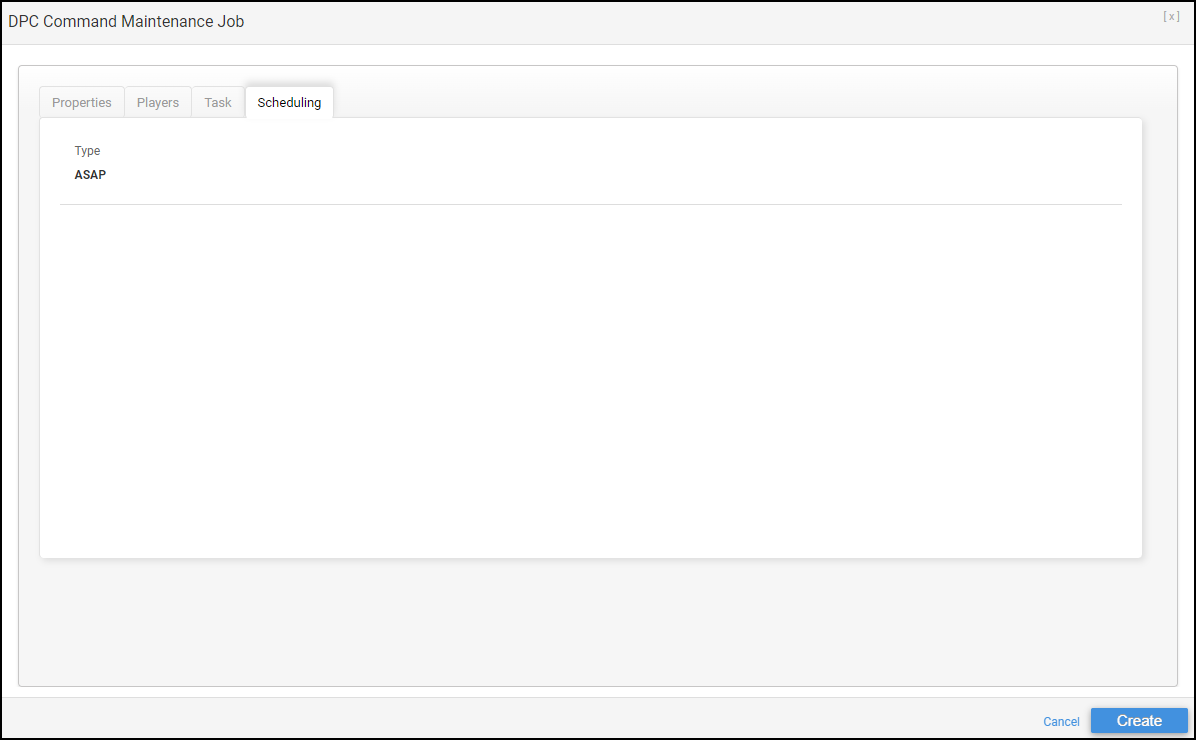
Click the Create button. The DPC command maintenance job is saved and it appears in your list of maintenance jobs. The new DPC command does not run on any players until you execute the DPC command.
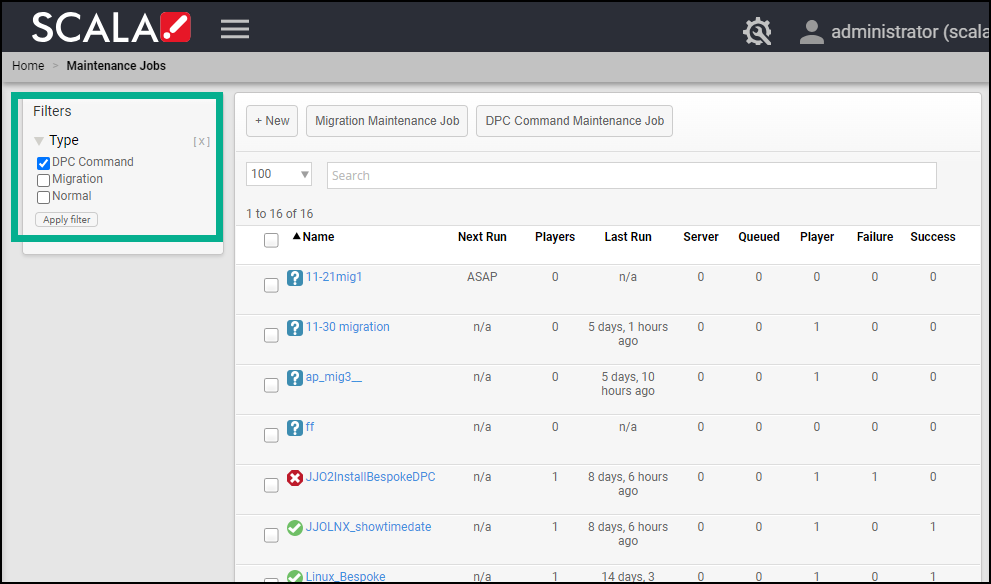
If you want to view only your DPC command maintenance jobs among all of your existing maintenance jobs, you can use the filter options on the Maintenance Jobs page as shown below.
Executing DPC Commands
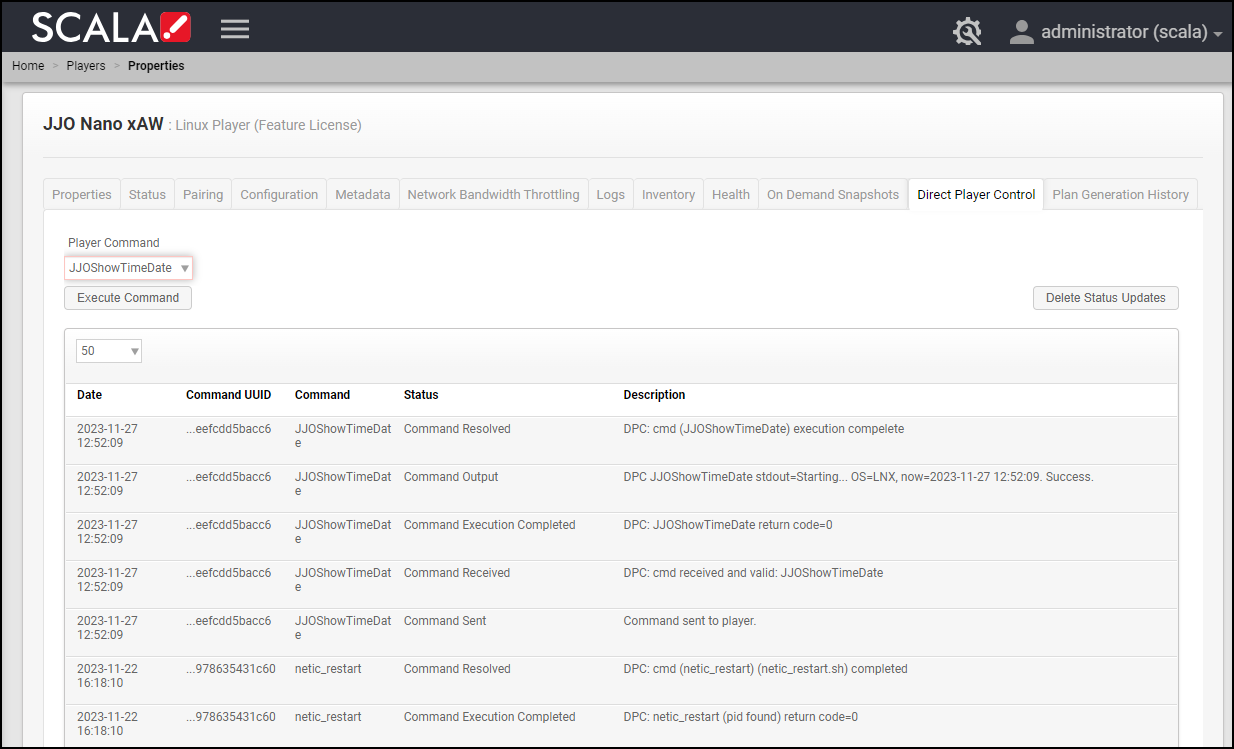
After you create a DPC command maintenance job to add a DPC command, you can execute the DPC command by opening a player's profile and selecting the Direct Player Control tab. For detailed instructions, refer to Working with Player Profiles - Direct Player Control. Keep in mind that when you create a DPC command maintenance job, you designate which players the DPC command applies to so that the command is available only for those designated players.
After you create a new DPC command maintenance job, a plan generation must occur before the new DPC command appears in any player's list of available commands. A plan is the file that Content Manager periodically generates and sends to players. The interval that plans are generated is determined by the Schedule settings for your distribution server. For many commonly used configurations, plan generations are automatically generated on a frequent basis, so that there is very little delay before a newly created DPC command is available to execute.
Deleting Custom DPC Commands
If you created a custom DPC command but you no longer want it to be available to run on players, you can delete it by following the steps below. When you delete a DPC command, the script file and any other associated files are deleted on the targeted player(s) and the command no longer appears in those players' lists of available DPC commands.
You can choose which players a DPC command is deleted from. So, if a certain DPC command exists on multiple players, you can delete that DPC command from some players but not others.
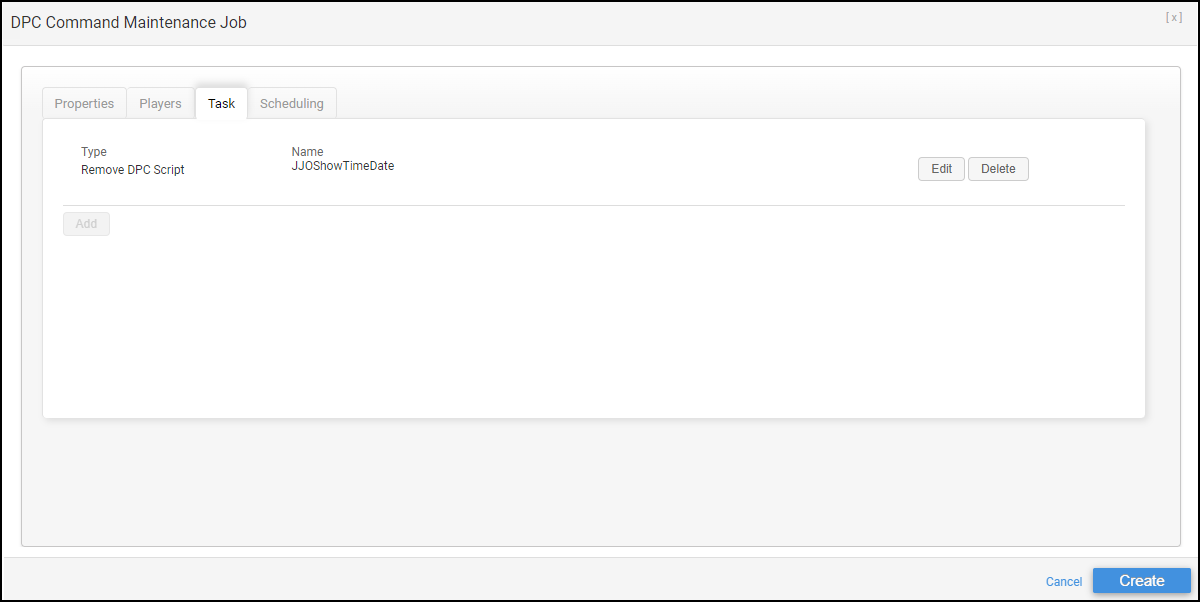
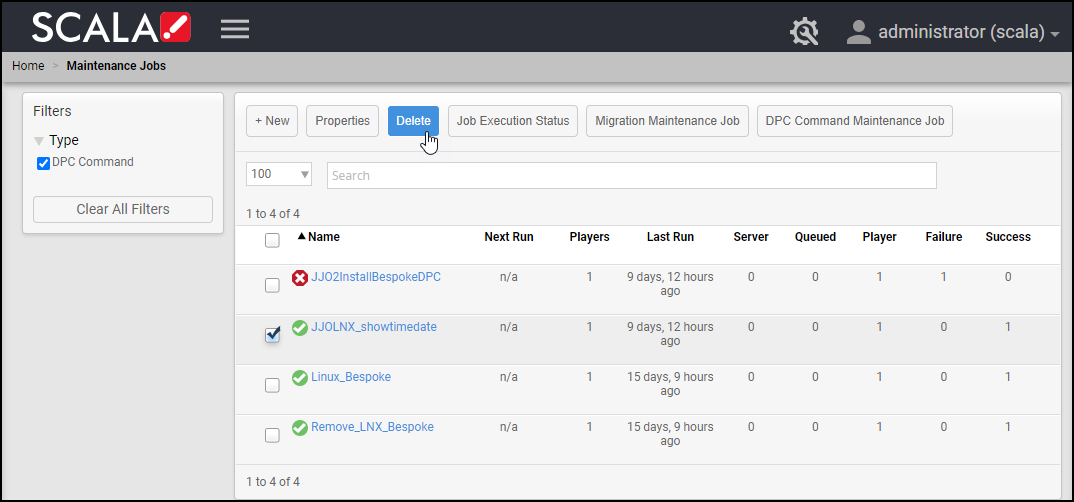
If you delete a DPC maintenance job using the Delete button as shown below, the associated DPC command is not deleted. You need to follow the steps below to delete a custom DPC command.
Open Content Manager.
Click the main menu
.Select Maintenance Jobs.
On the Maintenance Jobs page, click the DPC Command Maintenance Job button.
The DPC Command Maintenance Job window opens. Complete the fields on the Properties page; each field is described below.
Playback Engine - The type of Player software that is installed on the players for which the DPC command will be deleted. The options are 64-Bit Windows and Linux. (Players running 32-bit Windows Player software are not compatible with DPC command maintenance jobs.)
Name - The name that identifies the maintenance job.
Description - A description of the maintenance job.
Select the Players tab, then click the Add Players button.
The Select Players window opens. Choose the players that you want to delete the DPC command from. Click the Add & Close button when you are finished choosing players.
For a player to appear in the Select Players window, it must be paired with Content Manager, it must have Player software version 13.20 or newer, and Content Manager needs to have received a recent heartbeat from the player. Additionally, only players with the Player Engine type that you selected on the Properties page appear.
Select the Task tab. The Task page opens where you choose the DPC command that you want to delete from the selected players. To begin, click the Add button.
The Add Task window opens. In the Type field, select Remove DPC Script.
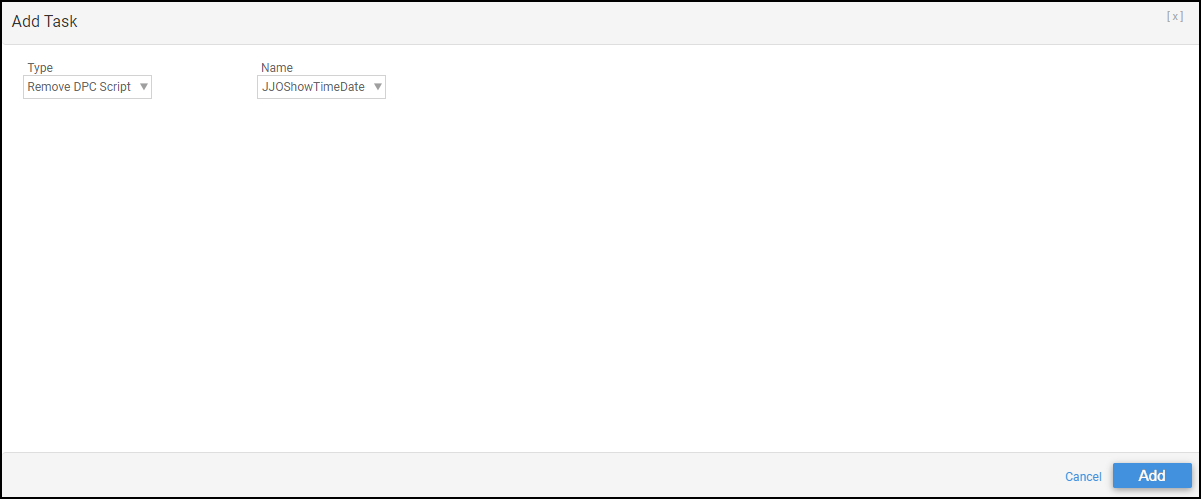
In the Name field, select the DPC command that you want to delete. Only DPC commands that exist on the select player(s) appear.
Click the Add button.
Click the Create button. The maintenance job runs immediately. The DPC command is deleted from the targeted player(s) and it is no longer available on those players' lists of available DPC commands.
You can ignore the Scheduling tab, as there are no options that you can set in regard to scheduling when the maintenance job runs. All DPC command maintenance jobs run immediately (ASAP).