Overview
You should schedule automatic restarts on your players to ensure stable and reliable operation.
In addition to the process outlined on this page, you can also schedule automatic player restarts through Content Manager maintenance jobs. However, using the process on this page is the surest way to guarantee that restarts will occur as scheduled in order to potentially clear errors or a hanging system. For example, if you schedule player restarts using Content Manager maintenance jobs, a successful restart is dependent on Content Manager being up and running (not in an error state), whereas using the method outlined on this page does not have any such dependency.
There are two pre-configured options:
Daily system reboots
Weekly system reboots
The following table describes the system restart type, file name, frequency, default day of the week, and default time of restart.
Restart Type | File Name | Frequency | Default Day of the Week | Default Time |
|---|---|---|---|---|
Daily | C:\Tools\SYSTEM_NIGHTLY-Reboot.CMD | once per day | SUN, MON, TUE, WED, THU, FRI, SAT | 5:30 a.m. |
Weekly | C:\Tools\SYSTEM_WEEKLY-Reboot.CMD | once per week | SUN | 5:30 a.m. |
By default, these scripts are not enabled.
Enabling Daily System Restarts
Scala Media Players can be configured to restart every 24 hours. The default setting is 5:30am.
Open Notepad++.
Open the file C:\Tools\SYSTEM_NIGHTLY-Reboot.CMD.
Modify the time used in the schtasks command at the end of the script, using 24 hour time.
Save the script and close Notepad++.
Run the .cmd file either by double clicking on the file in the File Explorer window or using the Start > Run command from the start menu.
Enabling Weekly System Restarts
Scala Media players can be configured to restart once a week at a specific date and time. The default date and time is Sunday at 5:30 am.
Open Notepad++.
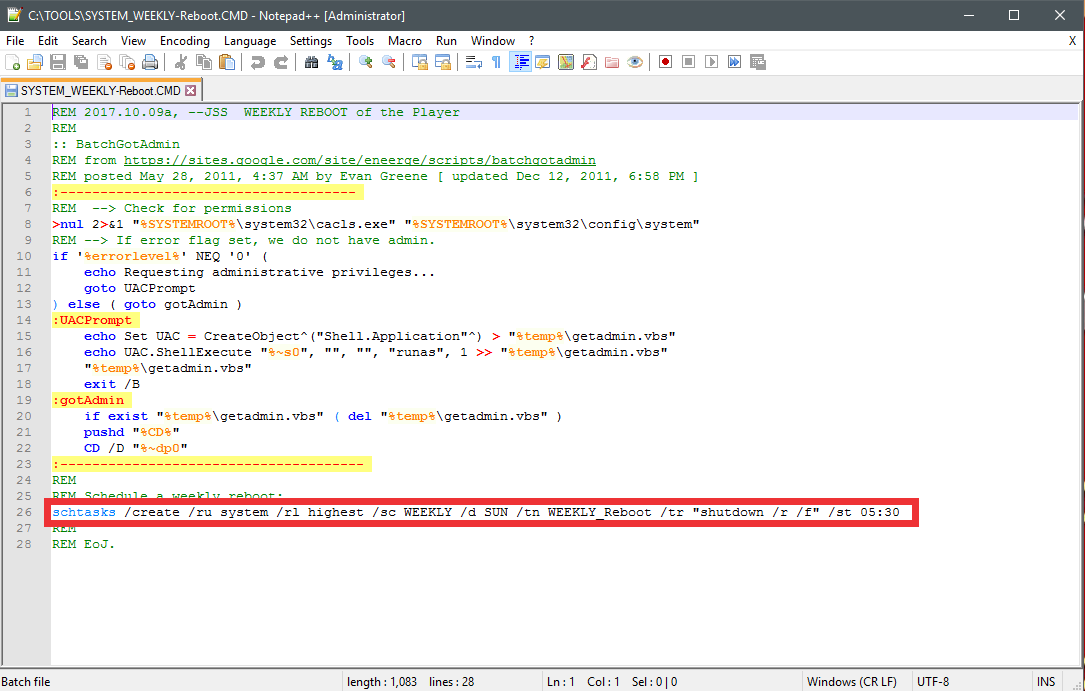
Open the file C:\Tools\SYSTEM_WEEKLY-Reboot.CMD.
Modify the day and time used in the schtasks command at the end of the script, using the 24 hour time format and the following abbreviations for days: SUN, MON, TUE, WED, THU, FRI, SAT.
Save the script and close Notepad++.
Run the .cmd file either by double clicking on the file in the Windows File Explorer or using the Start > Run command from the start menu.