Overview
While there are two user accounts on your Windows player (Scala Player and Configure Player), all content playback should occur with the player logged in to the Scala Player user account. Therefore, a standard, recommended practice is to set up a script that sets the player to automatically log in to the Scala Player account after it restarts.
Having the auto-logon script enabled makes the player ready to begin playback after it restarts for any reason, and it reduces any manual intervention that you need to perform. For example, to ensure stability, you might set up your player to automatically restart every night. If the player automatically logs in to the Scala Player account after the automatic restart, the process is easier as you do not need to perform any manual intervention to allow playback to commence.
While a script to automatically log in to the Configure Player account is also available on the player, it is used much less often, typically only if you are reconfiguring the player. The steps to configure the Configure Player auto-logon script are also provided on this page further below.
Make sure that you are logged in to the player with the Configure Player user account before starting any of the processes below.
Setting the Player to Auto-Logon to the Scala Player User Account
Follow the steps below to enable a script that allows the player to automatically log in to the Scala Player user account upon restarting. Generally, you should have this script enabled during most normal player use.
Open Notepad++.
Open the file: C:\CONFIG.WES\WES10_RegKeys\hlm\HLM_EnablePLAYER_Autologon.reg
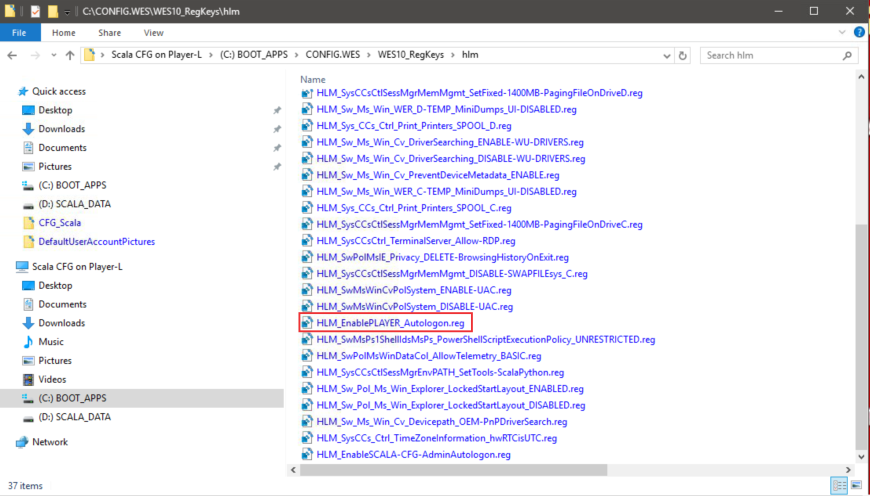
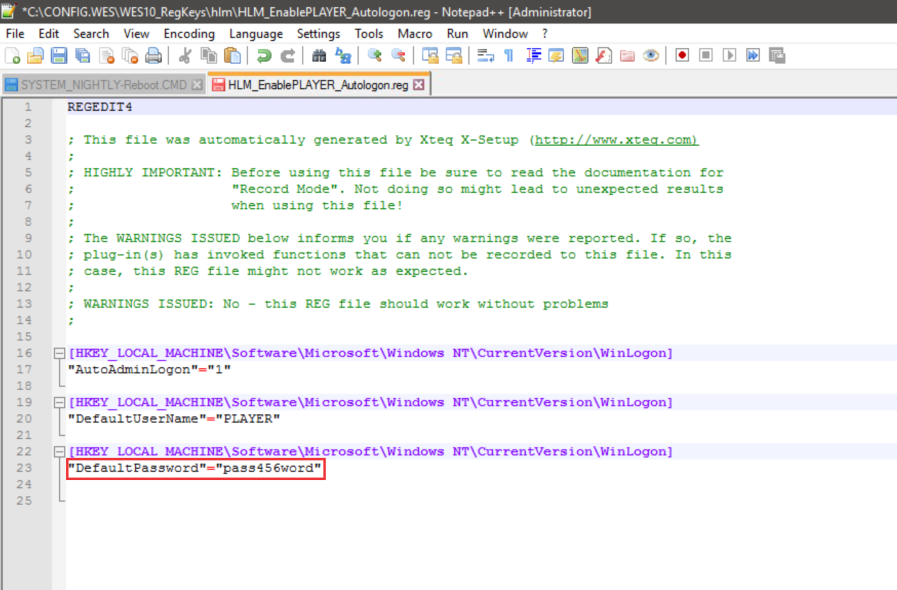
In the last line, containing the line "DefaultPassword"="<password>", enter the Scala Player user account password and Save the file.
In the Windows system menu, select AutoLogon Player Account.
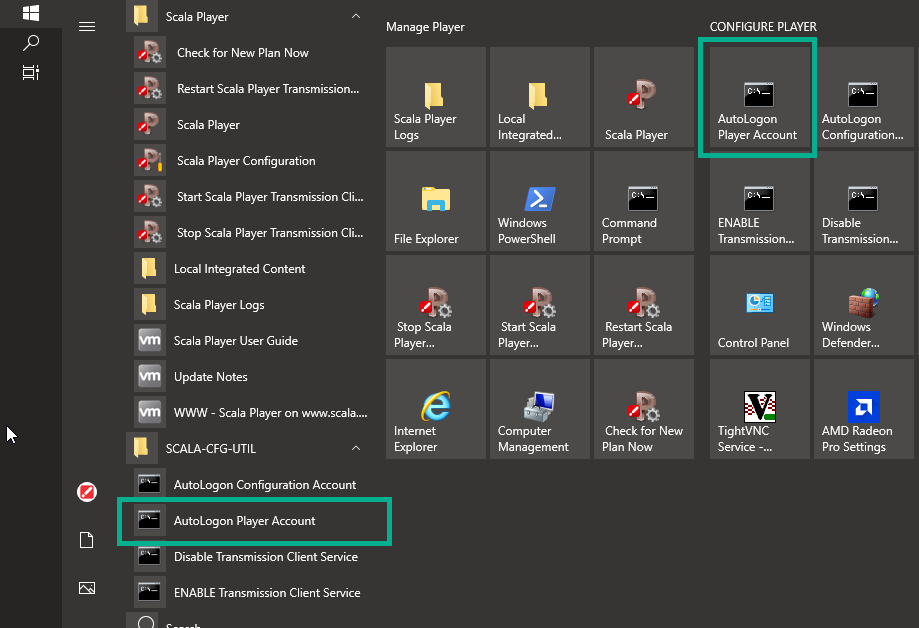
The script runs and the player is set to automatically log in to the Scala Player user account after restarting.
Setting the Player to Auto-Logon to the Configure Player User Account
Follow the steps below to enable a script that allows the player to automatically log in to the Configure Player user account upon restarting. Generally, you should have this script enabled only while configuring the player. During most normal usage, the player should be set up to automatically log in to the Scala Player user account, as outlined in the section above.
Open Notepad++.
Open the file: C:\CONFIG.WES\WES10_RegKeys\hlm\ HLM_EnableSCALA-CFG-AdminAutologon.reg
In the last line, containing the line "DefaultPassword"="<password>", enter the Configure Player user account password and Save the file.
In the Windows system menu, select AutoLogon Configuration Account.
The script runs and the player is set to automatically log in to the Configure Player user account after restarting.
Lost Password for the Auto-Logon Account
This section explains how to recover a player if an invalid password has been setup for the auto-logon account.
In this scenario, by design you are not able to trigger a SAFE Mode boot. If attempted, the operating system boots to a black screen with a mouse cursor and nothing else, where ctrl-alt-del, ctrl-esc, win-R, etc. are all unresponsive.
To recover your player, SSH into the unit (requires that you know the username/password for either the Scala Player or the Configure Player account).
You can then either:
Correct the password for the auto-logon account using the "NET USER..." command.
—OR—
If you need to fix the AutoLogon password in the Registry, edit the appropriate .REG file (or simply use the "REG" command directly), and then install it using REGEDIT /s <filename>.REG.
NET USER player @.r3al1Y.5eCret.pA$$w0rD
REGEDIT /s
C:\CONFIG.WES\WES10_RegKeys\hlm\HLM_EnableSCALA-CFG-AdminAutologon.REG
REGEDT /s C:\CONFIG.WES\WES10_RegKeys\hlm\ HLM_EnablePLAYER32_Autologon.REG
SSH Tips
On the Player Images the default port for the SSHd is TCP:22022 (all firewall profiles).
You can get a player's IP address in one of the following ways:
If the player has been paired with Content Manager, then Content Manager shows the device's IP address. However, depending on your network, Content Manager may show the public interface of the NAT it is behind.
The MAC# of the ethernet interface is printed on a label on the unit. You can use the MAC# to query the device's current IP address.
If a static IP, you may have written records/host tables that you can reference.