The information on this page is for advanced System Administrators only. Database configuration and tuning requires an understanding of databases and your database usage. Database tuning should be done by an IT professional proficient in database administration.
Overview
Use the Database Configuration page to set up the connection from Content Manager to your database, and to apply various database settings.
As explained further below on this page, you may also perform various database tuning to optimize your environment.
The Server Settings - DB Pool Statistics page can be particularly helpful when diagnosing real-time connection problems and determining your database connection tuning strategy.
For general guidelines on how to set up your network, see Technical Requirements for Installation.
Setting the Database Configuration Options
Click the System icon

In the menu, select Database Configuration. The Database Configuration window opens.
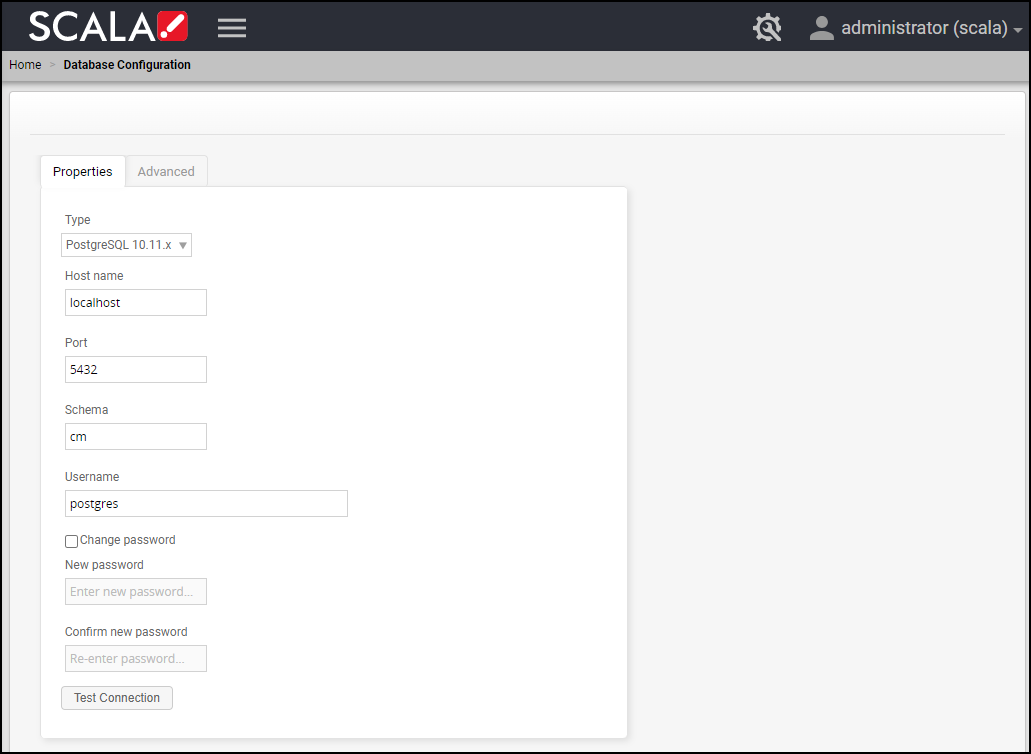
On the Properties page, complete the following fields:
Type - Select the type of database that is used for the instance of Content Manager.
Host name - Enter the name that identifies the database.
Port - Enter the number of the port on which the database runs.
Schema - Enter the name of the database schema used for Content Manager.
Change password - Select the checkbox to change the database password.
New password/Confirm new password - If you selected Change password, enter the new password in these fields.
Test Connection - Click this button to test the connection between Content Manager and the database.
Select the Advanced tab and complete the following fields:
Pool name - If desired, enter a custom name for the Content Manager database pool. The name entered here appears in logs and may appear in third-party database monitoring tools, where you may be able to perform queries on this pool name. The default name is CM-HikariCP.
Connection timeout (in minutes) - When a user performs any action in Content Manager, this setting specifies the maximum number of minutes that Content Manager will wait for a connection from the database pool to complete the action. If this duration is exceeded, the action is aborted and the user receives an error. The default setting is 1 minute. You might increase this setting if, for example, users are performing data-heavy operations that commonly result in errors.
Max lifetime (in minutes) - This setting specifies the maximum duration of a connection in the pool, in minutes, before it is automatically terminated. It is strongly recommend that you set this value several seconds shorter than any database or infrastructure imposed connection time limit. A value of 0 indicates no maximum lifetime (i.e., infinite lifetime, subject to any idle timeout settings). The default setting is 30 minutes.
An in-use connection will never be retired, only when it is closed will it then be removed. On a connection-by-connection basis, minor negative attenuation is applied to avoid mass-extinction in the pool.
Max pool size - This setting specifies the maximum size that the database pool is allowed to reach, including both idle and in-use connections. In other words, this value determines the maximum number of actual connections to the database back end. If total connections exceed this setting, Content Manager users receive errors. This setting should be less than the max connections allowed in your database configuration. The default setting is 90. An ideal max pool size is determined by your specific environment.
Connection options - This field allows you to enter additional connection parameters that are not already specified in the options above. Anything that you enter here is added to the connection string that is used for Content Manager to connect to the database. If you enter multiple parameters in this field, separate them using a comma.
Click the Save Changes or Save & Close button.
Database Tuning
Database tuning should be done by an IT professional with experience in structuring and configuring databases. Any missteps could cause decreased network performance.
If you are upgrading from a Content Manager release prior to 11.00, you may have to tune the maximum number of allowed database pool connections in their Content Manager or you will experience issues such as slow performance and CPU spikes.
The best value for your maximum pool size, which is set in Content Manager, will vary from implementation to implementation based on the complexity of the network, number of players, channels, playlists, and media items. If you experience symptoms of CPU spikes, poor performance, or Content Manager becomes unresponsive after upgrading, try increasing the maximum pool size and database connectors using the chart below.
Database Connection | Definition |
|---|---|
Maximum Pool Size | Connection pool partition count x Max. connections per partition = total number of connections For example: 3 partitions x 30 connections each = 90 total connections |
Postgres Database Connections | If using PostgreSQL as your database, leave the database connections set to the default value of 100. |
MS SQL Database Connections | If using MS SQL as your database, leave the database connections set to the default value of unlimited. |
Maximum Pool Size
The Max pool size in the UI should not be set to a value greater than 90% of the database's pool of connections (Max Pool Size <= .9 * database connections). Changing the number of database connections in PostgreSQL may require re-evaluation of shared memory configuration for PostgreSQL. This needs to be assessed on a case-by-case basis.
Recommended Database Tuning
We recommend the following values as a starting point for a PostgreSQL CONFIGURATION settings for a 4vCPU/16GBvRAM/vSSD-storage vmCM with up to 500 Players.
Setting | Value |
|---|---|
track_counts | on |
shared_buffers | 512MB |
wal_buffers | 16MB |
max_connections | 110 |
work_mem | 64MB |
maintenance_work_mem | 256MB |
dynamic_shared_memory_type | windows |
effective_cache_size | 4GB |
checkpoint_timeout | 5min |
min_wal_size | 1GB |
max_wal_size | 2GB |
checkpoint_completion_target | 0.7 |
default_statistics_target | 100 |
random_page_cost | 1.1 |
max_worker_processes | 3 |