Overview
You can create folders in Content Manager to organize your media files. Once you create a folder structure, you can assign media to the appropriate folder upon upload. On the Media page, you can filter your list of media items to show only the items that are saved in one or more selected folders.
Once you add a media file to a folder, it cannot be moved to another folder. However, you can delete the media file from Content Manager and then re-upload it into a different folder.
Creating and Editing Folders
Click the System icon

In the menu, select Folders. The Folders page opens.
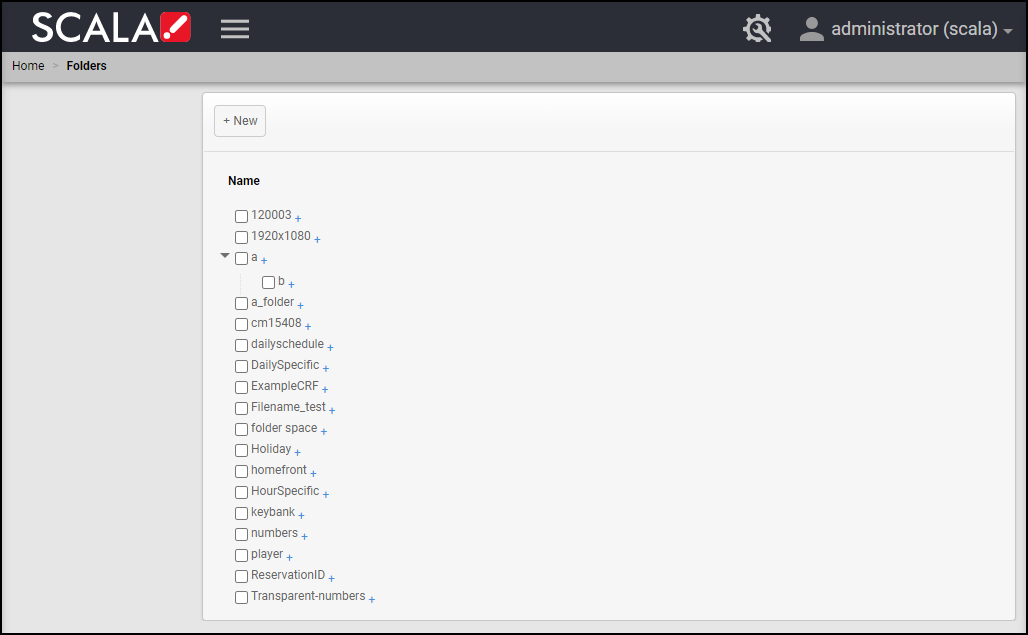
To create a new folder, click the +New button. The Create a New Folder window opens.
To delete a folder, select the checkbox next to one or more folders, then click the Delete button.
If you want to create a folder that is a child of an existing folder, select the blue + icon next to the parent folder. A field appears where you enter the name of the child folder, then select OK.
You cannot delete a folder that contains any media files. If a folder contains media files, you must delete all those media files in order to delete the folder (media files cannot be moved to a different folder).
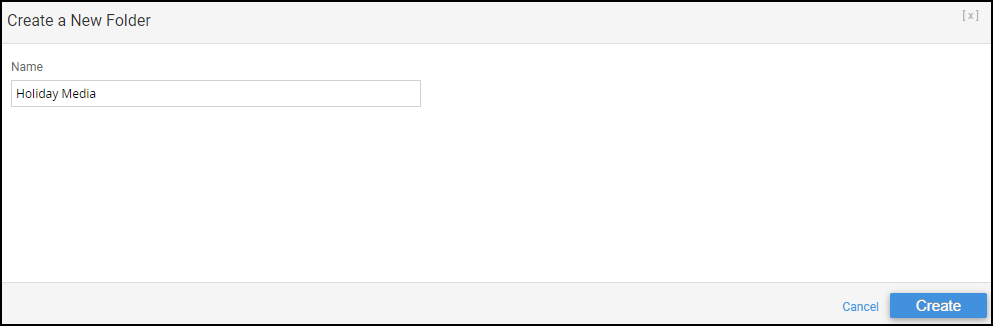
Enter a Name for the folder.
Invalid Special Characters and Reserved Words
The following special characters and reserved words are not allowed in media file names, folder names, or server names.
Exclamation mark — ! Quotation mark — " Number sign — # Dollar sign — $ Percent sign — % Ampersand — & Apostrophe — ' Parenthesis — ( ) Asterisk — * Comma — , Period — . Slashes — / \ | Colon — : Semi-colon — ; Angle brackets — < > Equal sign — = Question mark — ? At sign — @ Brackets — [ ] Caret — ^ Grave accent — ` Braces — { } Tilde — ~ |
CON, PRN, AUX, NUL, COM1, COM2, COM3, COM4, COM5, COM6, COM7, COM8, COM9, LPT1, LPT2, LPT3, LPT4, LPT5, LPT6, LPT7, LPT8, LPT9 | |
Click the Create button.