If you are using version 13.10, it is highly recommended that you upgrade to 13.10.02. Due to issues found, version 13.10 was quickly replaced with 13.10.02, and version 13.10 installers are no longer available from our Download Center. For more information about the specific technical issues that were found and addressed, go to Version 13.10.02 Release Notes.
Overview
This page provides information about the Scala Enterprise version 13.10 release, including the new features that were added as well as improvements and fixes implemented.
For any changes in third-party software requirements with each version upgrade, refer to Required Third-Party Software.
To review the supported upgrade path for each version upgrade, refer to Updating Scala Enterprise.
New Features
ScalaApps
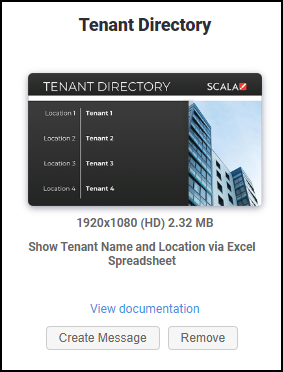
Scala Apps provide templates that help you quickly create content for common playback needs. For example, there are templates that allow you to create a menu board, a countdown to an event, a happy birthday message, a directory of building tenants, and much more. Additionally, there is a template that allows you to display the current local weather forecast and one that lets you play a YouTube video.
Scala Apps help you quickly get up and running with your Scala system, with relevant content playing on your screens. For more information, refer to [Learn About Scala Apps](../../Content Manager/ScalaApps/ScalaAppsOverview.md).
Ability to Pin the Menus in Content Manager
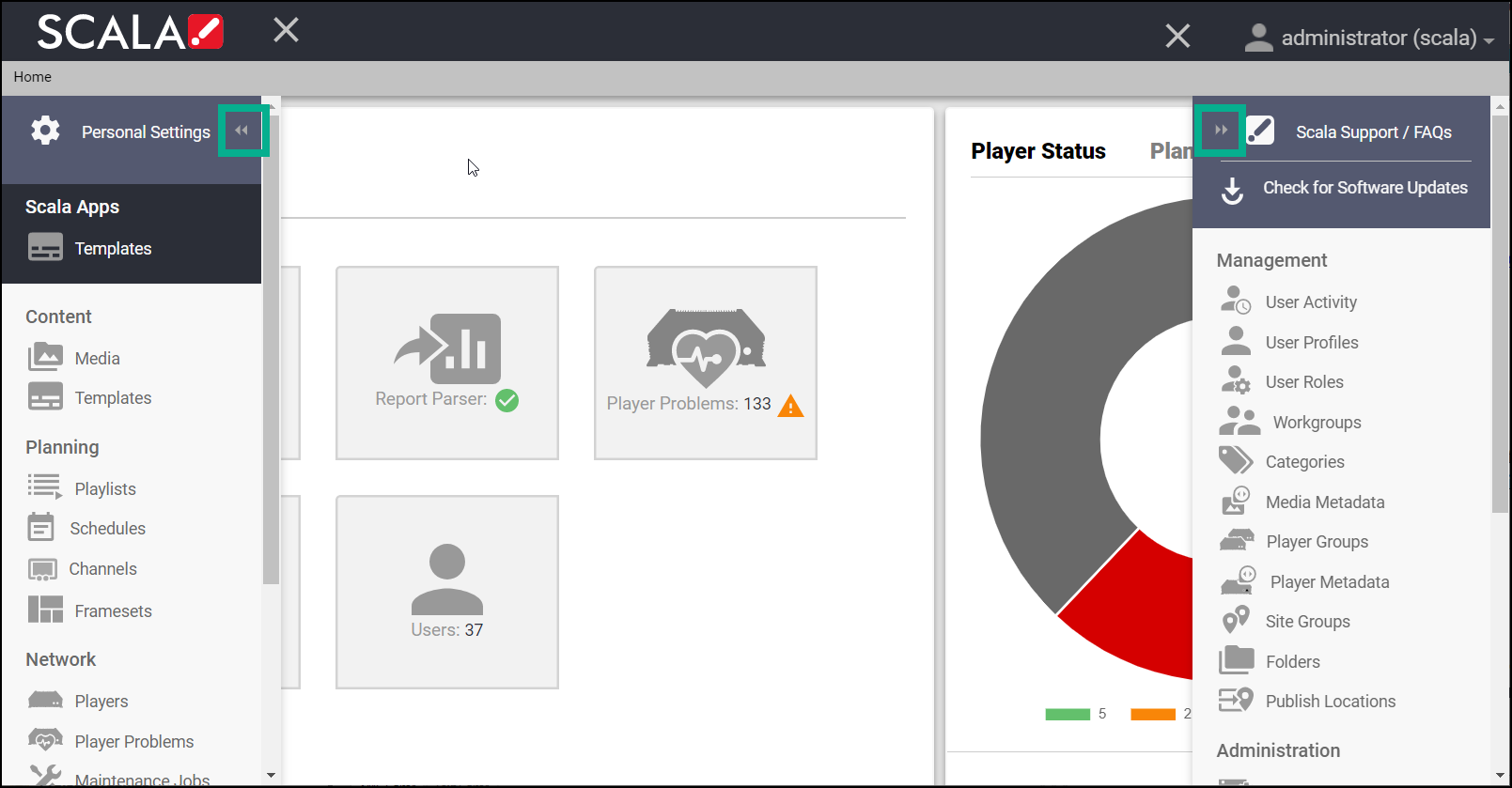
To make Content Manager more convenient to use, both the Main menu and System menu can now be pinned to the sides of the window, so that those menu options appear at all times and you can access the menu options with fewer clicks. For example, if you are looking at the Players list and then want to look at your media, you can open the Media window with one-click when the main menu is pinned.
To pin a menu, select the arrow button that appears when you open the menu.
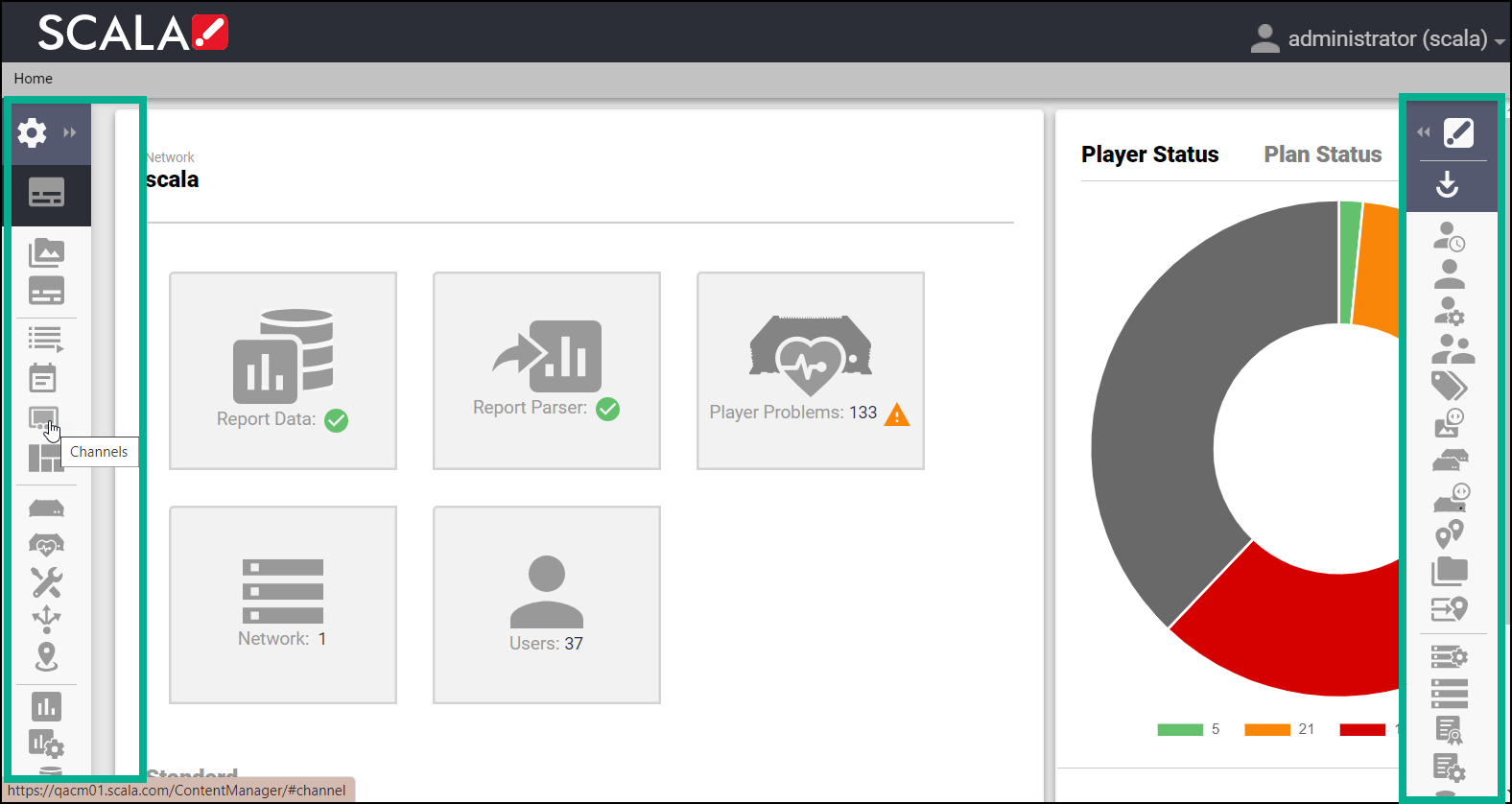
When the menus are pinned, they appear as shown below and they remain in place as you work in Content Manager. You can hover over any menu option to display a tool tip that provides a description of that option.
For more information on pinning and unpinning the menus, refer to [Content Manager Overview - Using the Menus](../../Content Manager/ContentManagerOverview.md).
Direct Player Control
Direct player control is available only for players running the Linux or 64-bit Windows version of Scala player software; players running 32-bit Windows player software do not support direct player control.
Additionally, you need to set up WAMPto use direct player control. When setting up WAMP, note that the WAMP Configuration window has some settings that apply specifically to direct player control, although you can typically leave them set to the defaults unless you are experiencing issues.
Direct player control allows you to remotely perform commands on both your players and their display screens, from Content Manager. For example, you can restart a player's playback engine, reboot a player entirely, power a player's display screen(s) on and off, and more. Additionally, you can set hours of operation to automatically power your display screens on and off based on a schedule. This may be helpful to reduce electricity usage, to meet power use regulations in certain jurisdictions, and to reduce your display screens' overall hours of use which may help preserve their warranty periods.
To be able to perform commands on a player's display screen(s):
Your display screens must be a supported brand, which includes
LG
NEC
Samsung
Scala (by KTC)
Sharp
You must connect an RS232 cable from the player to it's display screen(s) and configure some options that appear on a new Display Control page in the player's Player Configuration Tool (see *Using the Player Configuration Tool *for Linux or 64-bit Windows).
If your display screens are not a supported brand or you do not want to perform the additional set up to control your display screens, you can still use direct player control to perform commands on players. The commands that you can perform on players and on display screens are listed below.
Player Commands | Display Commands |
|---|---|
|
|
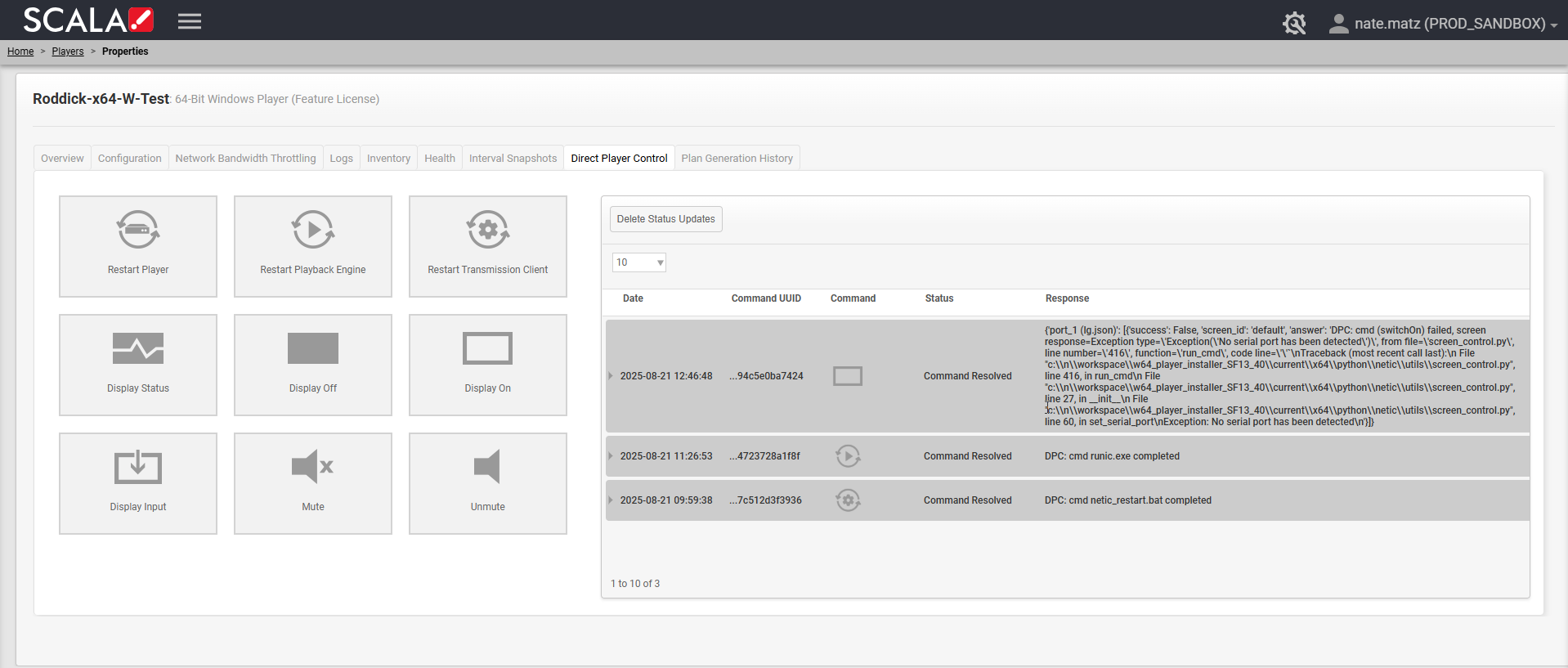
To execute commands on players or their display screens, open the [player profile](../../Content Manager/Network/PlayerProfiles.md) for the player that you want to work with, then select the new Direct Player Control tab. Choose a command in the Player Command field then select Execute Command. Log messages appear in the window, indicating the status of the commands that you executed.
For more information about using the Direct Player Control page, refer to [Working with Player Profiles - Direct Player Control](../../Content Manager/Network/PlayerProfiles.md).
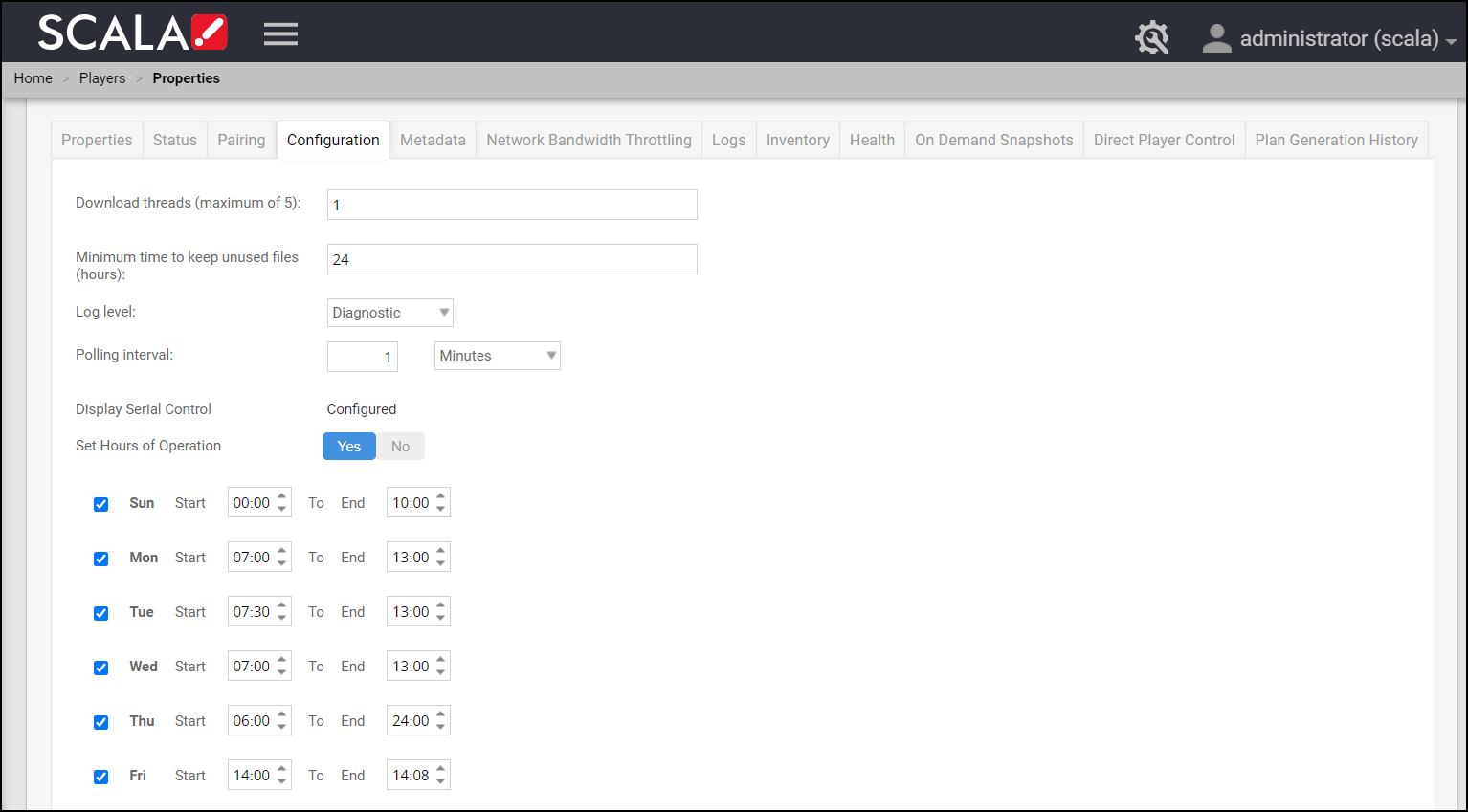
To automatically power your display screens on and off based on a schedule, open the [player profile](../../Content Manager/Network/PlayerProfiles.md) for the player that you want to work with, then select the Configuration tab. In the Set Hours of Operation field, select Yes then choose the days of the week and time ranges when the player's display screen(s) should be powered on. For more information about using the hours of operation settings, refer to [Working with Player Profiles - Configuration](../../Content Manager/Network/PlayerProfiles.md).
Players do not stop running when their display screens are powered off using the hours of operation feature. Therefore, if you use [playback audit reports](../../Content Manager/Reporting/Reporting_Overview.md), they will reflect playback that was not actually shown on a display screen.
]
New Plan Generation Information in Content Manager
Two new pages were added to provide you with more information about plan generations. A plan is the file that Content Manager periodically generates and sends to players, instructing the players what content to play and any [maintenance jobs](../../Content Manager/Network/MaintenanceJobs.md) that need to be performed. The information provided by the two new pages may be helpful if you need to troubleshoot any issues with plan generations, such as if a plan generation took too long to complete. For example, you can check how much time each stage of the plan generation process took, which may help you identify where a slow-down occurred. You can also check which specific media items were sent to players in any given plan.
The new pages are:
In the [Distribution Server Properties window](../../Content Manager/Network/DistributionServers.md), a new Plan Generation Summaries page provides details about the plan generations that apply to the players that are assigned to the selected distribution server.
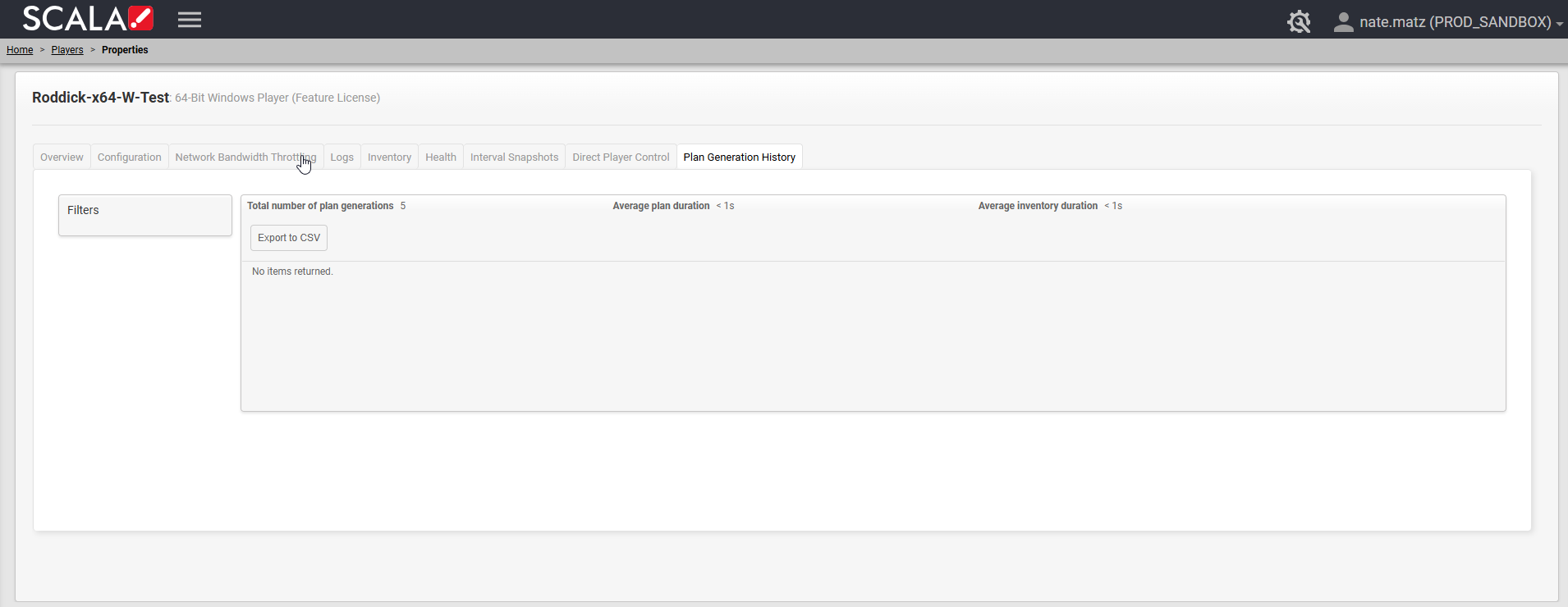
In the [Player Properties window](../../Content Manager/Network/PlayerProfiles.md), a new Plan Generation History page provides details about the plan generations that apply to the selected player.
Distribution Server - Plan Generation Summaries Page
In the Distribution Server Properties window, the new Plan Generation Summaries page provides several columns that contain details about the plan generations that apply to the players assigned to that distribution server.
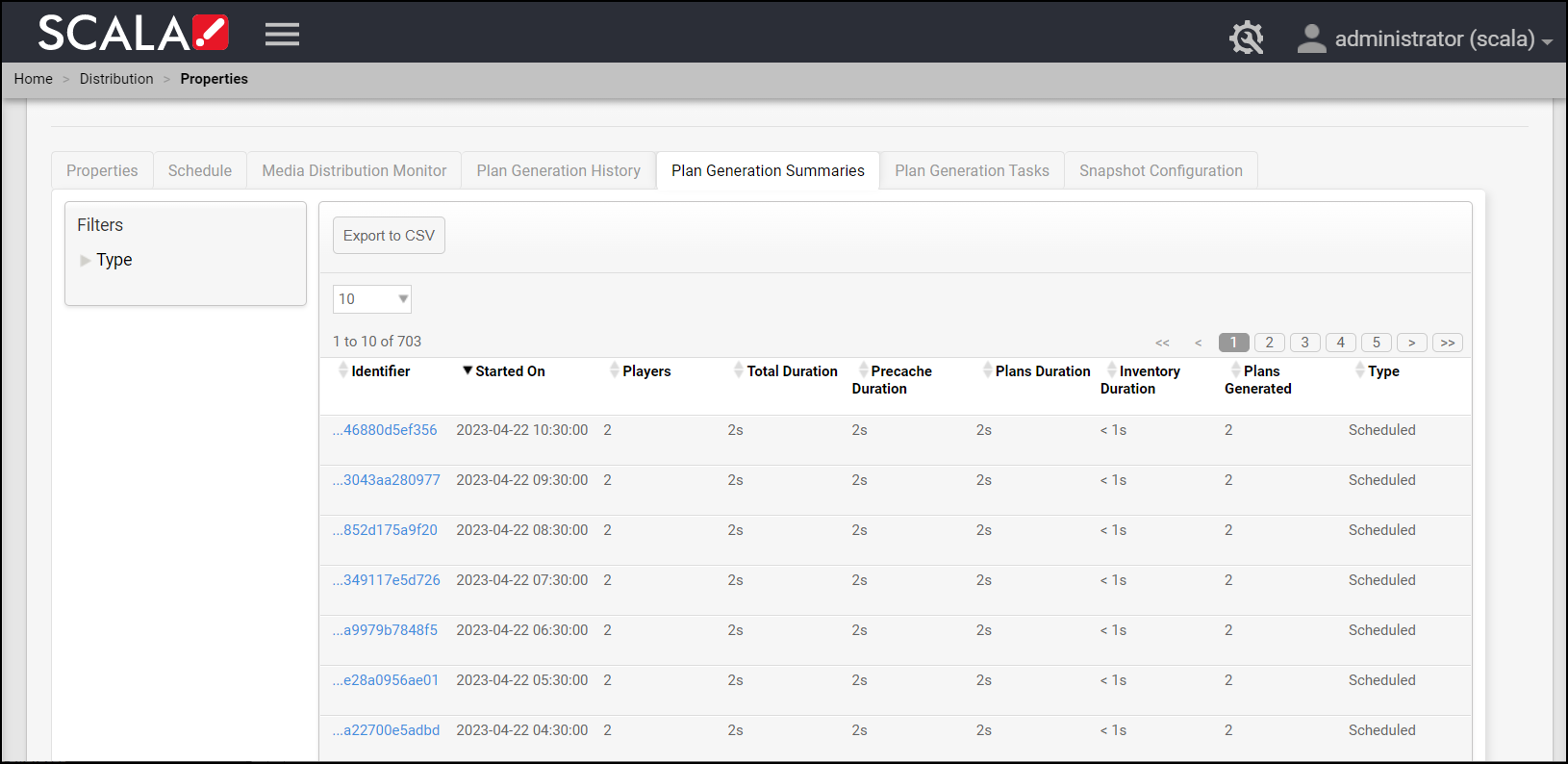
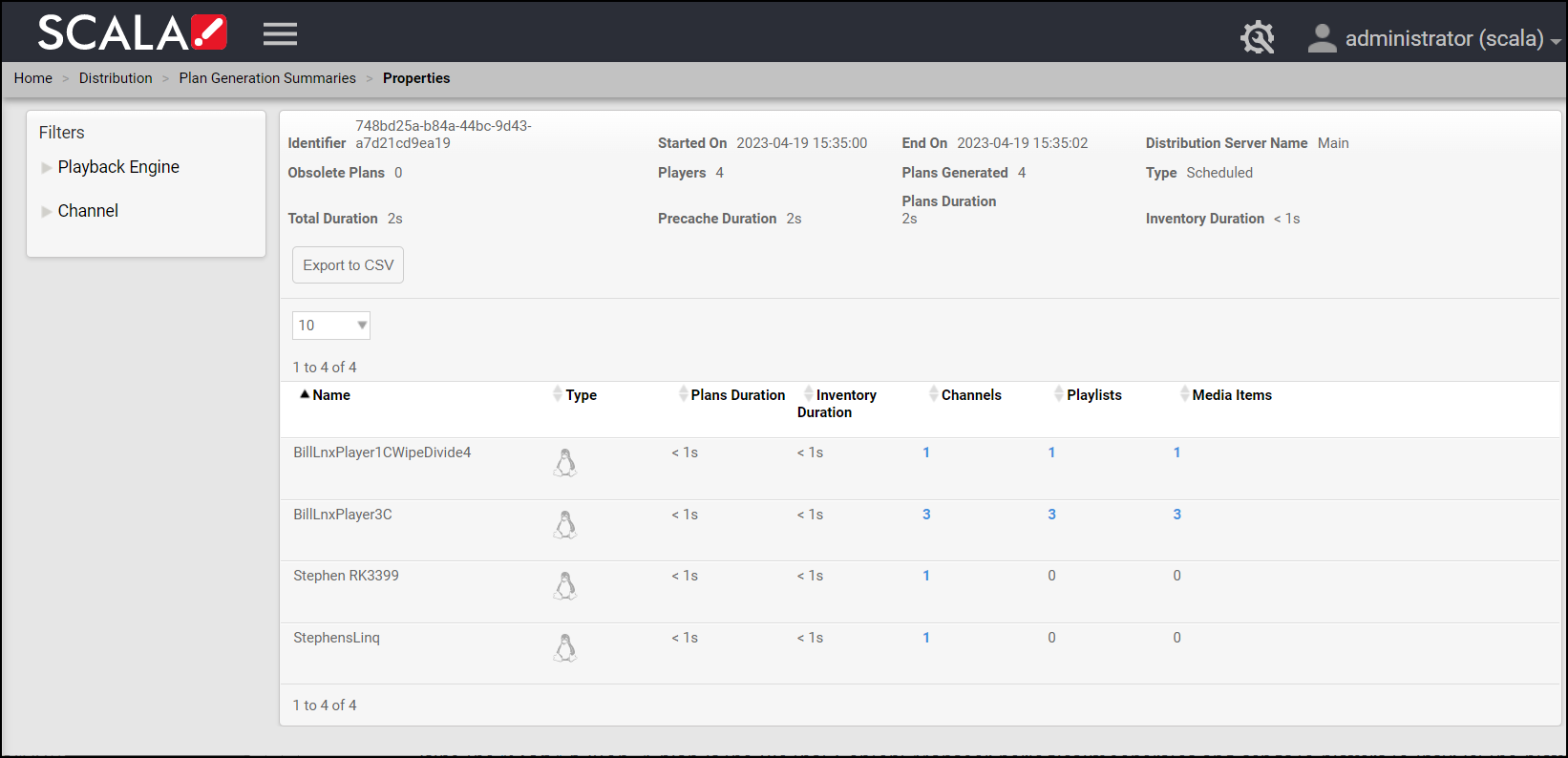
You can select any plan generation on the page to view more details about that specific plan generation, including the [players](../../Content Manager/Network/PlayerProfiles.md), [channels](../../Content Manager/Planning/Channels.md), [playlists](../../Content Manager/Planning/Playlists.md), and [media](../../Content Manager/Content/Media.md) items that were included in that plan. To learn more about the information that is shown on this page, refer to [Working with Distribution Servers - Plan Generation Summaries](../../Content Manager/Network/DistributionServers.md).
Player Properties - Plan Generation History Page
In the Player Profile window, the new Plan Generation History page provides several columns that contain details about the plan generations that apply to that player. You can select the numbers that appear in the Channels, Playlists, and Media Items columns to view which specific items were included in each plan. To learn more about the information that is shown on this page, refer to [Working with Player Profiles - Plan Generation History](../../Content Manager/Network/PlayerProfiles.md).
WAMP Settings can be Configured in Content Manager
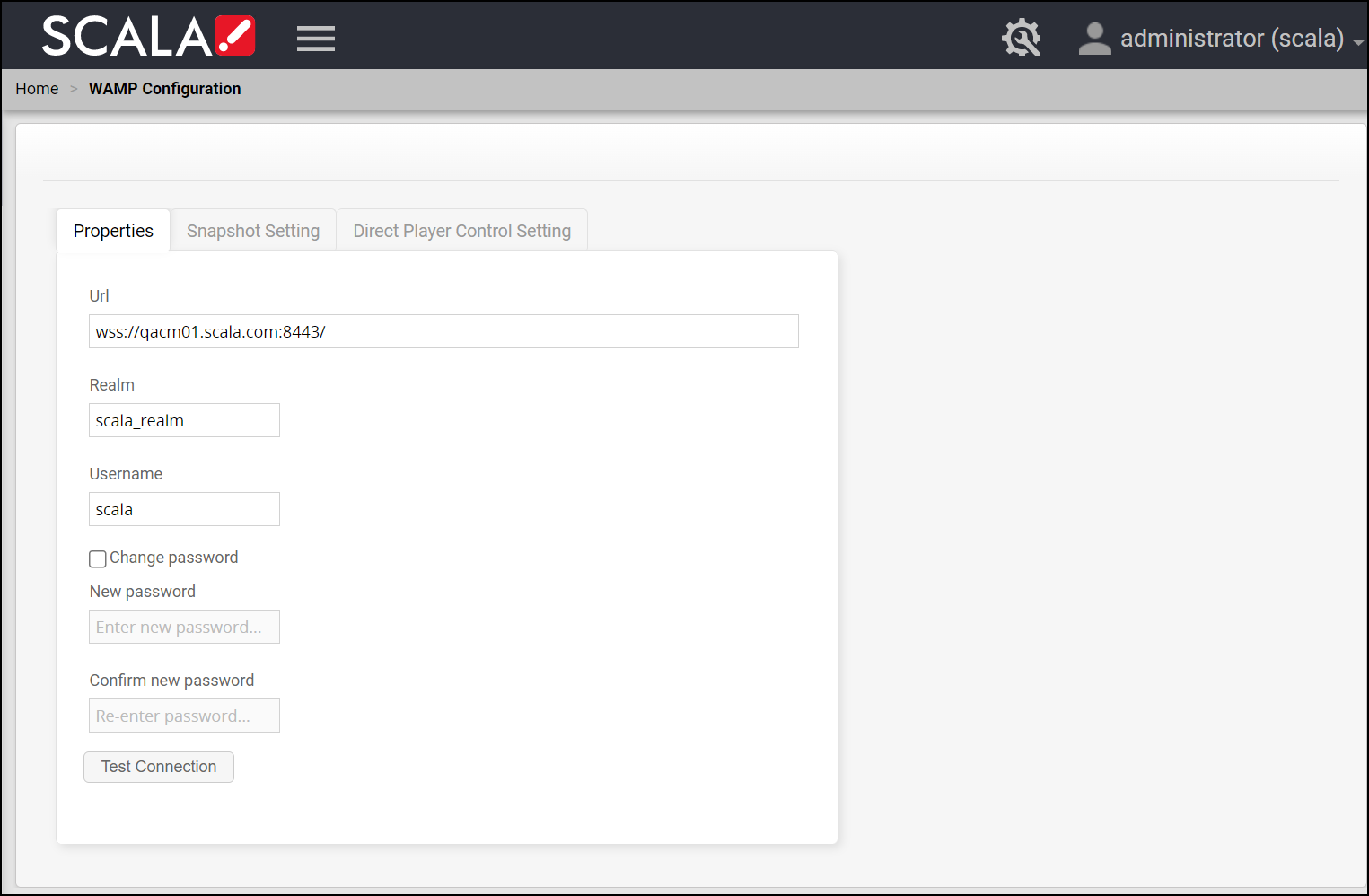
If you are running an on-premise instance of Content Manager, WAMP is an optional component that allows for enhanced, secure communication between Scala Media Players and Content Manager. WAMP is necessary if you want to use certain features including player snapshot and direct player control.
In prior versions of Content Manager, to set up WAMP, the process required you to manually enter all of your WAMP settings in a configuration file. However, in 13.10, the settings are now entered in a new WAMP Configuration window in Content Manager. Entering the settings in Content Manager instead of a configuration file is easier and it reduces the potential for error.
If you already set up WAMP, upon upgrading to version 13.10 or later, all of your WAMP settings are retained and they automatically appear in Content Manager's WAMP Configuration window where you can access and edit those settings. Additionally, upon upgrading to version 13.10 or later, your WAMP settings are automatically moved from your config.properties file to a new wamp.properties file, although typically you do not need to access or edit that file manually as you can use the WAMP Configuration window to change your settings.
For complete instructions on using the new WAMP Configuration window as well as setting up WAMP in general, refer to Working with WAMP Configuration Settings.
New Color Palette in Designer
The color palette in Designer was improved, so that now you can enter HEX values for custom colors, you can save more colors as paint chips, there is better color picking functionality, and you will have a better overall experience when creating and editing colors.

Improvements & Fixes
Scala Enterprise version 13.10 includes the improvements and fixes outlined below.
Content Manager's Possible Memory Leak Fixed
Some users experienced a memory leak when running the 13.00 version of Content Manager. This issue was fixed in version 13.10 so that a memory leak will no longer occur.
Content Manager's Version of SSL Upgraded
Content Manager's version of SSL was upgraded to 3.0.7.
Due to compatibility issues, Content Manager's version 13.10.02 patch reverted the SSL package back to OpenSSL 1.1.1q. With some additional re-engineering, Scala plans to once again upgrade Content Manager's SSL package in a future release.
Slowdowns when Generating Reports in Content Manager Fixed
If you began using Content Manager's [reports](../../Content Manager/Reporting/Reports.md) feature with version 12.60 to 13.00, you may have found that reports take a long time to generate. This issue was fixed so that reports generate faster.
Editing Messages - Thumbnail Previews Properly Update
Messages are media files that are created from templates, and they can be edited directly in Content Manager. If you use messages as well as workgroups, you may have experienced an issue where messages' preview thumbnails did not update when you edited the messages. Preview thumbnails are useful so that you can review what your changes look like on the message. This issue was fixed so that preview thumbnails appropriately update when you edit messages.
LDAP Users - Ability to Publish from Designer to Content Manager
If you use LDAP as the user authentication method for users to log in, you may have experienced an issue where users cannot publish items such as ScalaScript and templates from Designer to Content Manager. This issue was fixed so that now LDAP users can publish items from Designer to Content Manager.
Transition Rendering Fixed for Players Running 64-Bit Windows & Linux Player Software
A transition (also called a "wipe") is the visual effect that is used as one media item transitions to the next media item during playback. Previously, some transitions did not work properly for players that run 64-bit Windows or Linux Player software. This issue was fixed so that transitions now correctly appear on players that have 64-bit Windows or Linux Player software.
Better Workflow in Designer
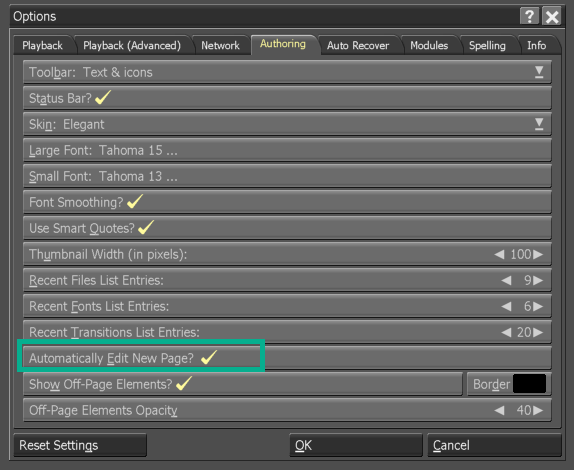
In Designer, the Automatically Edit New Page? setting is now enabled by default for a more streamlined workflow. While this setting already existing in previous versions, with it enabled, when you create a new page your new page automatically opens in edit mode where you can begin working on it immediately. If Automatically Edit New Page? is disabled, your new page appears as a thumbnail and you must select it to begin editing.