Overview
Scala Apps provide templates that help you quickly create content for common playback needs. For example, there are templates that allow you to create a menu board, a countdown to an event, a happy birthday message, a directory of building tenants, and much more. For general information about using Scala Apps and instructions on using each available template, refer to Learn About Scala Apps.
This page covers the Scala Apps Configuration window, where you can set some options that apply to the Scala Apps feature and you can view related log messages.
How to Open the Scala Apps Configuration Window
Click the System icon

Select Scala Apps Configuration.
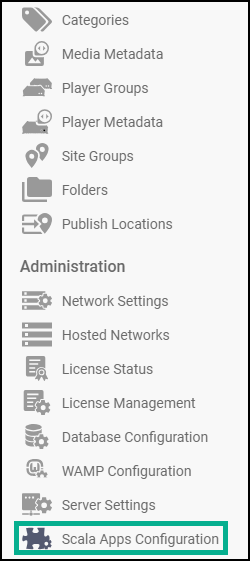
In the Scala Apps Configuration window, select a tab to open the page that you want to work with. Information about each page is provided below.
Properties Page
The options on the Properties page of Scala Apps Configuration window are outlined below.
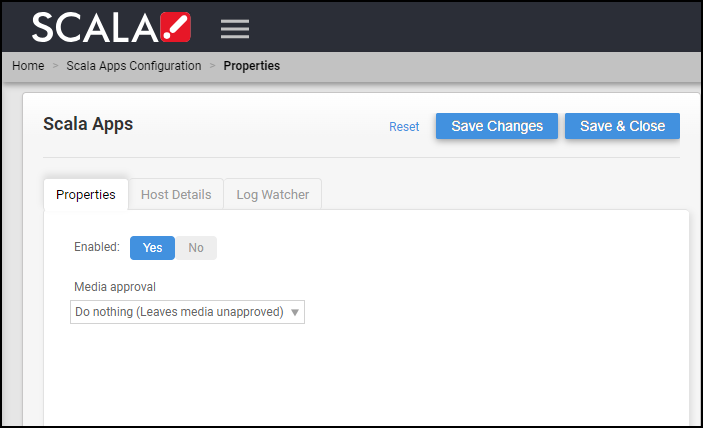
Enabled - Select whether you want Content Manager to automatically update with the latest Scala App templates. The options are:
Yes - Content Manager automatically checks for new Scala App templates, as well as for newer versions of existing Scala App templates, and loads them whenever they are available. Once loaded, any new Scala Apps appear on the App Templates page, so that you can import and use them. For this option to properly work, your Content Manager server must have internet access and it must be allowed to connect to apps.scala.com
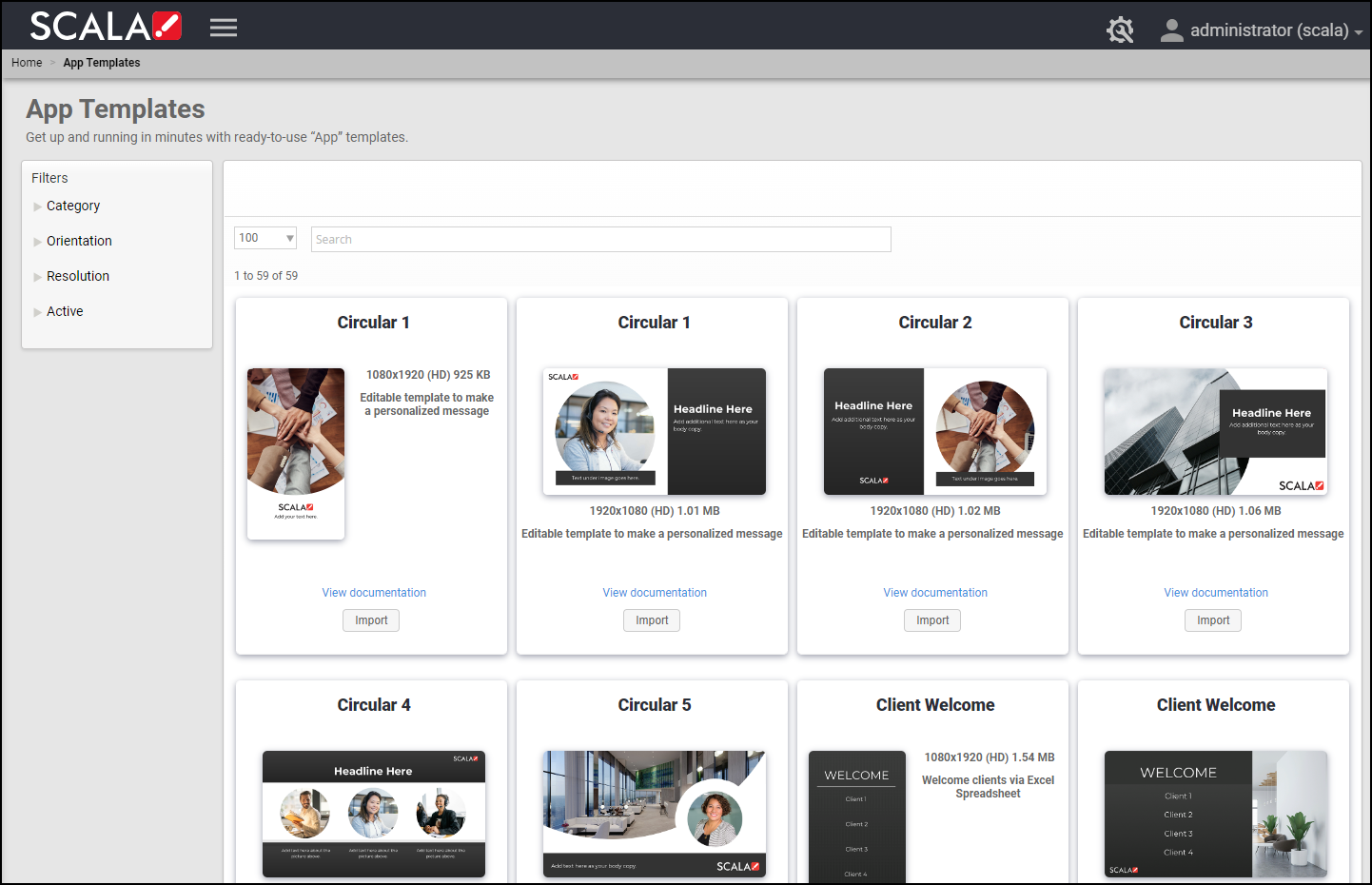
No - Content Manager does not automatically check for and load new Scala App templates, and it does not check for and load newer versions of existing Scala App templates.
Media approval - Choose how the messages in your media list that are based on Scala App templates are handled when new versions of those templates are loaded. For example, if you create a message based on the Happy Birthday template, and later Scala releases a new version of that template to increase the font size of the on-screen text, this option affects how that change is implemented in your existing Happy Birthday message.
The Media approval option that you choose is relevant only if Enabled is set to Yes above.
The options are:
Auto approve - Messages that are based on a Scala App template are automatically updated and set to an Approved status when a new version of the Scala App template is loaded. Your existing messages are updated to incorporate the changes in the Scala App template, so that they reflect the new version of the template.
Send approval request - Messages that are based on a Scala App template are not automatically updated when a new version of the Scala App template is loaded, and they continue to play in their current state in any playlists where they exist. However, these messages are changed to Needs Approval status, and if they are approved they are updated to incorporate the changes in the Scala App template, so that they reflect the new version of the template.
When a new version of a Scala App template is loaded in Content Manager, notification emails are automatically sent to users who have the Approve Messages permission enabled in their user role, alerting them that an approval is requested. Those users can review the new version of the Scala App template that appears on the App Templates page], then decide whether to approve the message so that it is updated to reflect the new version of the template.
A notification email is automatically sent to the approvers only if (1) an SMTP server is configured in the Network Settings - Mail Server Settings and (2) Receive approval notification emails is set to Yes on the approvers' user profiles.
Do nothing - Messages that are based on a Scala App template are not automatically updated when a new version of the Scala App template is loaded, and they continue to play in their current state in any playlists where they exist. However, these messages are changed to Needs Approval status, and if they are approved they are updated to incorporate the changes in the Scala App template, so that they reflect the new version of the template. To be able to approve a message, a user needs to have the Approve Messages permission enabled in their user role. .
The only difference between the Send approval request and Do nothing options is whether or not automated approval request emails are sent when there is a new version of the Scala App template.
For information about approving a message, refer to Working with Media - Editing Media Items - Approval.
Host Details Page
The options on the Host Details page of Scala Apps Configuration window are outlined below.
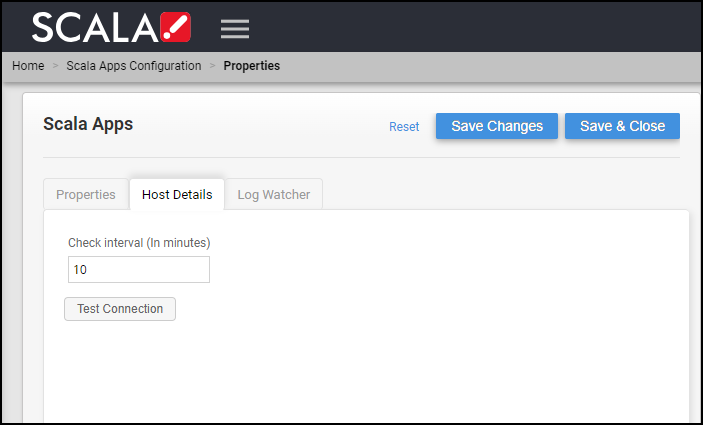
Check interval (In minutes) - Enter how often, in minutes, you want Content Manager to check for new Scala App templates. Each time a check is performed, your Content Manager server uses its internet connection to check apps.scala.com for any updates.
Test Connection - Click this button to check if your Content Manager server is able to successfully connect to Scala's server (apps.scala.com), where Scala App templates are retrieved. If the connection test is not successful, Content Manager is not able to get updated Scala App templates.
Log Watcher Page
The Log Watcher page shows log messages for activity related to Scala Apps.
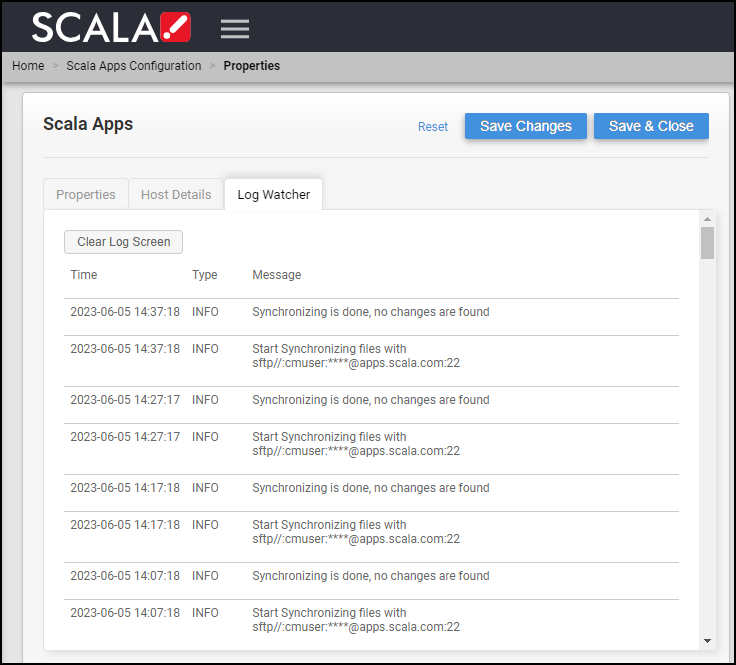
Clear Log Screen - Temporarily clears the log messages that appear in the window. If you navigate away from the Scala Apps Configuration window and then return, the information that you cleared returns. This button can be helpful if you want to only see the latest log messages for troubleshooting purposes, and too many older messages appear as unwanted clutter.