Overview
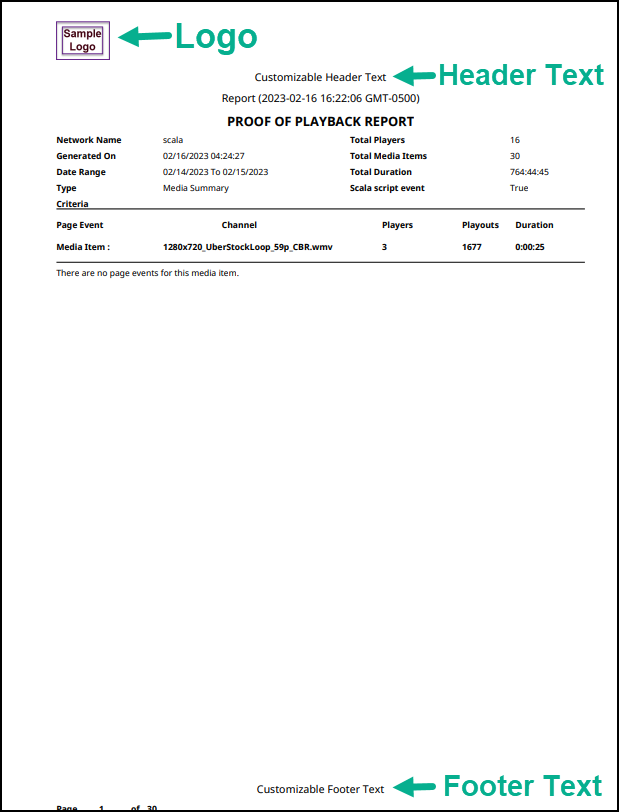
If you use Content Manager's Reporting feature to generate reports that provide a record of your playback history, the Reporting Settings allow you to set the language that will be used on reports as well as customize the appearance of your reports by inserting a custom logo, setting a custom header, and setting a custom footer.
Using the Reporting Settings
Follow the steps below to set the Reporting Settings.
Click the main menu.
Select Settings in the menu. The Settings page opens.
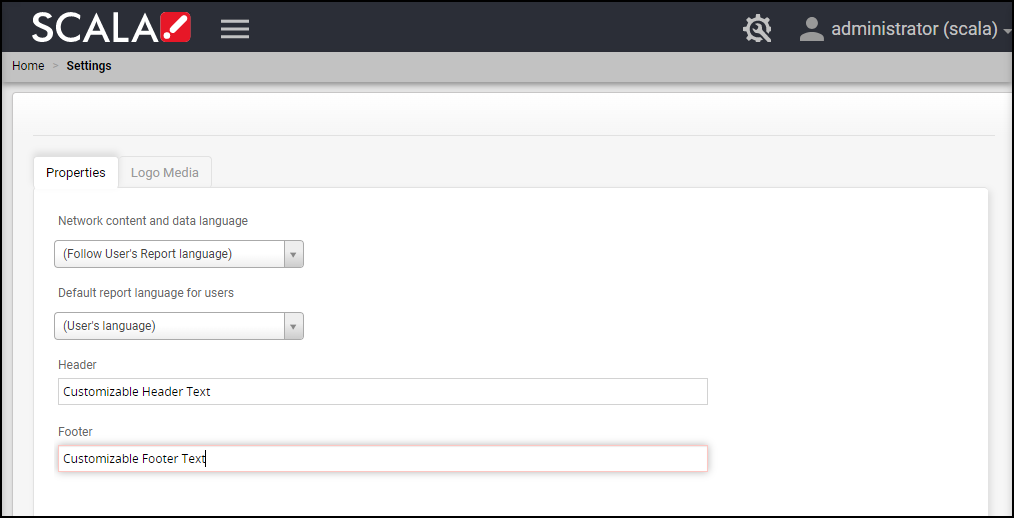
On the Properties page, the following settings are available:
Network content and data language - The language (and corresponding character set) that is used for information from the database that is populated on reports, such as player names and media item names. For example, if you have media items named with Japanese characters, you must select Japanese in this field for those names to appear correctly on your reports. If you do not select the language that matches your data, reports may, for example, show a media item name as "??????.jpg." If you select Follow User's Report language, the language selected in the next field below is used for the data that is populated on reports.
Default report language for users - The language that is used for headings and column headers on reports.
If you select User's language, the report language will reflect the language assigned to the user who generates the report, as specified in that user's User Profile - Regional Settings.
If you select a specific language, that language will be used for all reports, regardless of the language that is assigned to the user who generates the report.
Header - Text that appears at the top of every page on reports. Refer to the sample image in the Overview section above for an example.
Footer - Text that appears at the bottom of every page on reports. Refer to the sample image in the Overview section above for an example.
If you want to add a logo or other image at the top of every page on reports, select the Logo Media tab.
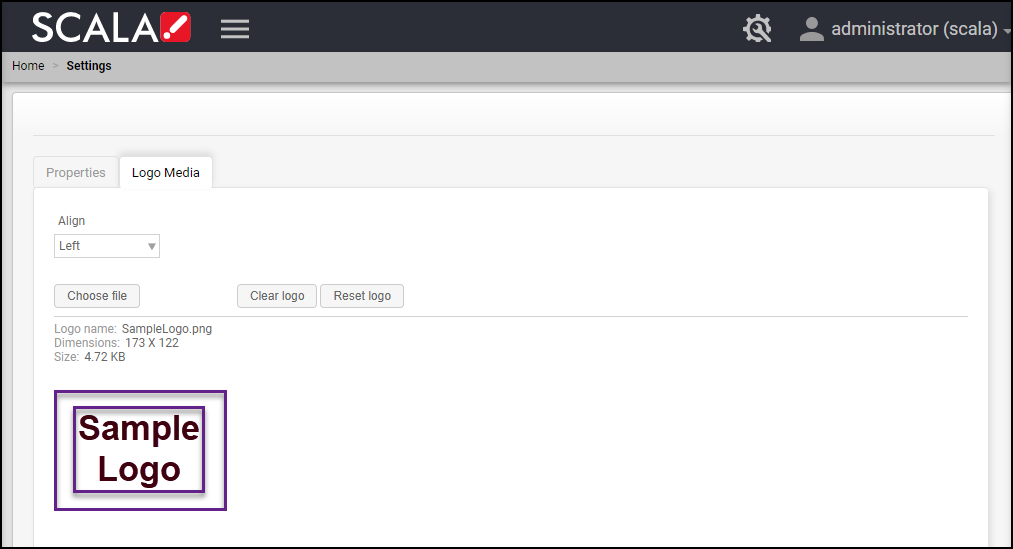
Click the Choose file button to upload an image file that will appear at the top of every page on reports. Refer to the sample image in the Overview section above for an example.
Use the Align setting to select whether your logo will appear at the Left, Center, or Right, at the top of the page.
Click the Save Changes or Save & Close button.