
Using the Homepage Dashboard
Overview
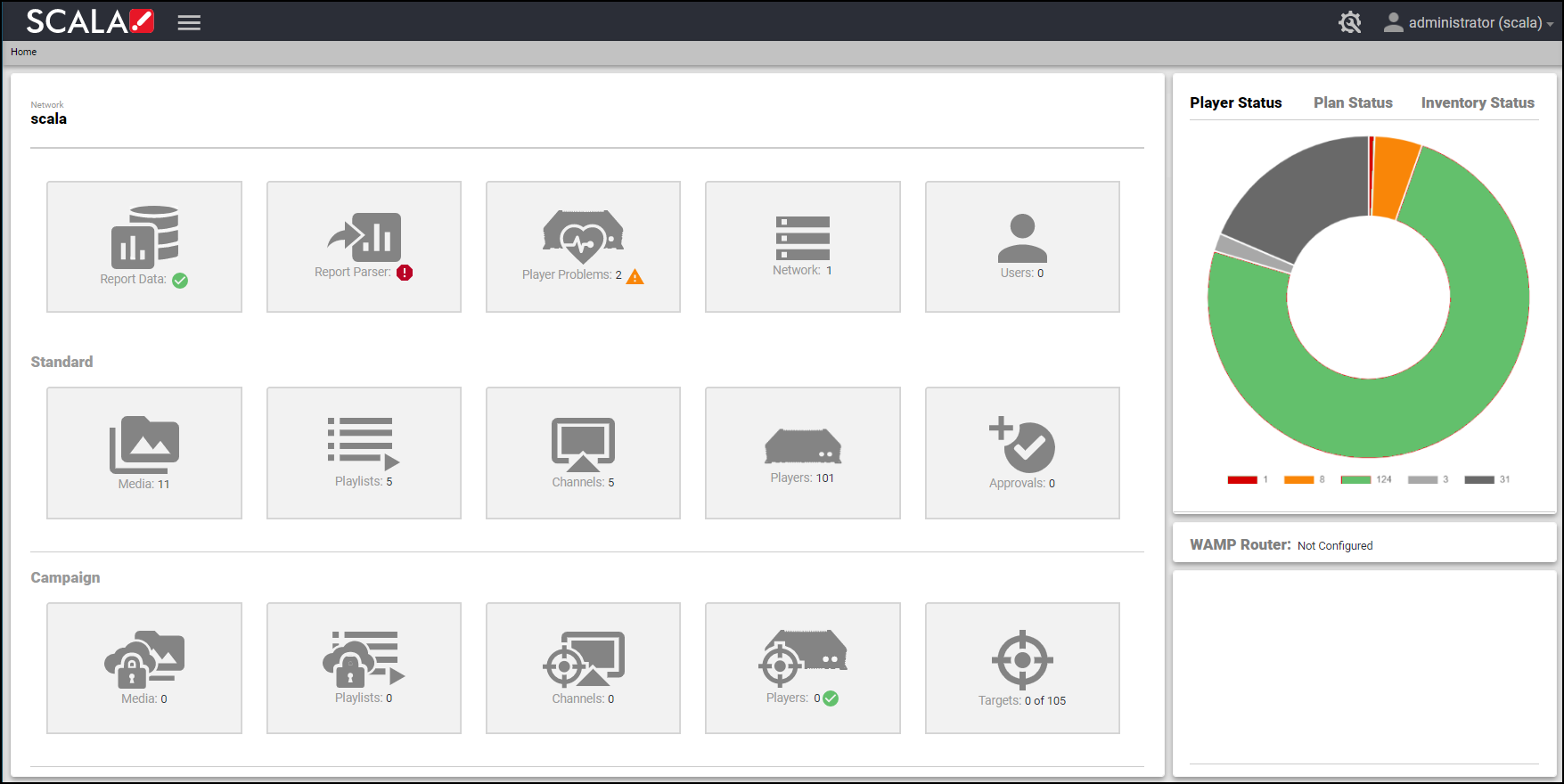
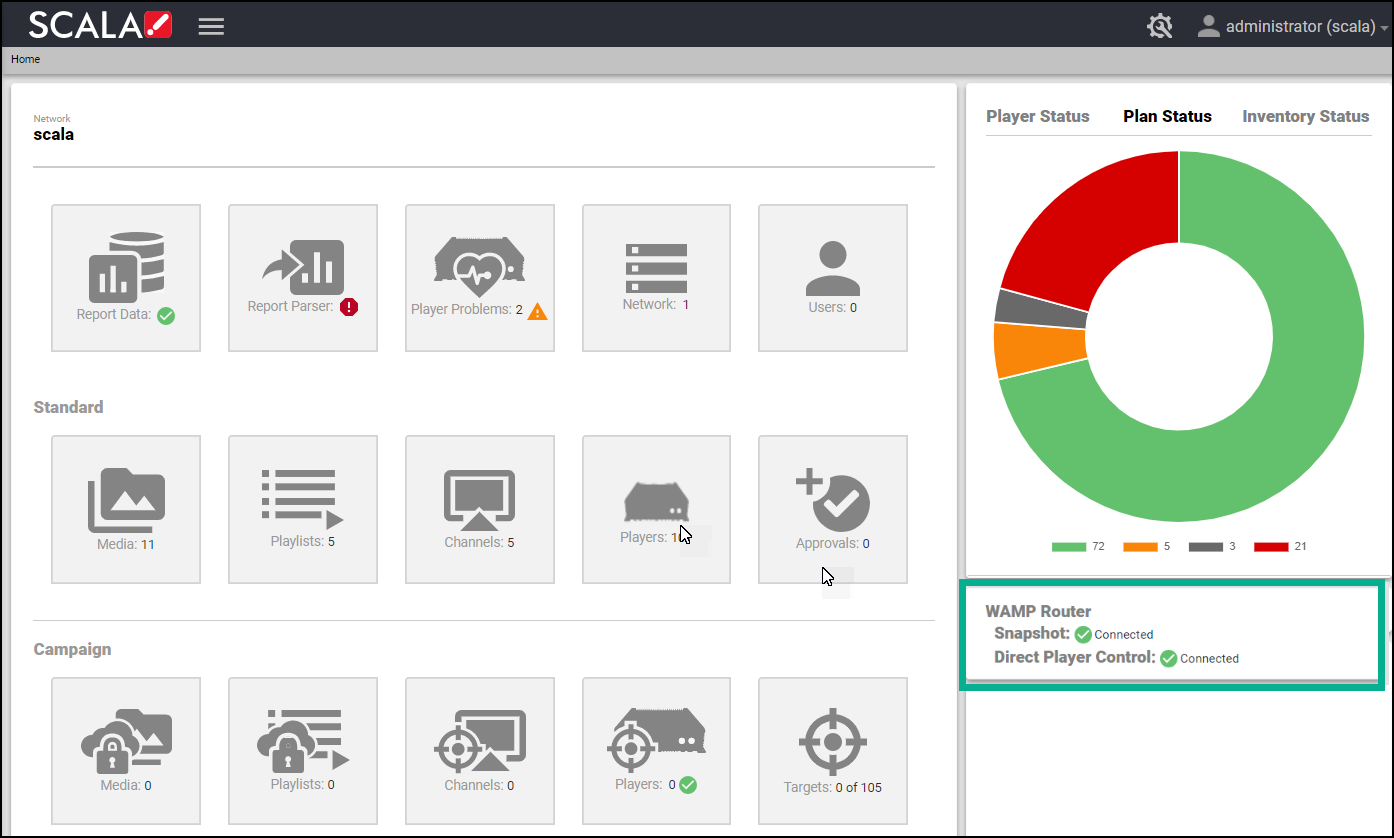
Content Manager's home page displays a dashboard that provides a convenient overview of your Scala environment as well as shortcuts to frequently-used information and tools.
The information that is displayed to you on Content Manager's dashboard depends on the your user role
Tiles
A grid of tiles appears on the dashboard. The tiles provide some key status information that can alert you to problems at a glance, and you can select any tile to open relevant details. Each tile is described below.
Report Data - Displays the status of the reports page. A green check means the reports module is running as expected, a red X means that there is a problem. You can select the tile to open the Reports page.
Report Parser - Displays the status of the reports parser and Content Manager's connection to MongoDB. A green check means the report parser is running as expected, a red X means that there is a problem. You can restart the report parser in the Network Settings - Miscellaneous Settings, or by restarting the Content Manager server. You can select the tile to open the Reports page. The report parser is relevant only if you use the playback audit reporting feature to allow you to generate a historical record of the content that was played by your players.
Player Problems - Indicates if there are any problems reported by players that have not been cleared by a user. A green check means that there are no uncleared player problems, a red X means that there is one or more uncleared player problems. You can select the tile to open the Player Problems page and view details about the player problems.
Network - Displays the numbers of hosted networks. You can select the tile to open the Hosted Networks page.
Users - Displays the number of user profiles that exist in your Content Manager instance. User profiles are the user accounts for the people in your organization who need to access Content Manager, as well as the user accounts for any API/integration users. You can select the tile to open the User Profiles page.
Media - Displays the total number of media items that exist in Content Manager. You can select the tile to open the Media page.
Playlists - Displays the total number of playlists that exist in Content Manager. You can select the tile to open the Playlists page.
Channels - - Displays the total number of channels that exist in Content Manager. You can select the tile to open the Channels page.
Players - Displays the total number of player profiles that exist in Content Manager. You can select the tile to open the Players page.
Approvals - Shows how many media items are currently in needs approval status. This tile is relevant only if you enabled the approval feature in the Network - Approval settings. You can select the tile to open the Media window with only the media items that need approval displayed. If you have permission to approve media and messages, you can approve or reject the media items as appropriate.
Player Health Rollup Charts
The player health rollup charts will appear on the Content Manager dashboard only if you are assigned a user role with the Super Administrator privilege.
There are three different charts that you can view: Player Status, Plan Status, and Inventory Status. Use these charts to quickly view the health status of your player network in real time and determine if any action needs to be taken.
Player Status
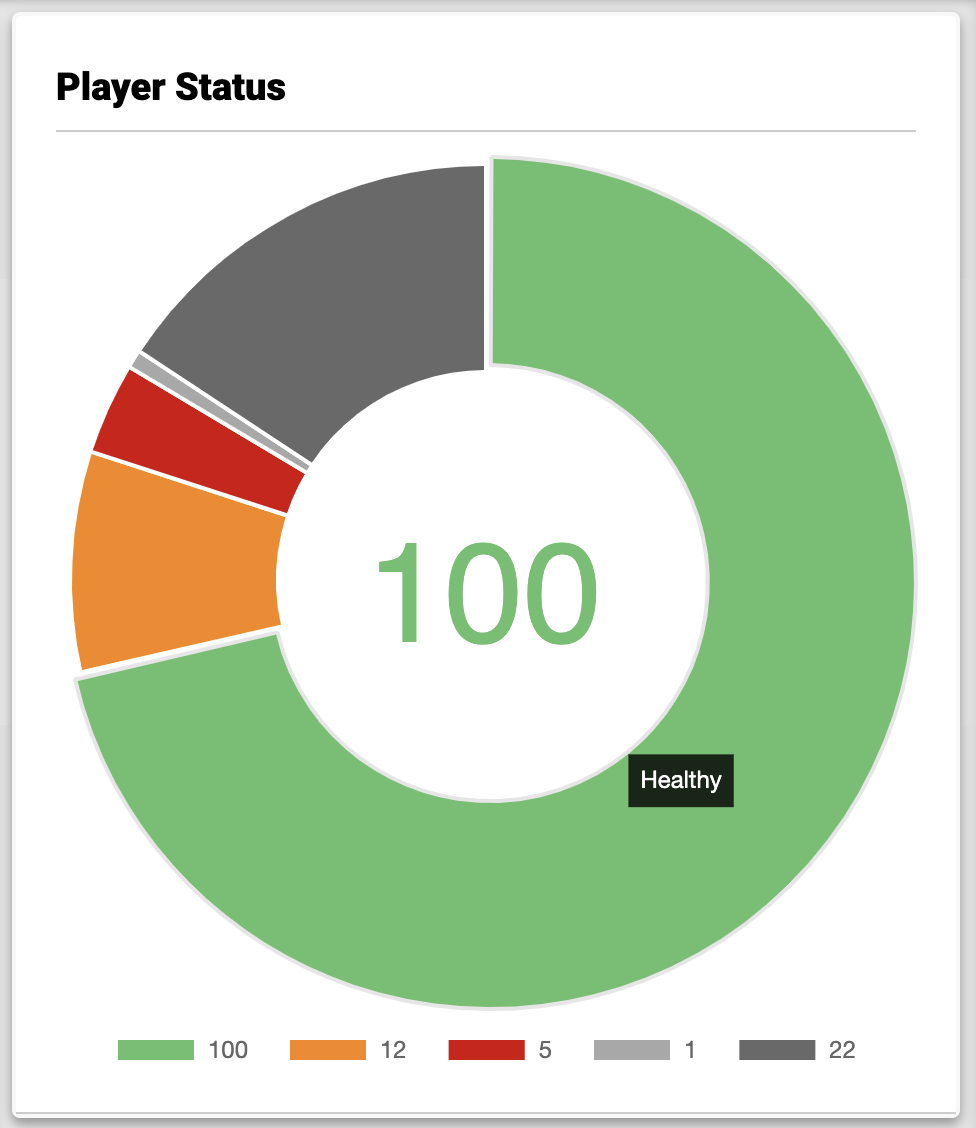
The Player Status chart lets you quickly see a breakdown of which players are healthy and functioning, which players may have a problem, and which are offline. On the chart, hover over any color to view the number of players currently in that status. You can also select any color on the chart to view a list of all the players with that particular status.
The table below describes each possible status.
Status | Color | Description |
|---|---|---|
Healthy | green | The player is working as expected and returning a heartbeat at regular intervals. |
Warning | orange | The player is experiencing problems. Click to view a list of players. View problems in the Status column of the Players page or on the Health tab for individual players. |
Error | red | Playback is inactive and/or the heartbeat for the player is overdue. Click to view a list of players in this status. View problems in the the Status column of the Players page or on the Health tab for individual players. |
Unmonitored | light gray | The player is currently being set up, configured, or in maintenance. |
Deactivated | dark gray | The player is currently in a status of deactivated and it is not reporting back to Content Manager. |
Player statuses are based on player states; player states are more granular than statuses. The following table identifies the player states associated with each player health status. To review a player's state, look in the Status column on the Player list or view the player's Health tab, found in the player profile.
Status | Player states |
|---|---|
Healthy |
|
Warning |
|
Error |
|
Unmonitored |
|
Deactivated |
|
Plan Status
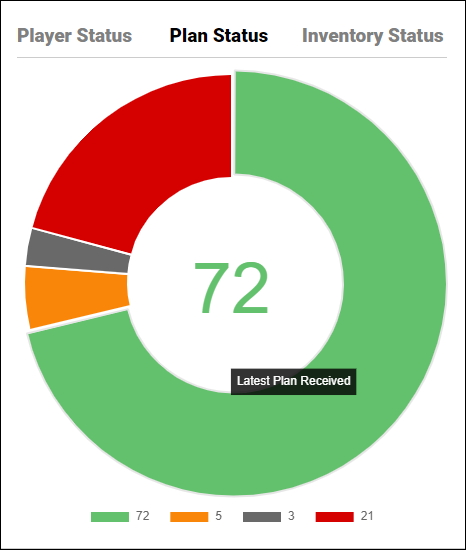
The Plan Status chart lets you quickly check if players have their most up to date plan file. Content Manager automatically sends a player a new plan file (plan.xml) whenever something is changed, such as a change to playback content or maintenance jobs. The plan file contains all the instructions for the player: what content to play, when to play it, any maintenance jobs to perform, etc. So, the Plan Status chart indicates if players are properly connected and communicating with Content Manager, specifically in regard to the plan file.
You can change how frequently players report their plan status information to Content Manager by adjusting the Plan status interval (min) setting on the Distribution - Properties window.
On the chart, hover over any color to view the number of players currently in that status. You can also select any color on the chart to view a list of all the players with that particular status. For example, you can select the red segment to see a list of all players that do not have a plan file.
The table below describes each possible status.
Status | Color | Description |
|---|---|---|
Latest Plan Received | green | The player successfully received the latest plan and the plan contains content. |
Latest Plan Pending | orange | Content Manager generated a new plan for the player, but the player has not yet downloaded it. How often a player checks for a new plan to download is configurable (based on the Polling Interval set on the Player Profile’s Configuration tab), with a default setting of every one minute. The Latest Plan Pending status could appear temporarily as a normal result of the Polling Interval, however if this status persists you should check the player as it may have lost power or network connectivity. |
No Plan | red | Content Manager did not generate a plan for the player. To address players with this status, first make sure that a channel with content is assigned to the players. Then, select the player(s) in the Player list, and select the Generate Plan button.
|
Latest Plan Empty | dark gray | A plan was generated and the player received it, but there is no content associated with the plan. The possible issues could be that there is no channel assigned to the player, the player's channel has no timeslots added to it, or the playlist assigned to the timeslot is empty. The result of this status is a black screen with no playback. |
Inventory Status
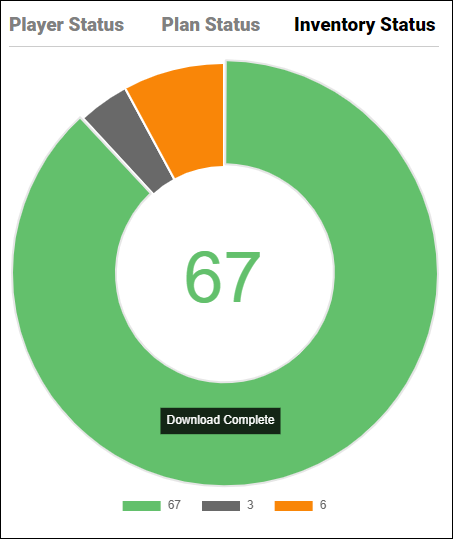
The Inventory Status chart lets you quickly check if players have successfully downloaded all the inventory for their current playback plan. “Inventory” is the files such as images, videos, scalascript, maintenance job data, etc. that are needed for the player to execute the plan. This chart can help you identify if there is a problem with any file, or if you forgot to add content for a player.
On the chart, hover over any color to view the number of players currently in that status. You can also select any color to view a list of all the players with that particular status. For example, you can select the red segment to see a list of all the players with failed downloads.
The table below describes each possible status.
Status | Color | Description |
|---|---|---|
Download Complete | green | The player successfully downloaded all items listed in the players latest plan file. |
Download Delayed | orange | The player has remaining files to download. The player has the latest plan, it was in the process of downloading the inventory, then something interrupted the player before all the inventory files were downloaded. Check if the player lost power or network connectivity. |
Download Failed | red | The player could not successfully download inventory files. Inventory files in the plan might be missing or corrupted. Go to the Player’s Inventory tab and check for errors on specific files, then re-upload those files. |
Download Queued | light gray | The inventory download is in progress and the player heartbeat is not overdue. This status generally indicates that there is not a problem, the download simply did not yet complete. |
No Inventory | dark gray | The player received the latest plan, but there are no inventory files in it. The possible issues could be that there is no channel assigned to the player, the player's channel has no timeslots added to it, or the playlist assigned to the timeslot is empty. The result of this status is a black screen with no playback. |
WAMP Router Status
Overview
The WAMP router status will appear on the Content Manager dashboard only if you are assigned a user role with the Super Administrator privilege.
If you use a WAMP router, you can quickly check the status of the WAMP router on Content Manager's home page dashboard.
There are two separate connection statuses, one for each of the features that are supported by the WAMP router: Snapshot and Direct Player Control. These two features each have their own, independent connection to the WAMP router, so it is possible that one connection could be dropped while the other is connected.
An explanation of each possible status is provided below.
Possible Statuses
The table below explains all of the possible WAMP router statuses that may appear on the Content Manager dashboard. As reflected below, some statuses can have a different meaning depending on the text that appears when you hover your mouse pointer over the status.
Status - Hover Text | Meaning | Required Action |
|---|---|---|
Not Configured - Router is not configured | This message appears if you did not configure WAMP. | If you want to use a WAMP router, follow the instructions here to complete all necessary settings. If you chose to not use a WAMP router, there is nothing that you need to do and you can ignore the WAMP router status. |
Invalid Configuration - Realm is invalid | This message appears if in the WAMP Configuration Properties settings, the Realm field is completed, but it is incorrect. | In the WAMP Configuration Properties settings, check the Realm field and make appropriate corrections. Unless you have made customizations, in most cases it should appear as: scala_realm |
Connecting | This message appears if Content Manager is currently attempting to authenticate and connect to the WAMP router. | Wait a few moments to check if Content Manager successfully connects. |
Authentication Failure | This message appears if Content Manager found the WAMP router, but was not able to authenticate with the username and password provided. Typically, this message means that in the WAMP Configuration Properties settings, the username and password specified for the WAMP router are not correct. | In the WAMP Configuration Properties settings, make any necessary corrections to the username and password fields. These fields need to accurately reflect the username and password for the WAMP router user account, which you created when you ran the WAMP router installer that is provided by Scala. If you need to reset the username and password, refer to Changing the WAMP Router Username and Password. |
Connected | This message appears if Content Manager is connected to the WAMP router and the WAMP router is running as it should. | There are no issues and there is nothing that you need to do. |
Unreachable | This message appears if Content Manager could not find the WAMP router to attempt to authenticate. The Url field specified in the WAMP Configuration Settings may be incorrect or the WAMP router may be down. | In the WAMP Configuration Properties settings, check that the Url and other fields are correct. Also, you can try using the Test Connection option on that page. Otherwise, check the status of the WAMP router and make sure it is running. Refer to Checking if WAMP is Running. |