Overview
Scala Apps provide numerous templates that help you quickly create content for common playback needs. For general information about how Scala Apps work, refer to Learn About Scala Apps.
Included in the Scala App templates is the YouTube template. The YouTube template lets you play a YouTube video or YouTube live stream on your display screens. During playback, you will see only the video on your display screens without any frame, window, or YouTube options around the video.
Please note, if you want to play a video on your display screens, whenever possible it is better to upload a copy of the video file in Content Manager, rather than use this YouTube template. By uploading the video file in Content Manager, the video file will be passed to your players' local storage, and playback will not be dependent on a player's internet connection or on the stability of third-party applications. However, the YouTube Scala App is available for scenarios when you cannot obtain a copy of the video file or if you want to play a live stream, and you have good connectivity.
YouTube videos that have a longer duration (e.g., more than one or two hours) may have less playback stability than YouTube videos with a shorter duration (e.g., less than one hour). When a YouTube video has a longer duration, there is an increased likelihood it may crash within the third-party applications that are used by the Scala player (i.e., CEF/Chrome/YouTube). If a crash occurs, the player is not able to restart or resume the video—the player skips ahead to the next media item in the playlist.
To use this Scala App, your players must have internet access.
Not all YouTube videos can be played using this Scala App. Videos cannot be played if:
The video's owner disabled embedding (embedding is required to automate playback through the Scala App).
The video is set to private or it is limited to members only (only videos set to Public or Unlisted can be played through the Scala App).
The video has been removed (each time the video plays, the Scala App accesses it from YouTube over the internet; the video is not saved anywhere in your Scala system).
Additional Information
Lost Connections
If a player's connection to YouTube is lost while playing a video, the video attempts to buffer. If it buffers for longer than 10 seconds without resuming playback, the video will exit without an error message and the next item in the playlist will begin. An error may be shown on your display screen if a connection is still unavailable upon a subsequent playback attempt.
Related-Items Grid
At the end of a YouTube video, a grid of related videos is briefly shown on your display screen before the next item in the playlist commences. Only related items from the video owner's account are shown. The related-items grid cannot be removed.
URL Parameters
Playlists, start/end times, and other parameters contained in a YouTube URL are not supported. If they are present, they will be ignored. The only required parameter in the YouTube URL is v=xxxxxxxxxxx, as that is the video ID.
Using the YouTube Template
Follow the steps below to use the YouTube template to create a message. Messages are the filled in templates that become autonomous media items which can be added to playlists. This means that once created, a message is no longer tied to the template, but still maintains the template properties.
After you create a message, you can find it in your media list and edit it at any time. For example, you can update the heading or images that appear on the message, and the changes will be automatically applied to that message in every playlist where it exists.
Click the main menu

In the menu, select Templates under Scala Apps. The App Templates page opens.
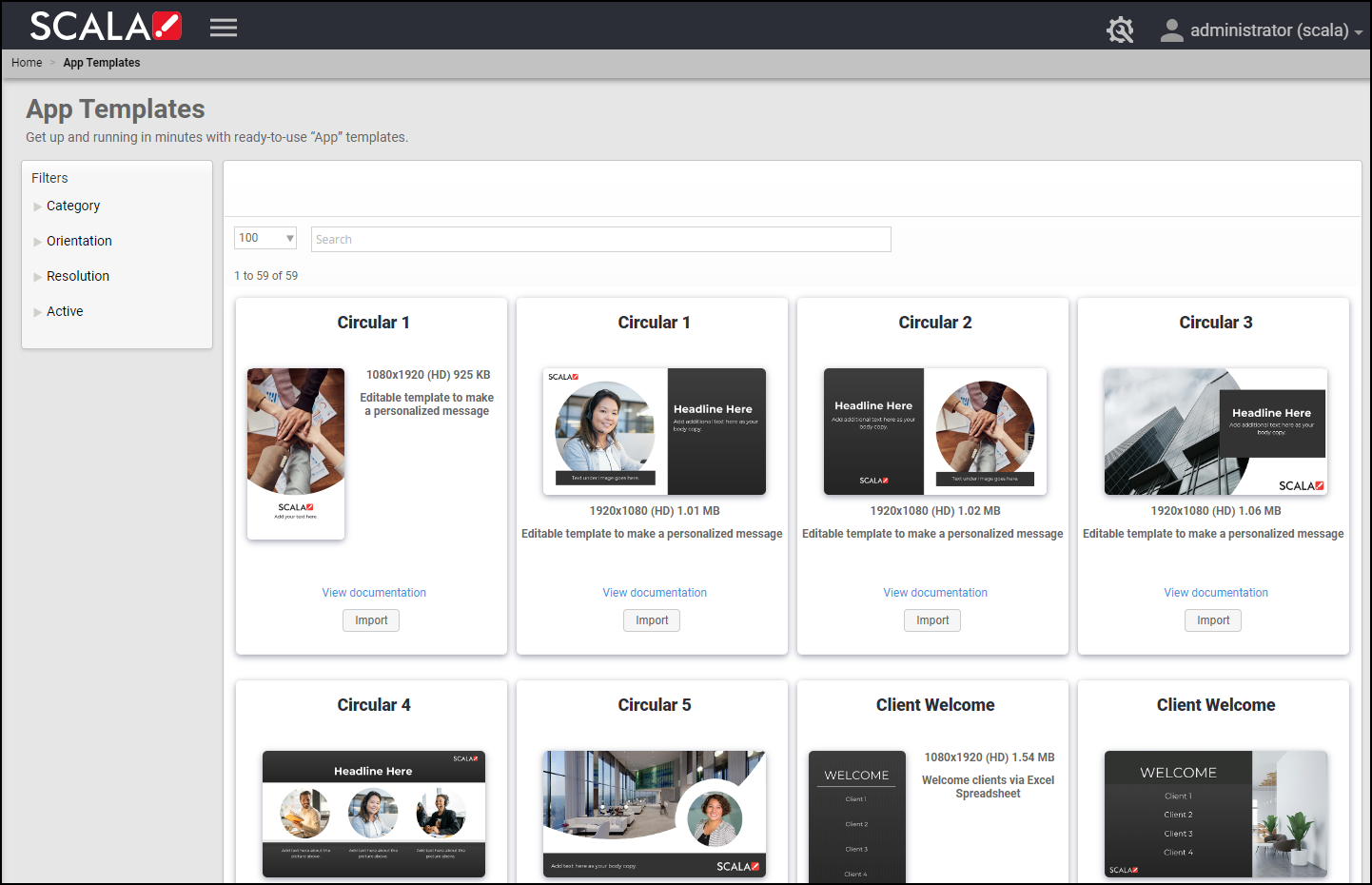
Find the YouTube template and click the Create Message button.
If an Import button appears instead of Create Message, it means that the template does not yet exist on your system. Click the Import button to import the template on to your system. Once the import is successfully completed, the Creating New Message window appears. If you host Content Manager on-premise, your Content Manager server must have internet access in order to import Scala App templates (the server must be able to access www.apps.scala.com).

The Creating New Message window opens.
In the Name field, enter a name for the message.

If you want to assign the new message file to workgroups, click the Assign Workgroup button. Assign an Owner workgroup and Shared workgroups as appropriate.
If a user belongs to the owner workgroup, the user can view, edit, and delete the entity.
If a user belongs to the shared workgroup, the user can view and use the entity, but not edit nor delete it.
If a user does not belong to any of the workgroups, the entity is hidden from the user.
If the entity is not assigned to any workgroup, all users can view, edit, and delete it (dependent on each user's role permissions).
Additionally, workgroup restrictions are enforced between entities in Content Manager. For example, if a playlist belongs to a certain workgroup, a media item must also belong to the same workgroup to be added to that playlist. Read more.
If you want to set metadata values for the message, click the Metadata button and complete the metadata fields as desired. The metadata fields that are available reflect the media metadata that was created by your organization. Adding metadata values to the message allows it to be added to smart playlists. While regular playlists require you to add and remove media items manually, smart playlists are populated with media automatically based upon matching metadata criteria.
The Metadata button appears only if you are using Content Manager version 13.20 or newer. If you are using an older version, you can add metadata values to the message after you save it by opening the message's properties.
In the Background Color field, select the background color that you want to appear if there is an error playing the YouTube video.
In the YouTube URL field, enter the URL for the YouTube video that you want to play. Simply copy and paste the URL that appears in your browser's address bar when viewing the desired video on YouTube's website.
Make sure to enter the URL for an individual YouTube video, not for a YouTube playlist. Playlists are not supported by the Scala App.
In the Volume field, enter the volume level at which you want the video's audio to play. Level 0 mutes the audio entirely, while level 100 is the loudest setting.
In the Closed Captions field, select whether you want to Disable or Enable closed captions when the video plays. Closed captions will appear only if you select Enable AND closed captions are supported by the video.
In the Image field(s), click Select if you want to choose a different image that appears on the message. The image that you want to use must be uploaded in Content Manager, using the same process that you would to upload any media item, so that it exists in your media list.
In the Show Logo? field, select Yes if you want the Logo image to appear. Select No if you do not want any logo to appear on the message at all. A logo appears only if an error occurs when your player attempts to play the YouTube video.
In the Logo field, click the Select button to change the logo image that appears. The image that you want to use must be uploaded in Content Manager, using the same process that you would to upload any media item, so that it exists in your media list.
A logo appears only if an error occurs when your player attempts to play the YouTube video.
In the right pane:
If you want to save the message without adding it to a playlist, click the Save New Message button. The message will be available in the media list, so that you can add it to any playlists at any time.
If you want to save the message and also add it to a particular playlist, choose a playlist in the Select Playlist field, then click the Save & Assign Playlist button. In addition to adding the message to the playlist that you chose, the message will be available in your media list, so that you can add it to any other playlists at any time.