Installation Options
The Scala installers accept various command-line parameters that affect the installation, or the values used in installation. To use these, open a command prompt and type:
setup.exe /OPTION1=value /OPTION2=value ...
If value contains spaces, enclose it in quotes, for example:
setup.exe /OPTION1="C:\Temp\My Folder"
Silent Installation
Silent installation can be accomplished by passing /SILENT or /VERYSILENT as command-line arguments. /SILENT installs ask no questions, but show installation progress. /VERYSILENT installs ask no questions and do not show progress during installation.
To assist with silent installs, the installers accept various additional command line parameters given below.
Common Installation Options
All the Scala installers accept:
/LOG=filename: Log the results to filename, which can be used to trouble-shoot a silent install.
/DIR=folderpath: Specify the full path where the product should be installed.
/LANGUAGE=language: Select language during installation.
These are the accepted values for Content Manager installs (NOT case sensitive):
BrazilianPortuguese
Danish
Dutch
English
Finnish
French
German
Italian
Japanese
Korean
Norwegian
Russian
SimplifiedChinese
Spanish
Swedish
TraditionalChinese
Turkish
/ROOTDATAFOLDER=path: Specify the path to be used for storing various configuration and data items. This corresponds to the WIN32_RootDataFolder keyword in MMOS.INI, but the command-line option is also supported for Content Manager.
Scala Enterprise Content Manager Installation Options
/NODATABASE: When installing, skip installation of PostgreSQL. Useful for silent installs where a different database will be used.
/SUPERPASSWORD=password: When installing PostgreSQL, use this as the super-user password.
/DBDATADIR=datadir: Use datadir as the database storage directory for the PostgreSQL installation.
/NOLOGIN: If the newly installed version needs its database schema updated, the installer normally opens a web browser so that the Administrator can login so that the database-update can be performed. By specifying /NOLOGIN on the installer command-line, this step will be skipped. (The database-update still needs to be performed before Content Manager will fully start up.)
/CMDATAFOLDER=path: Use path as the storage location for Content Manager's media and other files. (Note: specifying /ROOTDATAFOLDER= also changes this location, among other changes.)
/NOSTARTTOMCAT: At the end of installation, Setup will not start Tomcat if this option is specified.
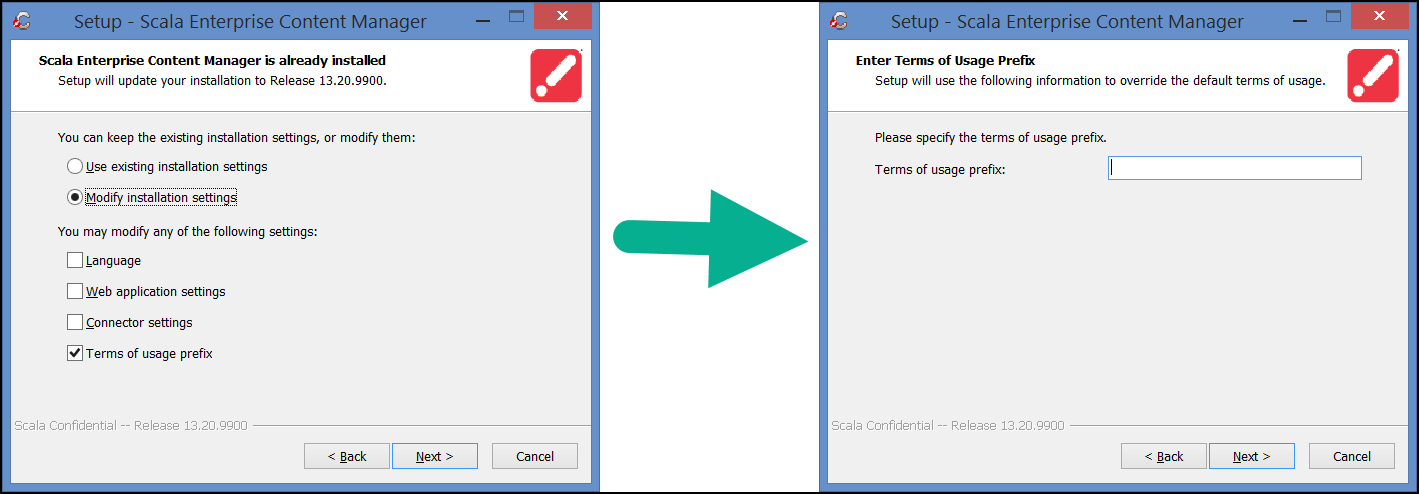
/TERMSOFUSAGE: Should only be used by organizations who have arranged to use DocuSign in order to require their users to read and accept legal terms of usage before accessing Content Manager for the first time. If you use this option, an additional window appears during installation requiring you to enter a valid prefix code, which is used to obtain the appropriate terms of usage digital document that is implementing for your Content Manager installation. If you re-install or update your version of Content Manager, you do not need to specify the terms of usage prefix again.

If you need to change your terms of usage prefix, when you re-install or update your version of Content Manager, you can once again use the /TERMSOFUSAGE command line argument, and you are [
Checking the Tomcat Java Memory Settings
When upgrading your version of Apache Tomcat, it is important to check the Java memory settings.
To change these settings, open Windows Explorer and navigate to: "C:\Program Files\Apache Software Foundation\Tomcat10.1\bin.
Once there, double click on Tomcat10.1.exe, then click the Java tab.
In the Java tab, set the values according to the following guidelines:
For 64-bit Apache Tomcat
On systems with less than 12GB RAM:
Set the value of InitialHeap (Initial memory pool) equal to 1/2 of physical-RAM
Set the value of MaxHeap (Maximum memory pool) equal to 1/2 of physical-RAM
Example: System with 8GB RAM set InitialHeap and MaxHeap to 4GB
On systems with at least 12GB RAM:
Set the value of InitialHeap (Initial memory pool) equal to 1/3 of physical-RAM
Set the value of MaxHeap (Maximum memory pool) equal to 2/3 of physical-RAM
Example: System with 12GB RAM set InitialHeap to 4GB and MaxHeap to 8GB
In a future release we will be adapting our updater to set these values.
Scala Publish Automation EX Module Installation Options
The Scala Publish Automation EX Module installer also supports these options:
/SERVICE: Install the Publish Automation EX Module as a service (supported only on fresh installs).
Advanced Customization Options
Most Scala products have a variety of advanced configuration options available through the use of the MMOS.INI file. Content Manager uses a file called features.xml for some of its advanced customization.
MMOS.INI is a file that lives in the program's installation folder, e.g. D:\Scala\Player or C:\Program Files\Scala\Designer, or wherever your Scala product(s) are installed. Normally, each installation folder can have its own MMOS.INI file with its own settings.
The MMOS.INI file can be UTF-8, in which case it should begin with the UTF-8 byte-order mark, which consists of the hexadecimal values EF BB BF.
The MMOS.INI file begins with the optional byte-order mark, followed by the word [Scala] as shown inside square brackets, followed by one or more lines of the form
OptionName = value
Anything after a semi-colon is treated as a comment and is ignored by the Scala applications.
Here is a simple example:

You may find you already have an MMOS.INI file. If you do, you may wish to review which settings are already in force. But remember, anything after a semi-colon is a comment and does not have any effect.
If you do not have an MMOS.INI file, it is a simple matter to make one in any text-editor such as Notepad.
In Windows 7 and up, if you try to create files inside the Program Files folder, Windows will create a per-user shadow-copy inside the Windows "Virtual Store". Depending on your system configuration and user rights, you may need to create the MMOS.INI file in a regular folder, then use Windows Explorer to drag it over to the correct destination inside Program Files.
MMOS.INI Options Applying to All Scala Products
WIN32_RootDataFolder:
Control the location of all Scala config files, logs, settings, temporary files, etc.
WIN32_RootDataFolder = path
When set, Scala data that is normally stored under the Windows-standard configuration areas is stored instead under the specified path. Also the Scala temporary folder appears under the specified path. Thus, most of the locations where Scala reads and writes files can be controlled.
This is the simplest way to move the locations where such files are stored. There are additional MMOS.INI keywords to move specific folders such as the Content andLocallyIntegratedContent folder, but it is often better to move them all with this one keyword.
You can install the products specifying /RootDataFolder=path on its command-line, and Setup will set WIN32_RootDataFolder correctly (creating an MMOS.INI file if necessary, otherwise modifying the existing one.)
The Content Manager installer supports /RootDataFolder=path on its command-line. This sets WIN32_RootDataFolder for Content Manager itself, as well as for the Transmission Server and Server Support components. (In those components, the installer also sets WIN32_CommonProductRootDataFolder, so those components can locate Content Manager's location where needed.
For Content Manager, changes to WIN32_RootDataFolder must be done using the installer, rather than by hand-editing the MMOS.INI files.
This option is not yet supported for the Playback Audit Reporting Module.
WININET_EnableServUDirectoryCacheKludge
The directory caching of the Serv-U FTP server can return incorrect results. Scala recommends that directory caching be disabled when using the Serv-U FTP server. However, if this is not possible you can enable a workaround by adding this to your MMOS.INI:
WININET_EnableServUDirectoryCacheKludge = 1
(The workaround will hurt media transfer performance.)
TCPIPTOOLS_FTPClientKeepAliveCommandChannel
Setting this instructs the FTP client to set the socket "keep-alive" option on the FTP command channel. This can resolve certain command-channel timeouts that can sometimes be caused by intervening firewalls or routers. To enable this, add the following to your MMOS.INI
TCPIPTOOLS_FTPClientKeepAliveCommandChannel=1
Scala Transmission Server and Scala Player MMOS.INI Options
These MMOS.INI Options apply to both the Scala Transmission Server service and Scala Player:
SSCOMMON_EncryptionKey
Set custom encryption key for protecting usernames / passwords.
The Scala network encrypts all usernames and passwords that are transmitted or stored. Health monitoring messages are also encrypted, and job command files and responses are sealed as well. You can select your own custom encryption key by setting:
SSCOMMON_EncryptionKey = encryption-key-string
Set this on both Transmission Server and all Players or else things will not function. Note that there is no support for migrating stored usernames/passwords from one key to another, so this key is best established from the beginning.
The encryption-key-string should be 5-7 characters in length (40 to 56 bits).
Scala EX Module MMOS.INI Options
Publish Automation EX Module
SCRIPTXFER_EnableUTF8ContentFiles: When set, forces the publish operation write the top-level Content XML files in UTF8.
SCRIPTXFER_EnableUTF8ContentFiles=1