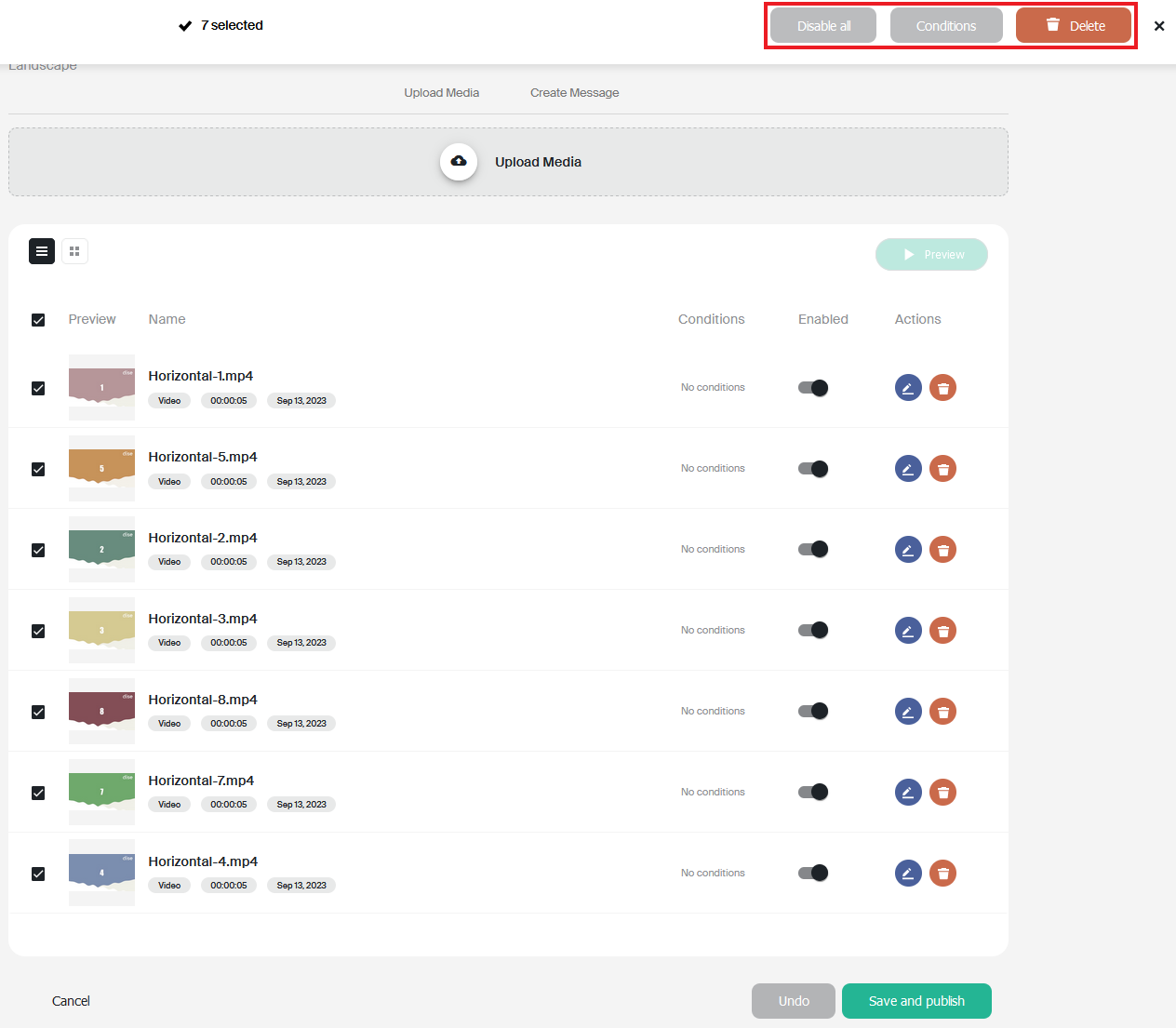
A display will play content based on the conditions set.
Conditions can be set in multiple places:
One or more of each condition type can be added:
- Multiple conditions of the same type use OR logic to determine when to play.
- Multiple conditions of different types use AND logic to determine when to play.
Example:
A playlist item has the following conditions set:
Date:
- 08/09/2023-15/09/2023
- 06/10/2023-13/10/2023
- 09:00-12:00
- 14:00-17:00
The playlist item will play between the following conditions:
- 08/09/2023-15/09/2023 AND 09:00-12:00
OR
- 08/09/2023-15/09/2023 AND 14:00-17:00
OR
- 06/10/2023-13/10/2023 AND 09:00-12:00
OR
- 06/10/2023-13/10/2023 AND 14:00-17:00
Date
- Set a start and end date.
- Set a start and end time, if applicable.
- Set no end date, if applicable.
- Click 'Add':
- Add more conditions or click 'Save'
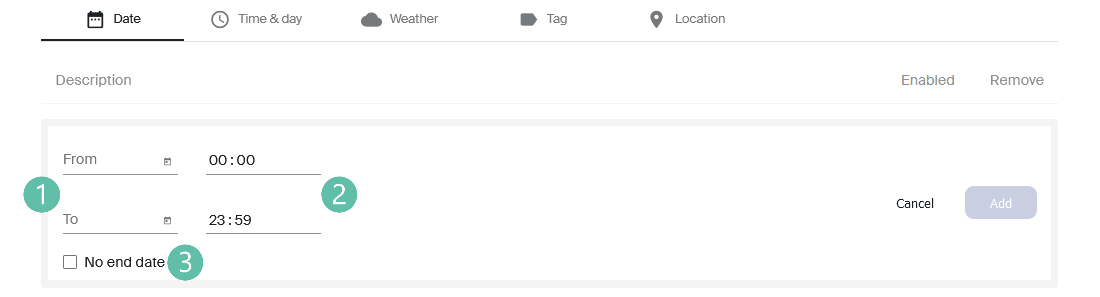
The start time only impacts the start date.
The end time only impacts the end date.
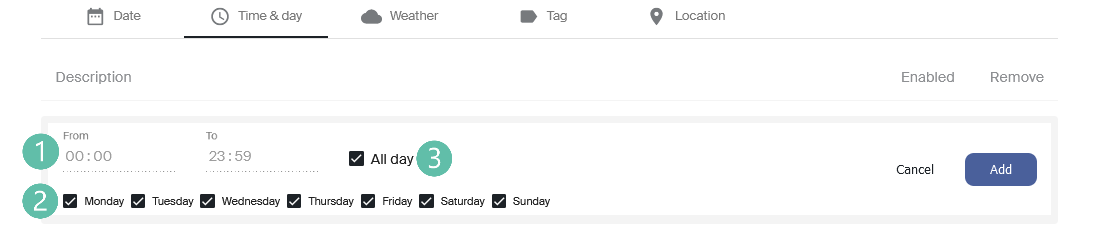
Time & day
- Set a start and end time.
- Set specific days of the week, if applicable.
- Toggle between all day and the specified start and end time.
- Click 'Add':
- Add more conditions or click 'Save'
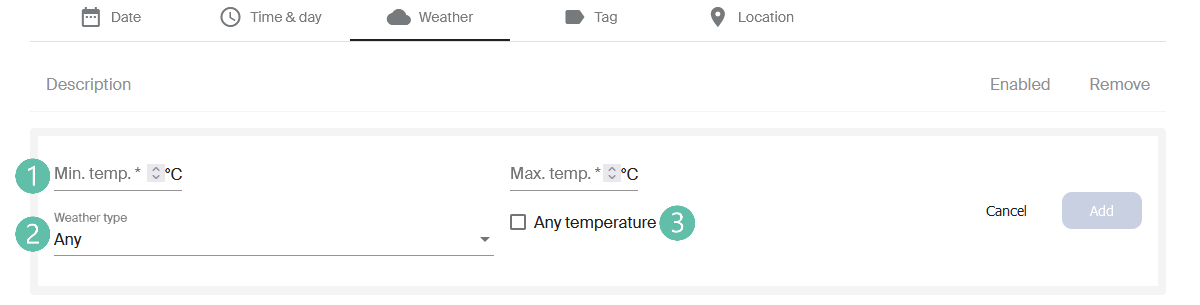
Weather
- Set a minimum and maximum temperature in Celsius.
- Set a weather type. E.g. Clear, Rain, Snow.
- Toggle between any temperature and the specified minimum and maximum temperature.
- Click 'Add':
- Add more conditions or click 'Save'
Tags
- Click 'Select tags' to add one or more previously created tags:
- Toggle a tag to add it as a condition:
 🔎︎
- Click 'Select'
- Toggle a tag to add it as a condition:
- Toggle that the content will play if the tag is present or if the tag isn't present.
- Click 'Add'.
- Add more conditions or click 'Save':
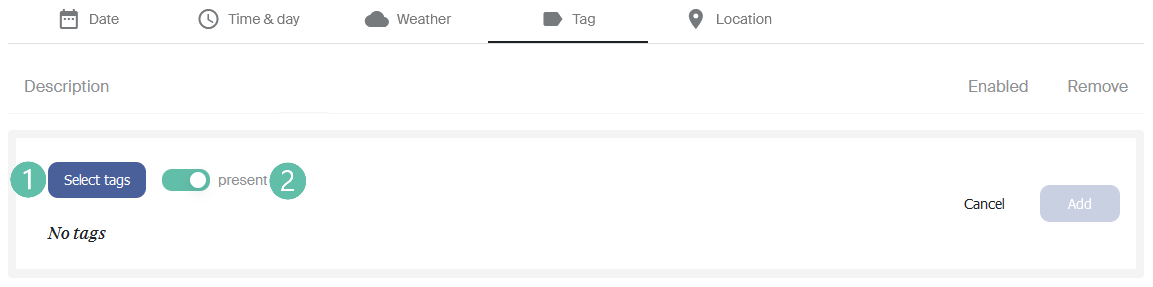
Example:
- 'Dise Karlstad' and 'Dise Lund' are using the same playlist.
- The 'Franchise' site tag is added to the 'Dise Karlstad' site.
- No tags are added to the 'Dise Lund' site.
- The 'Franchise' site tag with 'present' enabled, is added to a playlist content item.
- All displays in 'Dise Karlstad' will play the playlist content item.
- All displays in 'Dise Lund' won't play the playlist content item.
Location
- Click 'Select location' to add one or more locations:
- Click 'Select' next to the relevant location.
- Search for a location.
- The location under 'Select' will be set as the condition.
- Click 'Save':
 🔎︎
- Toggle that the content will play on displays inside the selected location or all displays outside the selected location.
- Click 'Add'.
- Add more conditions or click 'Save':
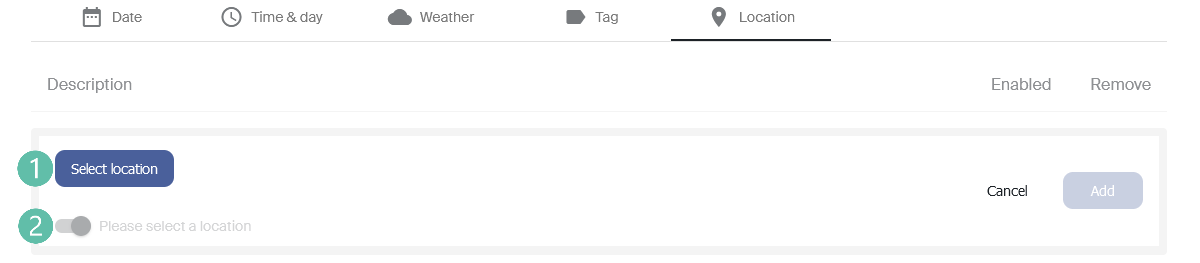
Any location level can be selected as a condition, all displays in the selected location will play the selected content.
Bulk Add Conditions
- Navigate to 'Playlists' in the left menu:
 🔎︎
- Select a playlist.
- Select one or more playlist items.
- Select an option:
- Disable all - Disable all selected content. Disabled content won't play on a display but will remain in the playlist.
- Conditions - Add to or replace conditions to all selected items:
 🔎︎
- Delete - Remove selected items from the playlist: